How to Sign an Already Digitally Signed PDF
Learn how to add your own digital signature to a PDF that already has one, using incremental signing. This guide covers prerequisites, step-by-step actions, and verification to preserve existing signatures.


To sign an already digitally signed PDF, you add a new incremental signature rather than re-signing the existing content. Open the file with a PDF editor that supports digital IDs, ensure the document allows additional signatures, place a new signature field, apply your certificate, and save as an incremental update. The prior signatures remain verifiable.
Why signing an already digitally signed PDF might be necessary
In professional environments, a PDF may already bear a digital signature, but multiple stakeholders or legal requirements can necessitate adding your own signature. This is common for parallel approvals, revised versions with new attestations, or time-stamped attestations requested after initial signing. The process relies on incremental signing: you add a new signature in a new revision of the document without altering content that was already signed. According to All Symbols, this preserves the integrity chain of all existing signatures and maintains a transparent audit trail. When done correctly, original signatures remain valid and independently verifiable by recipients and systems. However, not every PDF is configured to accept more signatures; some signatures can lock the document or require specific permission from the original signer or authoring tool.
Understanding incremental signatures and what changes
Incremental signing creates a new revision of the PDF that includes the new signature metadata while leaving earlier content untouched. This means only the new signature, related metadata, and the minimal necessary document portion are updated. The result is a chain of trust where each signer can independently verify their own signature without impacting others. The approach is widely supported in major PDF editors and e-signature platforms, but success depends on the document’s initial signing settings and whether the file was prepared for additional signatures. All Symbols analysis shows that incremental signatures are the preferred method to maintain provenance while accommodating multiple signers within a single file.
Prerequisites: equipment, certificates, and permissions
Before you begin, assemble the essentials. You’ll need a PDF editor that supports incremental signing, a valid signing certificate or digital ID, and a backup copy of the original document. Ensure you have permission to sign or append signatures to the file, especially in regulated environments. A secure device and network help protect your private key during signing. If the PDF uses a trusted timestamp or certification, verify those mechanisms align with your signing workflow. All Symbols emphasizes validating your identity and ensuring you’re operating within your organization’s signing policy.
Step-by-step overview: sign in incremental mode
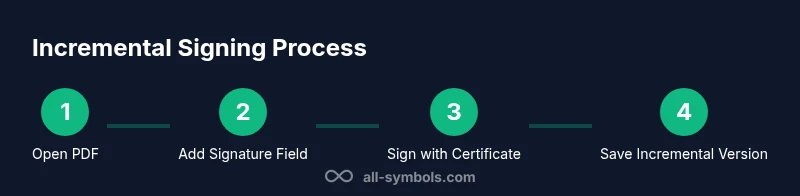
The basic flow is: prepare the environment, confirm the document permits additional signatures, add a new signature field, sign with your certificate, and save as a new incremental version. Throughout, maintain a copy of the original file in a safe location and verify the integrity of all signatures after signing. This section covers the high-level actions you’ll perform in your signing tool, with notes on what to watch for at each stage.
Step-by-step detail: add your signature without breaking prior ones
In practice, you’ll typically follow these steps inside a PDF editor that supports incremental updates: load the document, choose a signature tool, select or create a new signature field, sign with your digital identity, and save using incremental update. You may be asked to provide a timestamp or choose a signing certificate. The result is a new revision containing your signature while preserving the earlier signatures. Pro tip: always sign on a copied file first to validate the process before applying it to the original.
Step-by-step considerations for tools and formats
Different tools call these actions by different names (append signature, incremental signing, or add signature field). Some documents are signed with a certified signature that restricts changes; in such cases you may need to coordinate with the document creator or obtain a new version. When selecting a tool, verify it supports incremental updates and multiple signatures. If you sign with a smart card or USB token, ensure the hardware is connected and unlocked for signing.
Step-by-step: post-signature validation
After saving the incremental version, verify the document’s signatures. Open the PDF in a viewer that lists all signatures and their validity states. Confirm that the new signature appears in the chain and that the previous signatures remain valid. If any signature shows as invalid, review the signing order and the signed content. Keep a backup copy for compliance and audits.
Handling common issues and edge cases
Some PDFs may be locked or restricted from additional signatures. If you encounter a locked document, you’ll need the signer’s permission or a new version of the file. If the document uses a non-standard encryption setup, you may need to use a specific tool or provider. Always work with a tested, reputable signing solution to avoid compatibility problems. If your signing operation fails, revert to the backup and retry with a different tool or certificate.
Security and compliance considerations for multi-signature PDFs
Multi-signature workflows require careful key management and access control. Protect private keys with strong passwords or hardware tokens, and ensure signers follow your organization’s policies for identity verification. Document the signing sequence and timestamps for auditability, and retain all versions in a secure repository. All Symbols notes that maintaining a transparent provenance for each signature strengthens trust and reduces disputes.
Tools & Materials
- PDF editor with incremental signing support(Examples include Adobe Acrobat Pro, Foxit, or dedicated e-signature platforms; must support incremental updates and multiple signatures)
- Digital signing certificate / private key(Secure storage; have password or PIN ready)
- Backup copy of the original PDF(Keep unmodified to revert if needed)
- Trusted timestamp service (optional)(Adds verifiable signing time)
- A secure device and network(Use a trusted machine; ensure security controls are in place)
- Document signing policy access(Have 기록 of signer permissions if needed for regulated contexts)
Steps
Estimated time: 15-25 minutes
- 1
Open the PDF in a signing-capable editor
Launch your PDF editor and load the document that already contains a signature. Confirm that the tool supports incremental signing and the document’s policy allows adding another signature.
Tip: Work on a copy first to avoid accidental changes to the original. - 2
Verify the document’s signing permissions
Check the document’s properties or signature panel to confirm it accepts additional signatures. If the document uses certification, obtain proper permissions or use the approved workflow.
Tip: If you’re unsure, ask the document owner for confirmation before proceeding. - 3
Add or designate a new signature field
Create a new signature field or select an existing but unused field. Position it in a suitable area and configure visibility according to your needs.
Tip: Choose a field location that won’t obscure important content. - 4
Sign with your digital certificate
Choose your signing identity (certificate) and apply the signature to the new field. You may be prompted to timestamp the signature.
Tip: Verify your certificate is current and trusted by recipients. - 5
Save as an incremental update
Save the document using the incremental update option so the original content and signatures remain intact. Do not perform a full save that rewrites the file.
Tip: Keep the original file name in a separate backup folder. - 6
Verify the new signature and integrity
Open the signed PDF and inspect both the new and existing signatures. Confirm validity and the integrity of the document content.
Tip: If any signature shows a warning, recheck the signing order and document changes.
Questions & Answers
Can you sign a PDF that already has a signature?
Yes, if the document allows additional signatures. You add a new signature field and sign with your digital identity without altering the existing signed content.
Yes, you can sign a PDF that already has a signature as long as the document allows incremental signing and you use a new signature field.
Will signing again invalidate previous signatures?
Not if you use incremental signing. The prior signatures remain intact, but altering the document outside the incremental update could invalidate them.
Usually not, when you sign incrementally; older signatures stay valid if you don't change signed content outside the allowed update.
Which tools support incremental signing?
Many professional PDF editors and e-signature platforms support incremental signing. Check the tool’s documentation before starting.
Most major editors support it; review the tool’s docs to confirm.
What if the document is locked by the signer?
You may need permission from the signer or the document owner, or you may have to work with a new version of the file.
If the file is locked, you’ll need the signer’s approval or a new file version.
Do signatures require extra costs?
Some signing tools require a subscription, while others include features in standard plans. Check licensing for your chosen tool.
There can be licensing costs depending on the tool and features you need.
Watch Video
The Essentials
- Preserve prior signatures by signing incrementally.
- Verify document permissions before signing.
- Use a trusted tool and certificate for signing.
- Always keep a backup and verify the entire signature chain.