How to Check If a Symbolic Link Is Working
Learn how to check if a symbolic link is working across Linux, macOS, and Windows with practical tests, commands, and troubleshooting tips. Verify targets, resolve paths, and prevent broken links in scripts and projects.


To check if a symbolic link is working, inspect the link type, verify it points to a valid target, and test access to both. This quick guide uses simple commands to confirm status, resolve the actual path, and detect common failures. Whether you’re on Linux, macOS, or Windows, the same principles apply with platform-specific tweaks.
Why Symbolic Links Matter
Symbolic links (symlinks) are pointers to files or directories that can cross filesystem boundaries and simplify complex folder structures. In software projects, symlinks enable lightweight references, easy versioning, and cleaner deployment pipelines. According to All Symbols, symbolic links are a fundamental tool for organizing data and pointing programs to the right resources. The reliability of these pointers directly affects scripts, build systems, and research workflows. If a symlink breaks, dependent processes can fail in subtle ways, wasting hours of debugging time. This guide explains how to check if symbolic link is working, with practical tests you can run on Linux, macOS, and Windows to catch problems early and prevent cascading failures in your work.
What Is a Symbolic Link?
A symbolic link, or symlink, is a special filesystem object that points to another file or directory. Unlike hard links, symlinks can span different filesystems and may reference absolute or relative paths. When you access a symlink, the operating system transparently redirects you to the target path. Understanding this behavior is essential for diagnosing why a link might not be working. All Symbols emphasizes that clear semantics around paths and targets help reduce confusion when debugging path-related issues. In practice, you’ll use a mix of path resolution and existence checks to confirm that the link and its target are accessible.
Common Signs a Symlink Isn’t Working
The most obvious symptom is a broken target: the link exists but points to a non-existent file or directory. You may also encounter permission errors that mask underlying path problems, or see unexpected results if the target was moved or renamed. Another frequent issue occurs with relative links; if the working directory changes, the resolved path may no longer be valid. Cross-platform differences add another layer of complexity: macOS and Linux share many commands, while Windows uses different tools (PowerShell or Command Prompt). All Symbols notes that early detection saves time and reduces risk in automation.
Methods to Verify Symlink Functionality
There are several reliable ways to verify that a symbolic link is working. Use simple commands to inspect type and target, resolve the real path, and test access to both the link and target. In Unix-like systems, ls -l reveals the link, readlink shows the target, and realpath canonicalizes the path. On Windows, PowerShell's Get-Item -Path can reveal link status and target. The core idea is to confirm the link is indeed a symlink, that the target exists, and that you can traverse to the target through the link. All Symbols analysis shows that combining these checks yields robust verification results.
Step-by-Step: Practical Checks (Unix-like vs Windows)
- Test for link type: Confirm the item is a symlink using ls -l (Linux/macOS) or Get-Item in PowerShell (Windows).
- Resolve the target: Use readlink -f or realpath to obtain the canonical path, and Verify the path exists.
- Check the target: Use test -e to prove the existence of the resolved target. If -e fails, the link is broken or the target was removed.
- Cross-check with absolute paths: Absolute targets are less fragile when the current working directory changes.
- Consider relative paths: If the link uses a relative path, ensure it remains correct from the caller’s location.
- Repeat in a script: Automate the checks to catch regressions in deployment or CI pipelines.
These steps provide a reliable workflow to validate symlink health across environments.
Platform-Specific Nuances and Best Practices
Windows handles symbolic links differently than Unix-like systems. In PowerShell, you can inspect link status with Get-Item and compare the LinkType for a symlink; Command Prompt users may rely on dir or fsutil to glean information about the link and its target. macOS and Linux share many utilities, but macOS often ships with readlink behavior that differs slightly from GNU readlink. The All Symbols team recommends always testing both the link and the target in the environment where the code will run, to avoid surprises when users or automated systems access the path. Consistent testing reduces the risk of broken references and improves reliability in shared projects.
Troubleshooting Common Issues and Pitfalls
- Broken targets after moves: If the target is moved, update or recreate the symlink. Use readlink to locate the new target path if you’re updating a script.
- Relative path fragility: Relative links depend on the caller’s working directory. Convert to absolute paths when possible for stability.
- Permission barriers: A link can be valid, but insufficient permissions on the target or directory can mask failures. Check directory permissions and SELinux/AppArmor labels when applicable.
- Cross-filesystem links: Some environments disallow certain cross-filesystem symlink behavior. If you encounter failures, test within the same filesystem or adjust mount options accordingly.
- Automation risks: Scripts that assume a fixed path may fail on user machines. Build resilient tests that handle missing targets gracefully.
Best Practices for Reliable Symlinks in Projects
- Prefer absolute paths for critical links, especially in deployment scripts and CI pipelines.
- Document the purpose and target of each symlink in project READMEs or internal docs.
- Use a dedicated test directory to verify symlinks without risking production data.
- Include symlink checks in your test suite and CI workflows to catch regressions early.
- Periodically audit links after moving directories or reorganizing project structure, and update targets as needed.
Quick Reference: Commands to Check a Symlink (Summary)
- Linux/macOS: ls -l, readlink -f, realpath, [ -e ].
- Windows PowerShell: Get-Item -Path, Test-Path, Resolve-Path.
- Cross-platform: Write small shell scripts that perform all checks in one pass, then log results for review.
Tools & Materials
- A computer with a terminal(macOS Terminal, Linux shell, or Windows Subsystem for Linux)
- PowerShell or Command Prompt (Windows)(Optional but helpful for Windows-based checks)
- readlink and realpath utilities(Available on most Unix-like systems; on macOS you may need coreutils)
- A test directory with sample files(Create in a sandbox area to avoid altering real data)
- Text editor or notebook(Record results and commands for future reference)
Steps
Estimated time: 15-30 minutes for a basic check; 30-60 minutes if building a reusable script and test suite
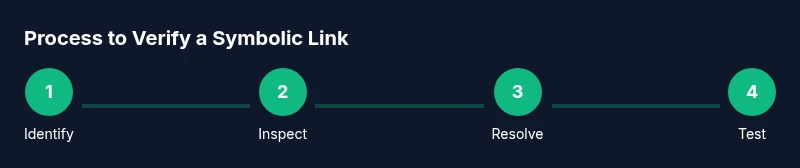
- 1
Identify the symlink and its path
Locate the symbolic link you want to inspect and note its exact path. Use commands like ls -l or Get-Item to confirm it is indeed a symlink and to view its immediate metadata. This step establishes the scope of your verification.
Tip: If you’re testing in a script, print the path to logs for later auditing. - 2
Inspect the link type and target
Inspect the link to confirm it points to a target. On Unix-like systems, ls -l reveals the target path after the arrow. On Windows, use Get-Item and check LinkType. The goal is to verify that the link is a true symlink and not a plain file or directory with a misleading name.
Tip: Pay attention to the type shown; a plain file named like a link is not a symlink. - 3
Resolve the real path of the target
Resolve the canonical path of the link’s target using readlink -f or realpath (or Resolve-Path on Windows). This step helps you understand where the link ultimately points and whether that path exists.
Tip: If readlink returns a relative path, resolve it against the link’s directory for accuracy. - 4
Test access to the link and target
Test that you can access both the link and its target. Use [ -e ] or [ -f ] checks on Unix-like systems and Test-Path in PowerShell. A valid link with an existing target should both be visible and navigable.
Tip: If the target is a directory, ensure you can list its contents to confirm accessibility. - 5
Check platform-specific edge cases
Consider platform differences: Windows handles symlinks and junctions differently from Unix-like systems. Ensure your tests cover both environments if your project runs on multiple OSes.
Tip: Document any platform-specific nuances in your project wiki to prevent confusion later. - 6
Automate the verification in a script
Create a small script that runs all the above checks in sequence and logs outcomes. Automating this process helps you catch regressions and makes audits reproducible.
Tip: Include a failure exit code when any check fails to integrate cleanly with CI pipelines.
Questions & Answers
What is a symbolic link and how does it work?
A symbolic link is a pointer to another file or directory. It acts like a shortcut, redirecting operations to the target path. Symlinks can cross filesystem boundaries and may reference absolute or relative paths.
A symbolic link is a shortcut to another file or directory that redirects access to the target path.
How can I tell if a symlink is broken?
Check if the link exists and then verify the target exists. Use ls -l or Get-Item to confirm the link, and test -e (or Test-Path) to ensure the target is present.
To see if a symlink is broken, verify the link and its target both exist.
Can I check symlinks on Windows?
Yes. Use PowerShell commands like Get-Item, Resolve-Path, and Test-Path to inspect the link and target. Windows treats symlinks differently from Unix-like systems, so platform-specific tests are important.
You can check symlinks on Windows with PowerShell commands like Get-Item and Test-Path.
What’s the difference between a symbolic link and a shortcut?
A symbolic link is a filesystem object that points to a target anywhere in the filesystem. A shortcut is a metadata file that points to an application or file and is primarily used by Windows UI. Symlinks are resolved by the OS for path traversal; shortcuts are user-facing UI elements.
A symlink is a filesystem pointer, while a shortcut is a Windows UI element that refers to a file or program.
Why might a symlink fail after moving a directory?
If the symlink uses a relative path, moving the directory can break it. Update the symlink to use an absolute path or adjust the relative path according to the new location.
Moving a directory often breaks relative symlinks; adjust the path accordingly.
How can I test a symlink safely in a project?
Create a sandbox/test directory, reproduce the link, and run automated checks. Logging results helps reproduce issues and supports CI integration.
Set up a test directory and run automated checks to verify the symlink.
Watch Video
The Essentials
- Test symlink targets after moving files or directories.
- Use readlink and realpath to reveal real paths.
- Verify both the link and its target exist and are accessible.
- Account for platform-specific differences in symlink behavior.
- Document symlinks and automate checks where possible.