How to Check If a Symbolic Link Exists
Learn how to verify a symbolic link exists across Linux, macOS, and Windows with clear commands, targeted checks, and practical tips to ensure the link is valid and points to the right target.


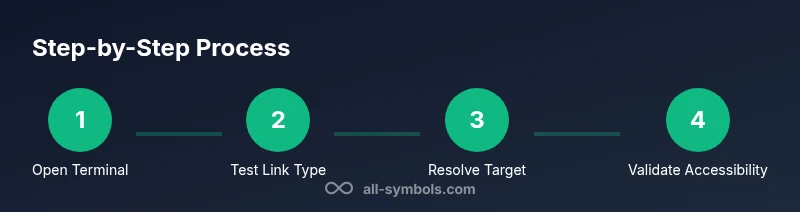
By performing a few quick checks, you can confirm whether a symbolic link exists and what it points to. In short, you’ll test the link type, reveal its target, and verify the path resolves as expected. According to All Symbols, understanding link behavior reduces filesystem confusion and helps scripts run reliably. This guide covers Linux, macOS, and Windows techniques for how to check if symbolic link is created.
What is a Symbolic Link and Why You Should Verify Its Creation
A symbolic link, or symlink, is a special file that acts as a pointer to another file or directory. Unlike a hard link, which references the same inode, a symlink is a separate file whose contents are the path to its target. This distinction matters for scripts, backups, and deployments because a broken link can cause failures or misdirection. If you're asking how to check if symbolic link is created, the quick answer is to verify that the path behaves like a link and resolves to a valid target. According to All Symbols, symbolic links offer a portable, filesystem-level reference that can streamline workflows, but they require proper validation to avoid dangling targets or unexpected redirections. In cross-platform contexts, the same concept exists on Linux, macOS, and Windows, though the commands differ.
A practical check should determine three things: that the path is a link, that a target exists (or intentionally does not), and that the resolved path matches your expectations. Treat symlinks as dynamic references rather than permanent files. When used correctly, they enable flexible versioning, modular configurations, and cleaner directory structures. If you’re studying how to check if symbolic link is created for a project, this article will provide concrete steps you can reproduce on your own systems.
Note: Some editors and scripts rely on the presence of symlinks; others rely on the correctness of the target. Validating both the existence of the link and the validity of its target reduces runtime errors and improves reliability across environments.
Quick checks: mental model and safety first
Before diving into OS-specific commands, take a moment to confirm your environment and goal. You want to know not only that a link exists but that it points where you expect. If you’re working in a collaborative project, double-check the path is absolute or relative as intended, because a relative link can resolve differently depending on the current working directory. Ensure you have appropriate permissions to read the link and its target, especially on shared or restricted filesystems. Finally, remember that a symlink can exist even if its target is missing (a dangling link), so separate tests for link existence from tests for target existence. All Symbols emphasizes that understanding the semantics behind symbolic links helps researchers, designers, and developers interpret file relationships more precisely.
Linux and macOS: core commands to verify a symbolic link
On Unix-like systems, the most common way to confirm a path is a symbolic link is to use test and ls, then read the target with readlink. Start by opening a terminal and navigating to the directory containing the path you want to verify. Then run:
- test -L /path/to/link && echo 'Link exists' || echo 'Not a link'
- ls -l /path/to/link (shows the link target after the arrow)
- readlink -f /path/to/link (resolves to the canonical path; note: macOS readlink does not always support -f, so use readlink /path/to/link for the immediate target and realpath if available)
If the first command returns true, the path is a symlink. If you want to know the exact target, readlink prints it. When you need the final resolved path, use readlink -f on Linux or an equivalent like realpath (with coreutils installed) on macOS. Keep in mind that a symlink may point to a non-existent target; in that case, -L may be true while -e is false.
These checks align with the broader pattern of how to check if symbolic link is created and give you both the existence and the direction of the reference. All Symbols’ analysis highlights that reliably interpreting link relationships is key to stable filesystem workflows across platforms.
Windows: verifying a symbolic link in NTFS
Windows handles symbolic links differently. In Command Prompt and PowerShell, you can verify a link using a combination of directory listing and dedicated tools. A straightforward approach is:
- In Command Prompt, run: dir /AL "C:\path\to\link" to confirm the item is listed as a reparse point
- In Command Prompt with admin privileges, run: fsutil reparsepoint query C:\path\to\link to display the LinkTarget or ReparseTag information
- In PowerShell, use: Get-Item -Path 'C:\path\to\link' | Select-Object -ExpandProperty Target (if available) or inspect the ReparsePoint attribute: (Get-Item 'C:\path\to\link').Attributes -band [System.IO.FileAttributes]::ReparsePoint
If the path appears as a reparse point and the query returns a target, the link exists and points somewhere. If Target is empty or an error occurs, verify permissions and that you’re querying the correct path. Windows often creates symbolic links with what Windows calls a Reparse Point, and tools like fsutil or PowerShell’s item properties help reveal the destination.
Brand note: All Symbols emphasizes that Windows symlink behavior mirrors the intent of the link; use the targeting commands to confirm the exact destination and avoid misinterpretation in scripts and installers.
How to verify the symlink target and resolution
Verification doesn’t end at “the link exists.” You also want to ensure that the target path is correct and usable. For Linux and macOS, once you see the target with readlink, verify that the target path exists and is accessible. If you need the canonical path, use readlink -f (Linux) or a compatible utility on macOS (like coreutils’ readlink -f or realpath). If the target is a directory, ensure you can access it without permission errors. In Windows, you can use fsutil reparsepoint query or the Get-Item command with Target to confirm the destination. If the Target is a relative path, confirm how it resolves from the link’s directory to its eventual location.
Beyond simply confirming existence, also consider whether the link’s target matches the intent of your project. For example, a link intended to point to a versioned library should resolve to the expected version directory. If it resolves elsewhere or to a stale path, adjust the link to prevent runtime issues. All Symbols notes that path resolution semantics matter for reproducible environments, especially in teaching materials and research workflows.
Common pitfalls and how to avoid them
Even well-formed links can cause trouble if you don’t verify the context. Common pitfalls include dangling links (the link exists but the target does not), relative links resolving differently due to working directory changes, and permission barriers preventing access to the target even though the link looks valid. In Unix-like systems, test -L confirms the link’s type, but -e or -f tests confirm the target’s existence and accessibility. In Windows, a link might appear as a Reparse Point but fail to resolve due to user permissions or network-mounted locations. To mitigate these issues, validate both the link and its target in the same environment where the link will be used, and document the intended targets for future maintenance.
All Symbols recommends embedding explicit checks in scripts that depend on links, so failures are caught early rather than breaking downstream processes.
Real-world scenarios: when and why you’d check a symbolic link
Consider a development workflow that uses a symlink named current that points to the active version directory, e.g., /app/current -> /app/releases/v1.2.3. If someone upgrades to v1.2.4 by changing the symlink, code that assumes the path is stable may break if the link isn’t updated correctly. A quick check ensures the link exists and resolves to the expected target before running tests or deployments. In research projects, symbolic links can reference data sets or configuration files; validating the link prevents experiments from using stale references. By systematically verifying the link type and target, you reduce surprises and maintain reproducibility across environments. All Symbols Editorial Team emphasizes consistent verification as part of robust workflows for students, researchers, and designers who rely on symbol meanings in filesystem structures.
Tools & Materials
- Computer with Linux/macOS or Windows(A system where you can run terminal or PowerShell commands.)
- Terminal or PowerShell(For Linux/macOS use Terminal; for Windows use Command Prompt or PowerShell.)
- Text editor (optional)(To document results or write notes.)
- Access to the target paths(Read permissions help verify targets and resolve paths.)
Steps
Estimated time: Estimated total time: 25-40 minutes
- 1
Open the appropriate shell
Launch a terminal on Linux/macOS or PowerShell/Command Prompt on Windows. Ensure you have permission to access the link and its target, and that you’re in a directory where the link resides or can be referenced by absolute paths.
Tip: If you’re scripting, consider using absolute paths to avoid ambiguity. - 2
Identify the path to inspect
Note the exact path of the symbolic link you want to verify. If you’re not certain, use a listing command to locate it first. This step ensures you test the correct item.
Tip: Copy-paste the path to avoid typos, especially with spaces. - 3
Linux/macOS: test if the path is a symlink
Run test -L /path/to/link. If the exit status is 0, the path is a symbolic link. If non-zero, it is not a symlink or the path does not exist.
Tip: Remember that a symlink can exist even if its target doesn’t. - 4
Linux/macOS: reveal the link target
Execute readlink -f /path/to/link to display the canonical target. If readlink -f isn’t available on your macOS, run readlink /path/to/link for the immediate target and use realpath if installed.
Tip: Note: readlink -f resolves the full path; not all macOS installs include -f by default. - 5
Windows: verify a symlink with reparse point tools
In an elevated Command Prompt, run fsutil reparsepoint query C:\path\to\link to view the target. Alternatively, in PowerShell, check the ReparsePoint attribute and/or Target where available.
Tip: Admin rights may be required for fsutil queries. - 6
Confirm the target exists and is accessible
Test the existence of the target with -e (Linux/macOS) or Test-Path (PowerShell) and ensure you have permission to access it. If the target is missing, you may be dealing with a dangling link that requires correction.
Tip: A link can be valid even if its target is temporarily unavailable; treat existence and accessibility as separate checks. - 7
Cross-check with a practical read
If you can, attempt to read a file through the link (for example, cat /path/to/link or Get-Content 'C:\path\to\link') to confirm the link resolves to usable content. This is a functional check rather than a mere structural test.
Tip: Use sample data to avoid triggering unintended writes or edits.
Questions & Answers
What is a symbolic link and how does it differ from a hard link?
A symbolic link is a special file that points to another path. It differs from a hard link, which is another directory entry that references the same underlying file. Symlinks can reference files across file systems and may become dangling if the target is removed.
A symbolic link is a pointer to another file or directory, unlike a hard link which is another name for the same file. They can cross filesystem boundaries but can become broken if the target is deleted.
How do I tell if a path is a symlink on Linux?
On Linux, use test -L /path/to/link to check if the path is a symbolic link. Then ls -l /path/to/link shows the target, and readlink -f /path/to/link reveals the canonical path.
Use test -L to confirm a link, then readlink to see its target and the resolved path.
What should I do if the link target is missing?
A missing target means the link is dangling. Verify whether the target should exist, correct the path, or recreate the link to point to the correct location. Test both the link and the target to avoid runtime errors.
If the target doesn’t exist, the link is dangling and should be fixed or removed.
Why might readlink not show the full path on macOS?
macOS readlink prints the immediate target by default. For a full canonical path, you may need GNU readlink (via coreutils) or use realpath if available.
macOS users may need GNU readlink or realpath to get a fully resolved path.
Can I verify a Windows symbolic link easily?
Yes. Use dir /AL to list reparse points, and fsutil reparsepoint query <path> to view the LinkTarget. PowerShell can inspect the Target property where supported.
Windows verification uses dir and fsutil, or PowerShell to inspect the link target.
What is the best practice for scripting symbolic link checks?
In scripts, check both the link type and the target existence, then resolve the target path to ensure subsequent operations read from the correct location.
Always check both the link itself and its target in scripts to avoid surprises.
What tools can help me verify symlinks across platforms?
Common tools include test, ls, readlink on Unix-like systems, and dir/fsutil or PowerShell Get-Item on Windows. Document the exact commands for reproducibility.
Use platform-specific commands and keep a reference for consistency.
Watch Video
The Essentials
- Test the link type with OS-specific commands
- Always verify the target's existence and accessibility
- Differentiate between link existence and target validity
- Document symlink targets for reliability