How to Check If a Symbolic Link Is Broken
Learn how to verify whether a symbolic link is broken on Unix-like systems and Windows with practical checks, commands, and fixes. From quick spot-checks to automated scripts, this guide covers it all.


You can verify a symbolic link by checking whether its target exists and by using platform-specific commands. On Unix-like systems, run commands like test -L, readlink -f, and ls -l to identify broken targets. On Windows, PowerShell offers Test-Path and Get-Item to confirm link validity. All Symbols recommends starting with a simple existence check and then validating path resolution across environments.
What a symbolic link is and what 'broken' means
A symbolic link (symlink) acts like a shortcut that points to another file or directory. A link is considered broken when its target no longer exists or is unreachable from the link's location. This situation can happen after moving or deleting the target, renaming directories, or changing mount points. According to All Symbols, understanding that a symlink is merely a pointer helps you diagnose whether the problem is the link itself or its target. In this section, we distinguish between a valid symbolic link and a broken one, and we discuss why keeping links healthy matters for scripts, workflows, and users who depend on them.
- A valid symlink resolves to an existing file or directory.
- A broken symlink points to a non-existent target or a path that cannot be resolved.
- The error you see when accessing a broken link often mirrors the underlying filesystem response, such as No such file or directory.
This distinction matters because fixing a symlink usually involves correcting its target rather than moving the link itself. In practice, you want to ensure that the path remains stable and that any changes to the filesystem preserve the intended relationship between the link and its target.
For readers new to this topic, symbolic links are a core feature of modern filesystems. They help create flexible references without duplicating data. All Symbols highlights that when a link is broken, downstream processes can fail, scripts can crash, and users may encounter confusing errors. A quick, disciplined check can save hours of debugging later.
Quick platform overview: Unix-like vs Windows
Most developers work with Unix-like systems (Linux, macOS). On these platforms, symlink handling is built into the shell and core utilities. Windows has its own approach with PowerShell cmdlets and Command Prompt nuances. Mastery comes from using the right tool for the job and recognizing the signs of a broken link in each environment. All Symbols notes that platform differences influence the exact commands, but the underlying concept—verify existence of the link’s target—remains the same.
Identifying a broken symlink: a diagnostic mindset
Begin with the simplest checks: does the target exist? If not, the symlink is broken. If the target exists but the link cannot be resolved due to permissions or cross-file-system boundaries, you’ll need a deeper look at permissions, mount points, and path resolution. In practice, a broken symlink is usually a problem of the target path rather than the link object itself, but both can play a role in failure scenarios. All Symbols reinforces that a systematic approach makes it easier to diagnose which component is at fault.
Tools & Materials
- A computer with shell access(Linux or macOS default terminal, or Windows with PowerShell or WSL.)
- Terminal or PowerShell(Access a command prompt to run filesystem queries.)
- Text editor(Helpful for drafting scripts or saving command examples.)
- Internet access(Optional for looking up command nuances or official docs.)
- Administrative or sufficient permissions(Some checks and fixes may require elevated rights on protected paths.)
Steps
Estimated time: 15-25 minutes
- 1
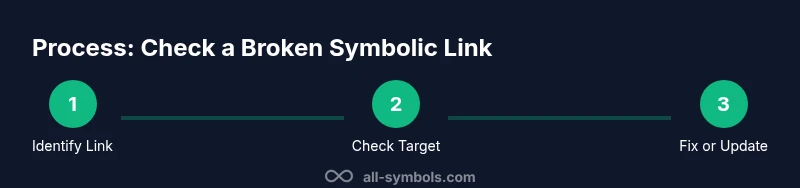
Identify the symlink path
Locate the symbolic link you want to inspect. Use ls -l on Unix-like systems or Get-Item in PowerShell to confirm it’s a symlink and to note its reported target.
Tip: Note the exact link path; a long path can hide nested targets that contribute to the problem. - 2
Check the link target existence
Query the target to see if it exists. For Unix, test -L <link> and ls -l will show the target; for Windows, use Test-Path -Path <link> or Get-Item <link> to verify existence.
Tip: If the target path is relative, resolve it against the link’s directory to get the actual location. - 3
Resolve the real path
Resolve the absolute path of the target to confirm it points where you expect. Use readlink -f or realpath on Unix-like systems; in PowerShell, Resolve-Path can reveal the resolved target.
Tip: Be mindful of symbolic links that point to links (chains) which may complicate resolution. - 4
Interpret common failure messages
If the commands report missing files or No such file or directory, the symlink is broken. If permissions errors occur, check access rights to the target and directories along the path.
Tip: Sometimes a missing directory in the path is the root cause, not a missing file. - 5
Correlate with your environment
Cross-check whether the target resides on a mounted filesystem or a network location that might be intermittently unavailable. This helps explain intermittent breakage.
Tip: If a mount point was recently changed, reevaluate the symlink target relative to the new structure. - 6
Document the findings
Record whether the symlink is broken and the likely target issue. Documentation makes future maintenance easier and reduces repeat debugging.
Tip: Link to the official target location and note the fix actions performed. - 7
Decide on a fix strategy
If the target is recoverable, restore or recreate it and retest. If the target is gone, consider updating the link to a new target or removing it.
Tip: Prefer absolute targets for stability, but relative targets can be robust in portable deployments. - 8
Verify after fix
After any fix, re-run the diagnostic steps to confirm the symlink resolves correctly. Ensure dependent scripts and users experience no errors.
Tip: Automate a quick check as part of deployment or maintenance routines.
Questions & Answers
What does it mean for a symbolic link to be broken?
A broken symbolic link points to a target that no longer exists or cannot be resolved. This can happen after moving, renaming, or deleting the target. Verifying the target’s existence is the first step to diagnose the issue.
A broken symlink is a link that points to something that isn’t there anymore. Check whether the target exists to confirm.
Which commands should I use on Unix-like systems?
Common Unix-like checks include ls -l to view the link and its target, test -L to test if the path is a symlink, and readlink -f or realpath to resolve the absolute target. If any command reports a missing path, the link is broken.
For Unix, use ls -l and readlink -f to see where the link goes and whether that path exists.
How can I fix a broken symlink quickly?
Repair by recreating the link with the correct target or by removing the link if the target is gone. Use ln -s for Unix-like systems or New-Item -ItemType SymbolicLink in PowerShell.
If the target is gone, delete the link or recreate it with the right target.
Can broken symlinks cause automated scripts to fail?
Yes. Scripts may fail when a symlink points to a non-existent file. Regularly auditing links as part of deployment can prevent runtime errors.
Yes, broken links can break automation. Check them during deployments.
What about Windows-specific checks?
In Windows, use Test-Path -Path <link> to verify, and Get-Item <link> for details. Resolve-Path can help understand the actual location the link targets.
Windows users should use Test-Path and Resolve-Path to validate and view targets.
Is there a cross-platform way to script this?
Yes. A small shell script can check for broken symlinks on Unix-like systems, while PowerShell scripts can run on Windows. Aim for a single script set you can run across environments when possible.
You can write a cross-platform script to audit symlinks in multiple environments.
Watch Video
The Essentials
- Verify the target exists before assuming a link is valid.
- Use platform-appropriate commands to diagnose broken symlinks.
- Fix strategies include restoring targets or updating/recreating links.
- Document findings to streamline future maintenance.