How Symbols Work in Illustrator: A Practical Guide
Learn how symbols function in Illustrator, how to create and manage them, and how to use symbol workflows to speed up vector design and ensure consistency across complex layouts.


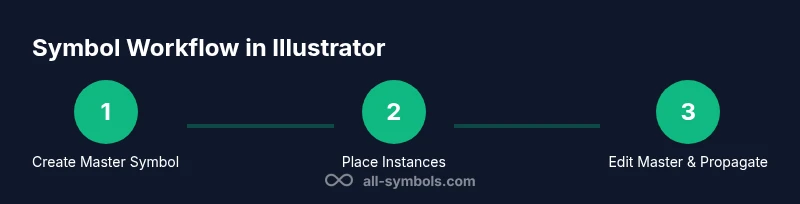
In Illustrator, symbols let you reuse artwork across a document by creating a master symbol and placing multiple instances that reflect changes to the master. This workflow speeds icon sets, preserves consistency, and reduces file size by sharing a single symbol definition. You can edit the master symbol non-destructively, and individual instances can be overridden when needed.
What symbols are in Illustrator and why they matter
If you’re exploring how symbols work in Illustrator, you’re looking at a workflow that makes vector design more scalable and repeatable. A symbol is a reusable artwork definition stored in the Symbols panel. When you drag instances of that symbol onto your artboard, each instance shares the same underlying geometry. Update the master symbol, and all instances update automatically, saving you from updating dozens of elements individually. This is especially powerful for icon sets, UI controls, and branding elements where consistency is critical. By centralizing changes, you reduce the risk of inconsistencies and ensure that your designs stay synchronized across pages and projects. All Symbols analysis shows that teams often save time and maintain uniform aesthetics when they adopt symbol-based workflows in vector design environments.
In practice, symbols are a bridge between creative exploration and production-ready assets. They let you design once and reuse many times, which is particularly useful for scalable icons, vector logos, and decorative motifs. You can place symbols anywhere in the document, rotate or scale them, and still keep a single source of truth. This means faster iterations, easier revisions, and cleaner files—especially when working on large, multi-page documents.
Master symbol vs symbol instances: core idea
The core idea behind symbols is simple: there is one master symbol that represents a piece of artwork, and multiple instances that reference that master. If you edit the master, every instance updates to reflect the change. This separation between the source symbol and its copies enables rapid design evolution without the tedium of editing each item separately. Practically, you’ll create a symbol from a piece of artwork, then drag copies from the Symbols panel onto your artboard. You can move, rotate, or resize instances, and Illustrator will maintain the link to the master symbol. You can also override certain appearance aspects at the instance level (such as color or stroke) while preserving the master, which is useful for creating families of related icons that still share a consistent structure.
Creating a symbol from artwork
To create a symbol from artwork, start with a clean vector composition. Select the artwork you want to convert, then open the Symbols panel (Window > Symbols) and click the New Symbol button. Give the symbol a meaningful name and choose the symbol type (Graphic is the most common, with limited options for advanced Flash-era types). Once created, you can drag instances from the Symbols panel onto your artboard. Each instance will render exactly like the master but can be manipulated independently in terms of position, scale, and rotation. As you refine your symbol library, maintain consistent naming conventions to keep the panel navigable and scalable across projects.
Using symbols across a layout
With a symbol in your panel, place as many instances as you need in your layout. This is especially powerful for large screens, dashboards, or print layouts where repeated motifs appear. Because all instances reference a single master, updates are centralized: edit the master symbol to apply global changes. If a particular instance needs a unique variation, you can override specific properties on that instance (such as fill color or stroke) without breaking the symbol link. For teams, this approach supports rapid collaboration by letting designers reuse a shared symbol system while still allowing localized customization where necessary.
Editing the master symbol and updating instances
Editing the master symbol is done in Symbol Edit mode. Double-click a symbol in the panel to enter isolation editing and adjust paths, shapes, or colors. When you save, Illustrator automatically propagates changes to all instances across the document. If you need a single instance to diverge, you can detach it from the symbol at any time, creating a unique object that no longer updates with the master. This hybrid approach—global updates for consistency and local overrides for variation—lets you balance cohesion with flexibility in complex compositions.
Organizing symbols: libraries, panels, and naming conventions
As symbol libraries grow, organization becomes essential. Use meaningful, consistent names for symbols (e.g., “icon-upload,” “btn-close,” “logo-mark”) to make search-and-filter efficient. Group related symbols into named symbol sets, and consider creating separate libraries for different projects or clients. The Symbols panel supports this through sets you can rename and manage. Regularly prune unused symbols to keep files clean and improve performance. By investing time in organization, you’ll spend less time hunting symbols later and more time designing.
Advanced techniques: overrides, symbol sprayer, and dynamic effects
Illustrator offers several advanced capabilities to extend symbol workflows. Use overrides to customize the appearance of individual instances without breaking the link to the master. The Symbol Sprayer tool lets you distribute multiple instances interactively, giving you rapid population of repeated elements. You can apply multiple appearances and effects to instances while preserving the core symbol structure in the master. For dynamic effects, combine appearances with transparency and blending modes to simulate runtime states (like pressed buttons or hover icons) while keeping the original symbol intact. These techniques empower designers to craft scalable, maintainable icon systems with ease.
Export, sharing, and compatibility considerations
When preparing symbol-based artwork for handoff, export assets with clarity about which symbols are used where. If you share Illustrator files with teammates, ensure everyone has access to the same symbol definitions, especially if you rely on custom symbol libraries. For production pipelines, consider packaging symbols into a dedicated library file and referencing the Symbols panel. While symbols are a powerful tool for on-brand consistency, be mindful of export settings and file formats, especially if you plan to reuse the assets in other programs or across different projects.
Practical examples: icons, logos, and UI elements
A practical way to internalize how do symbols work in Illustrator is to build a small icon set and a UI kit. Create a consistent set of icons (home, search, user, settings) as symbols and place multiple instances across a dashboard layout. Update the master glyph to adjust line weight, corner radius, or internal spacing, and watch every instance update automatically. Experiment with logo marks that use a master symbol for a repeating motif, ensuring color variations remain synchronized. These hands-on exercises illustrate the efficiency of symbol workflows in real-world design tasks.
Tools & Materials
- Adobe Illustrator (latest version)(Update to access the latest Symbol features and improved panel UX)
- Vector artwork ready to convert into symbols(Ensure clean paths and scalable geometry)
- Symbols panel/window(Window > Symbols to access and manage symbols)
- Clear naming conventions(Helpful for large symbol libraries)
- Reference style guide or design system(Keeps symbol usage consistent across projects)
- Reliable hardware(Adequate RAM and GPU for smooth vector editing)
Steps
Estimated time: 60-90 minutes
- 1
Open a new or existing Illustrator document
Launch Illustrator and prepare a clean canvas or project file where you want to implement symbol usage. This establishes the working space for converting artwork into symbols and placing symbol instances.
Tip: Keep a separate layer for symbol-related work to avoid accidental edits on the main artwork. - 2
Select artwork to convert into a symbol
Choose the vector shapes you want to reuse. Group related shapes if necessary so the symbol captures a coherent unit rather than scattered parts across the canvas.
Tip: Use Object > Group (Ctrl/Cmd + G) to ensure the elements stay together when converted. - 3
Create the master symbol
Open the Symbols panel (Window > Symbols), click New Symbol, name it clearly, and select the Symbol Type (Graphic is the standard choice).
Tip: Give the symbol a descriptive name that reflects its usage to simplify later searches. - 4
Place symbol instances on the artboard
Drag from the Symbols panel onto the artboard to create instances. Move, rotate, and scale instances; they will all reference the master symbol.
Tip: Hold Shift while scaling to preserve aspect ratio for consistency. - 5
Edit the master symbol
Double-click the master symbol in the panel to enter edit mode. Adjust paths or strokes as needed. Saving updates all instances automatically.
Tip: If an instance should diverge, use Break Link to detach it from the master for a one-off variation. - 6
Override appearance on individual instances
Select an instance and apply changes such as color or stroke while keeping the master intact. This creates a family of related icons with shared structure.
Tip: Use the Recolor Artwork feature to quickly push variant colors across multiple instances. - 7
Organize and manage your symbol library
Create symbol sets, name them logically, and periodically prune unused symbols. Consistent organization speeds future projects and reduces clutter.
Tip: Document naming conventions and store them in a reference doc for your team. - 8
Export and share symbol-based assets
Prepare your symbols for handoff by ensuring that symbol usage is clear in the document or by packaging the symbol library for teammates.
Tip: If sharing, provide a small style guide that maps symbols to their intended usage and states.
Questions & Answers
What is a symbol in Illustrator?
A symbol in Illustrator is a reusable artwork definition stored in the Symbols panel. Instances placed on the artboard reference the master symbol, so edits to the master propagate to all instances for consistent updates.
A symbol is a reusable artwork definition that updates all places where it appears when you change the master.
How do I create a symbol from artwork?
Select the artwork, open the Symbols panel, click New Symbol, name it, and choose the type. The new symbol becomes available to place as instances.
Select your artwork, create a new symbol in the Symbols panel, and start placing instances.
How can I update all symbol instances after editing the master?
Edit the master symbol in Symbol Edit mode. Save changes to automatically propagate to all instances across the document.
Edit the master symbol and save to update every instance automatically.
Can I override individual instances without affecting the master?
Yes. You can override appearance on individual instances (color, stroke, etc.) while the master symbol remains unchanged for other instances.
Yes, you can customize each instance without changing the master.
When should I detach an instance from the master?
Detach when you need a one-off variation that should not update with master changes. This converts the instance into a separate object.
Detach if you need a unique variation that won’t update with the master.
What are common mistakes with Illustrator symbols?
Overusing symbols for items that rarely repeat, failing to organize symbols, and neglecting the naming conventions can complicate projects.
Common pitfalls include poor organization and inconsistent naming.
How do symbols differ from brushes or effects?
Symbols are reusable vector definitions; brushes and effects modify appearance. Symbols are ideal for constant shapes across layouts, while brushes add varied stroke aesthetics.
Symbols reuse shapes; brushes add stroke variety.
Watch Video
The Essentials
- Use a master symbol to drive consistency across assets.
- Keep symbols organized with clear naming and sets.
- Leverage overrides for controlled customization without breaking links.
- Edit master symbols to propagate updates across instances.
- Balance symbol usage with practical export considerations for teams.