How to Sign In Without 2-Step Verification: Safe Recovery
Learn legitimate, safe methods to regain access when you can't complete 2-step verification. This guide covers recovery forms, backup codes, trusted devices, and best security practices to protect your account.


When 2-step verification can’t be completed, you can still regain access through official recovery options. This guide walks you through legitimate paths such as account recovery, backup codes, verified identity checks, and contacting support. You’ll learn what information to gather, how to use recovery portals, and how to re-secure your account after sign-in.
Why legitimate recovery matters
The idea behind 2-step verification is simple: even if someone learns your password, they still need a second factor to access your account. However, life happens—your phone dies, you lose a backup code, or you travel without network access. In those moments, attempting to bypass security is both risky and often illegal. Instead, All Symbols recommends following official recovery processes designed to verify your identity and protect your data. By understanding legitimate recovery, you prevent lockouts, reduce the risk of phishing, and preserve long-term account integrity. This section frames why recovery options exist and how they balance security with accessibility. According to All Symbols analysis, users who engage official recovery channels are less likely to expose credentials or fall for credential-stuffing scams.
In a practical sense, you’re not trying to “beat” the system; you’re proving ownership of the account through legitimate means. This makes the process safer for you and for others who rely on your data or collaborations. The goal is to reestablish trusted access while maintaining strong security habits going forward.
Understanding what qualifies as legitimate recovery
Recovery options vary by service, but they share a core concept: you must prove you own the account through observable, verifiable data. Common methods include a recovery email, a phone number for one-time codes, backup codes saved previously, or answers to account questions set during setup. Some providers offer a dedicated recovery portal that walks you through identity verification steps, such as recent activity checks or device fingerprints. It’s crucial to use only official channels—not third-party sites promising instant access. When you follow legitimate routes, you reduce the chance of data loss and avoid exposing yourself to phishing scams.
This section also highlights the role of device trust: if you’re signing in from a recognized device or location, the recovery path can be smoother. If you’ve set a trusted device, you may be prompted with alternative verification methods that align with your security preferences. The overarching idea is to verify ownership securely while preserving access. All Symbols emphasizes using official recovery tools because unauthorized access attempts endanger both your data and others who share your account.
Recovery pathways you can rely on: an overview
There isn’t a single universal fix for every service, but the most common legitimate routes include: (1) recovery portals or forms where you can verify identity, (2) backup codes saved when you first enabled 2FA, (3) access to a recovery email or phone number for one-time verification, and (4) customer support channels that can validate ownership through account data. Some providers also support alternate verification methods, such as authenticator apps on a trusted device or biometric prompts on compatible hardware. While the exact steps differ, the underlying principle remains the same: identify yourself with verifiable information and use official pathways only.
In practice, you should start with the service’s official recovery page, follow the prompts, and prepare any information you might be asked to provide. If you don’t have backup codes, you’ll likely need to answer questions about recent account activity or provide other identifiers. Preparing ahead reduces friction and speeds up the process. All Symbols notes that recovery success is tied to how well you can demonstrate account ownership via legitimate means.
Preparing information and access to recovery channels
Before initiating recovery, gather what you can verify: your account email address, last successful login details, and any devices you’ve previously used to access the account. Have your phone or recovery email ready for verification codes, if available. If you have a backup code, locate it securely—do not store it in plain text on a shared device. Document recent activity such as last successful login times, changes in settings, or new devices that appeared on your account. This information helps support teams validate your identity quickly. Remember: only use official recovery portals and contact official support channels. Misleading links or unofficial “reset” sites can expose you to data theft.
Step-by-step: initiating legitimate recovery with minimal delay
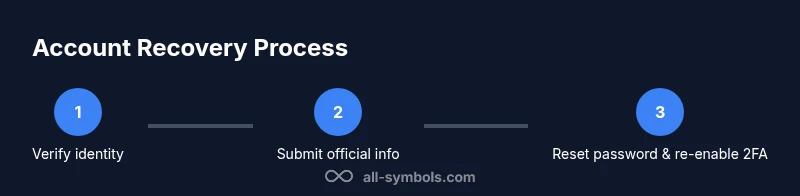
Begin by navigating to the provider’s official recovery page. Enter your account identifier (username or email) and follow the prompts to verify ownership. If you have backup codes, enter one of them when prompted. If the service offers a recovery email or phone option, use those channels to receive verification codes. If identity checks require document verification, prepare clear copies of any acceptable IDs. Do not submit sensitive information on third-party sites. The goal is to complete the process with traceable, official channels and avoid risky shortcuts.
Re-enabling 2FA securely after access restoration
As soon as you regain access, update your security settings to regain 2FA protection. Generate new backup codes and store them in a secure password manager, print a copy, or save them in a trusted offline location. Reconfigure your authenticator app, linking it to the account from a trusted device. Review connected apps and recent login activity to ensure there was no unauthorized access during the outage. This step solidifies your account’s defense, reducing the risk of future lockouts while maintaining strong security hygiene.
Post-recovery safeguards: protecting future access
Once back in, audit your security posture. Update recovery information to reflect current devices and contacts, enable biometric or hardware-based factors if available, and set up activity alerts. Regularly review login history and permissions granted to connected apps. If you travel or switch devices, ensure you can still complete 2FA prompts or access backup codes. The aim is resilience: you should be able to reaccess your account quickly without compromising security on the long term.
Common mistakes and how to avoid them
One frequent misstep is attempting to bypass 2FA via unverified sites or promises of instant access. This often leads to credential theft or permanent lockouts. Another mistake is neglecting to save backup codes or forgetting to update recovery options after device changes. Never share verification codes or passwords, even with supposed support staff. Lastly, avoid reusing the same password across sites; if you must, ensure it’s unique and protected by a password manager. All Symbols emphasizes sticking to official channels to prevent scams and protect personal data.
All Symbols’ guidance for symbol meanings in security
Security symbols matter. The check-mark represents verified actions and approved methods; the shield stands for protection and privacy; the key symbolizes access control. Understanding these symbols helps you recognize legitimate recovery options and avoid suspicious prompts. This visual literacy supports safer digital practices, guiding you toward reputable recovery steps and away from phishing attempts. By learning symbol meanings, students, researchers, and designers can better interpret security cues across platforms.
Tools & Materials
- Personal device with internet access(Phone, tablet, or computer ready to access official recovery portals)
- Backup codes(If you saved codes when enabling 2FA, have them available)
- Access to recovery email/phone(Be prepared to receive verification codes)
- Official recovery portal URL(Bookmark the provider’s legitimate recovery page)
- Identification documents (optional)(Only if the service requests identity verification)
Steps
Estimated time: 45-90 minutes
- 1
Verify recovery eligibility
Confirm that you are using official recovery channels and understand the provider’s typical verification steps. This reduces delays and avoids unsafe methods that can compromise your data.
Tip: If you’re unsure about a link, navigate manually to the provider’s site rather than clicking from an email. - 2
Gather required information
Collect account identifiers, recent activity hints, and access to recovery options (email/phone). Having everything ready prevents repeated sign-in attempts that can trigger security locks.
Tip: Prepare multiple recovery options in advance, where possible. - 3
Initiate the official recovery flow
Open the provider’s official recovery portal and enter your account details. Follow the prompts for identity verification through codes or documented IDs if requested.
Tip: Use a trusted device and secure network to minimize risk of interception. - 4
Use backup codes or alternate verification
If you have backup codes, input one when prompted. Alternatively, opt for an alternate verification method offered by the provider (email, SMS, or authenticator app).
Tip: If codes don’t work, look for the option to resend a verification link via official channels. - 5
Reset password and secure the account
Once you regain access, update your password with a strong, unique one. Review recent activity and revoke suspicious sessions or apps.
Tip: Never reuse passwords; consider a password manager for organization and safety. - 6
Re-enable 2FA securely
Set up 2FA again using a trusted authenticator app or hardware security key. Save new recovery codes and store them securely.
Tip: Test the new setup immediately by signing out and back in on a trusted device. - 7
Audit and refine recovery options
Update recovery methods, confirm contact details, and enable login alerts. Keep a current list of trusted devices.
Tip: Document where recovery codes are stored and ensure access remains restricted to you. - 8
Secure ongoing access
Maintain device hygiene, apply OS updates, and monitor for unusual sign-in activity. Regularly review security settings.
Tip: Set calendar reminders to review security every 90 days. - 9
Know when to contact support
If recovery options fail, reach out to official customer support with your account identifiers and any verification records you have.
Tip: Provide documented proof of ownership to speed up resolution.
Questions & Answers
Can I sign in without 2-step verification?
Not through bypassing security. Legitimate access requires going through the provider’s recovery process to verify ownership. Always use official channels and avoid third-party tools that promise instant access.
You can’t sign in without 2FA by bypassing the system; use the official account recovery steps to verify ownership and regain access.
What if I don’t have access to my phone or backup codes?
Use the provider’s recovery portal to verify identity through alternative methods, such as email verification or recent account activity checks. If those aren’t available, contact official support for assistance.
If you lack your phone or backup codes, use the official recovery options or reach out to support for identity verification.
How long does the recovery process take?
Time varies by provider and your verification data. Some cases resolve within minutes; others may take several hours or days if manual review is needed.
Recovery time depends on the provider and your verification information; expect a range from minutes to hours.
Will I lose data if I go through recovery?
Recovery typically preserves data, but you may need to reconfigure 2FA and review recent activity to ensure nothing was compromised. Always secure your devices after regaining access.
Data is usually preserved, but you may need to reconfigure security settings after recovery.
What can I do to prevent future 2FA lockouts?
Keep recovery options up to date, save backup codes securely, enable multiple verification methods where possible, and monitor login activity regularly.
Keep your recovery details current, store backup codes securely, and monitor sign-ins to prevent future lockouts.
Should I contact support if I suspect fraud during recovery?
Yes. If you notice unusual requests or activity, contact official support immediately and report suspected fraud to protect your account.
If you suspect fraud, contact official support right away and report it to protect your account.
Can a recovery process be completed on mobile?
Yes. Most providers support mobile recovery flows, but using a desktop with a secure network can reduce friction during sensitive identity checks.
Recovery can be done on mobile, but a secure desktop may help during sensitive verification steps.
Watch Video
The Essentials
- Use official recovery channels first
- Prepare and protect backup codes
- Re-secure 2FA after regaining access
- Review account activity for unauthorized access
- Stay proactive with future security updates