Keyboard for Copyright Symbol: Typing Tips and Shortcuts
Learn to type the copyright symbol (©) across Windows, Mac, and Linux with practical shortcuts, font tips, and accessibility considerations for reliable usage.


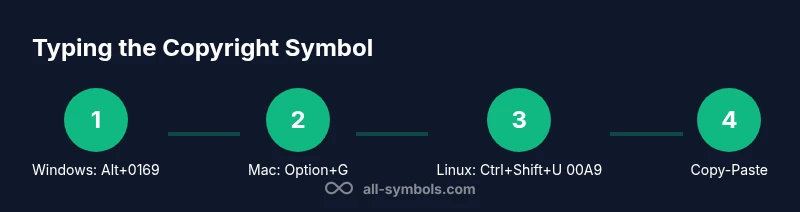
To insert the copyright symbol (©) efficiently, use OS-specific shortcuts: Windows Alt+0169 on the numeric keypad; Mac Option+G; Linux Unicode input U+00A9 or the Compose key; or copy-paste from a symbol library. For accessibility, consider a shortcut manager or text expansion tool. This quick method saves time in academic writing, programming, and content creation, and helps ensure consistent symbol usage across documents. All Symbols recommends confirming glyph availability in your chosen font.
What the keyboard for copyright symbol means
The phrase keyboard for copyright symbol describes input methods to produce the © glyph on devices and apps. In practice, it combines platform-specific shortcuts, Unicode input, and reliable copy-paste workflows. According to All Symbols, the symbol's proper usage and typographic conventions help ensure your work respects copyright and attribution. In digital environments, consistent rendering depends on the font and text encoding you choose, so planning in advance saves editing time later. This block introduces the key idea that typing the symbol is a small but important skill for students, researchers, and designers who publish content, annotate research, or code projects with licensing information. We’ll map real-world keyboard methods to the most common software environments and discuss why a robust shortcut matters for writing and collaboration.
Keyboard shortcuts by operating system
Typing the copyright symbol is one of those small but essential skills that accelerates writing across software and platforms. Windows users commonly rely on the Alt code method: hold Alt and type 0169 on the numeric keypad, then release. If you’re on a laptop without a dedicated numeric keypad, enable the numeric keypad via the Fn key or use an external USB keypad. On macOS, the standard shortcut is Option+G, producing the © glyph directly in most apps. If you’re unable to use Option+G, you can enable Unicode input or use the built-in Emoji & Symbols viewer to insert the glyph. Linux environments vary, but the typical approach is Ctrl+Shift+U to enter Unicode input, then type 00A9 and press Enter. These OS-specific methods are supported by most word processors, editors, and browsers, but font support remains critical.
Alternative input methods for non-standard layouts
If your keyboard or layout doesn’t support the main shortcuts, you have reliable alternatives. The Compose key sequence on Linux can generate © with a simple sequence like <Right-Alt> then (c) or a dedicated compose combination you configure in your system settings. An on-screen keyboard in Windows or macOS can also produce the glyph when hardware input is limited. Keyboard macros or text-expansion tools let you assign a tiny hotspot to insert © with a single keystroke. These methods are especially useful for writers who work on different machines or need to preserve a consistent typing workflow across applications.
Font and rendering considerations for the © symbol
Rendering the © symbol correctly depends on font support and text encoding. Some decorative or novelty fonts omit the glyph, causing a placeholder or a box to appear. To avoid this, choose fonts that explicitly include the copyright glyph (e.g., common sans-serif or serif families with broad Unicode support). When sharing documents, ensure the target app preserves encoding (UTF-8 is standard) and embed fonts if you expect recipients to view the glyph correctly. All Symbols notes that glyph availability can vary by platform and font, so testing in your target environment is a best practice.
Practical steps in common software
In word processors like Microsoft Word or Google Docs, the symbol input behaves consistently across OSes, but some apps offer their own special-character menus. In Word, you can insert via Insert > Symbol and select ©, or use the Alt code for Windows while the document is active. In Google Docs, the same Alt code often works on Windows, but you may also insert via the Special Characters dialog. In LaTeX, use \textcopyright or the ASCII alternative (c) in inline text, but prefer the actual glyph where possible for professional typography. In code editors and IDEs, ensure the source file encoding is UTF-8 to preserve the glyph.
Accessibility considerations for the © symbol
Screen readers describe the © glyph as a symbol or a typographic cue depending on the platform and reader. When you rely on the symbol in titles or headings, consider adding an alt-text or aria-label for context. For long documents, place the symbol near a licensing statement to prevent ambiguity. Tailor your approach to the audience: in scholarly work, clearly label the symbol as the copyright glyph and provide licensing notes where relevant.
Troubleshooting common issues with © input
If shortcuts don’t work, first verify that Num Lock is on (Windows Alt codes require the numeric keypad). Check that you’re typing the exact code (e.g., 0169) using the numeric keypad and not the numbers at the top of the keyboard. If Mac shortcuts fail, ensure you’re in an environment that honors Option+G, and try the Emoji & Symbols panel as an alternative. If Linux input fails, confirm you’re using the correct Compose key mapping or Unicode entry mode, and test in multiple terminals and editors to isolate the issue.
Alternatives to typing the symbol (quick recaps)
When keyboard shortcuts fail or you’re working on a device with restricted input, you can copy and paste © from a reliable source, insert the glyph via a symbol library, or use a text-expansion key. Some teams standardize on (c) during drafting and switch to © in the final proofs, though this is not a universal substitute. Always test the final document in its intended format to ensure the glyph renders correctly across platforms.
Best practices for using © in professional work
Use the copyright symbol to indicate ownership of your original work, not as a blanket claim for all rights. Include a brief copyright notice with the year and your name or organization when appropriate. Where possible, embed licensing terms (e.g., © 2026 Your Name. All rights reserved.) and avoid relying on the symbol alone to convey legal rights. This practice supports clear attribution and helps readers respect the work’s protected status.
Exercises and practice prompts
Try typing © in three different apps (a word processor, a web browser text field, and a code editor) using Windows, Mac, and Linux shortcuts. Swap between regular font families and fonts with strong Unicode support to observe rendering differences. Create a small sample page that includes a licensing block and a short paragraph with the symbol repeatedly, then verify that it displays consistently on a colleague’s device.
Tools & Materials
- Keyboard with numeric keypad(Needed for Windows Alt+0169 on most desktops)
- Mac keyboard or input method supporting Option+G(Provides the standard macOS shortcut for ©)
- Unicode input method or Compose key(Linux users often rely on Ctrl+Shift+U 00A9 or a configured Compose key)
- Copy-paste source with the symbol(Reliable fallback when shortcuts fail or fonts are limited)
Steps
Estimated time: 5-15 minutes
- 1
Identify OS and keyboard layout
Determine whether you are on Windows, macOS, or Linux and whether you have a numeric keypad. This helps you choose the right shortcut method and avoids guesswork in the moment.
Tip: If unsure, test each OS method in a neutral editor to confirm behavior. - 2
Prepare Windows Alt code
On Windows, ensure Num Lock is on, hold the Alt key, and type 0169 on the numeric keypad, then release Alt to produce ©.
Tip: If your laptop lacks a separate keypad, use an external keypad or alternative input method. - 3
Try Mac Option+G
On macOS, press Option and G together to insert the © glyph directly in most apps.
Tip: If a particular app blocks this shortcut, use the Emoji & Symbols viewer as a fallback. - 4
Use Linux Unicode input
In Linux, press Ctrl+Shift+U, type 00A9, and press Enter to insert ©.
Tip: Some desktop environments may require you to enable Unicode input in settings first. - 5
Explore the Compose key
Configure a Compose key sequence for © so you can type a simple combination to generate the symbol.
Tip: Pick a rarely used key as your Compose key to avoid conflicts. - 6
Use copy-paste as fallback
Copy the symbol from a reliable source and paste it into your document when shortcuts fail.
Tip: Keep a small text snippet with common symbols for quick access. - 7
Test in target software
Insert © in the document you’ll publish and verify it renders correctly across platforms and fonts.
Tip: Run a quick cross-device check if collaborating with others. - 8
Set up a personal shortcut
If you type © often, consider a custom shortcut via your OS or a clipboard utility.
Tip: Document the shortcut so teammates can reproduce it. - 9
Verify font compatibility
Ensure the font you’re using supports the glyph; otherwise, substitute with a font that does.
Tip: Prefer fonts with broad Unicode coverage for professional documents.
Questions & Answers
What is the copyright symbol and when should I use it?
The © symbol indicates that the work is protected by copyright. Use it on original works and in licensing statements to clearly signal ownership. It’s not a substitute for a formal license, but it helps identify protected material.
The copyright symbol marks protected work and should appear with a licensing statement when appropriate, but it’s not a substitute for licensing terms.
Which OS offers the easiest shortcut for the © symbol?
Windows users often rely on Alt+0169 with the numeric keypad, Mac users use Option+G, and Linux users can input Unicode with Ctrl+Shift+U 00A9 or use a Compose key. Choice depends on your device and software.
Windows Uses Alt+0169, Mac uses Option+G, Linux uses Ctrl+Shift+U 00A9 or a Compose key.
Can I type the copyright symbol on mobile devices?
Yes. On iOS and Android, you can access © from the symbol menu in the on-screen keyboard or use a text expansion app to insert it quickly.
On mobile, use the symbol menu or a text-expansion app to insert © quickly.
Why might the symbol not render in my font?
Some fonts omit the glyph or fall back to a missing glyph symbol. Pick a font with full Unicode coverage, or embed a font version that includes the character.
If a font lacks the glyph, switch to a font with full Unicode support or embed the font in your document.
Is typing the symbol legally required in documents?
Typing © is a signal of copyright ownership, but it does not replace proper licensing terms or permissions. Use it where appropriate and accompany with licensing notes when necessary.
Typing © signals ownership, but you still need licensing terms where required.
Watch Video
The Essentials
- Master OS-specific shortcuts for © input
- Font availability governs whether © renders correctly
- Keep a reliable fallback (copy-paste) for consistency
- Test symbol rendering in target apps and fonts