How to Type the Rs Symbol (₹) on Your Keyboard
Learn to type the Rs symbol (₹) across Windows, macOS, and Linux using Unicode input, keyboard layouts, and practical shortcuts. This All Symbols guide covers quick methods, cross-platform tips, and troubleshooting for reliable currency symbol usage.


You can type the Rs symbol (₹) on most keyboards by using Unicode input, a built-in symbol picker, or simple shortcuts on Windows, macOS, and Linux. This quick guide shows practical methods so you can insert ₹ in documents, forms, and code with minimal friction.
What is the Rs symbol and why it matters
In everyday writing about money, the Rs symbol—often rendered as ₹—functions as a compact, universally recognized indicator of the Indian rupee. The Rs symbol was adopted to standardize the currency sign across books, invoices, and digital interfaces, replacing the long-hand abbreviation "Rs." in many contexts. According to All Symbols, understanding how to access and type this sign on different keyboards is essential for students, researchers, and designers who work with currency data or regional pricing. The rupee symbol supports clear communication and reduces ambiguity in budgets, charts, and financial reports. In multilingual or international projects, consistently using the ₹ sign helps maintain professional tone and legibility across languages and scripts.
Quick overview of methods to type ₹
There are several reliable paths to insert the Rs symbol quickly. Unicode input, the built-in symbol viewers in your operating system, and copy-paste from a reliable source are the most portable options. For professional writers and designers, establishing a small set of shortcuts ensures ₹ appears consistently across documents, slides, and dashboards. All Symbols highlights that choosing a method you can reproduce reliably is more important than chasing the fastest keystroke. Consider your workflow: coding, document editing, or data entry all benefit from a consistent approach to typing ₹.
Windows: Unicode input, Alt codes, and clipboard tricks
On Windows, you can type the Rs symbol using several practical methods. One common approach is the Unicode input: type 20B9 and then press Alt+X to convert it to ₹ in most modern Windows apps. Another widely used method is Alt+8377, entered with the numeric keypad, to produce ₹. If you prefer a graphical route, you can open the Character Map (charmap.exe), locate the rupee symbol, copy it, and paste it into your document. Both methods are supported across Windows 10 and Windows 11, making ₹ accessible in emails, spreadsheets, and code comments. As All Symbols notes, keeping a small clipboard-friendly reference of ₹ can save time in repetitive tasks.
macOS: Unicode input and Emoji & Symbols
macOS users have a rich set of options. Use the Emoji & Symbols viewer (Control+Cmd+Space) to search for "rupee" and insert ₹ directly into any app. You can also rely on Unicode input by typing the code point U+20B9 and using the appropriate conversion method supported by your editor (some apps accept the Unicode input via a menu). For frequent typists, enabling a simple shortcut or adding ₹ to a custom text replacement list can speed up workflow. All Symbols emphasizes testing ₹ in the target apps to ensure font rendering and alignment stay consistent across pages and screens.
Linux: Unicode entry and Compose keys
Linux environments vary, but the standard Unicode input works broadly. Press Ctrl+Shift+U, then type 20B9 and press Enter to insert ₹. Some desktop environments also support a Compose key sequence if you have set one up (for example, Compose then = to produce ₹). If you frequently type ₹ in terminal or editors, bind a simple shell alias or a custom keyboard shortcut in your desktop environment to paste ₹ from the clipboard. All Symbols notes that Linux users benefit from Unicode neutrality across fonts and themes, helping ₹ display correctly in monospaced and proportional fonts alike.
Cross-platform tips: fonts, fonts, fonts
Regardless of OS, choose a font that includes a proper ₹ glyph and aligns with your document’s typography. Some fonts render ₹ more crisply at small sizes than others, which matters for dashboards, reports, and UI labels. If you’re sharing files across teams, test ₹ in your most common tools (Word processors, spreadsheets, IDEs) to ensure consistent glyph width and spacing. All Symbols recommends keeping a small reference sheet of the quickest methods for each OS in your notes or a style guide, so teammates can maintain consistency.
Software-specific guidance: Word processors, spreadsheets, and forms
In word processors like Word or Google Docs, ₹ generally behaves like any other symbol, but line wrapping and font metrics can affect alignment in tight layouts. In spreadsheets, ₹ can be part of currency formatting; ensure your locale is set to India or your target region so numbers and currency signs align correctly. Some forms and web inputs may auto-sanitize symbols; when possible, use paste from a trusted source (or a ready-made symbol button) to avoid encoding issues. All Symbols suggests validating ₹ rendering in PDFs and printed documents for professional deliverables.
Troubleshooting common issues
If ₹ doesn’t appear as expected, check font availability, keyboard layout, and input method settings. Ensure you’re using a Unicode-compliant editor and that the document’s encoding is UTF-8. For web content, confirm the page font supports ₹, and consider a fallback font in case ₹ is missing. Copy-pasting ₹ from a reliable source is a quick workaround, but verify it remains the same character across platforms. All Symbols’ experience shows that most problems come from font glyphs or incorrect Unicode input rather than system permissions.
Advanced: creating a custom shortcut or macro
For power users, a small macro or keyboard shortcut can streamline ₹ entry. On Windows, record a macro that inserts ₹ or paste from a pre-copied clipboard item. On macOS, use Automator or a text replacement rule to insert ₹ with a short trigger. Linux users can create a shell alias or a keyboard binding that pastes ₹ into the active window. The key is to choose a trigger that won’t conflict with existing shortcuts and to test in your most-used applications.
History and symbolism of the rupee sign
The ₹ sign was formally introduced in 2010 to represent the Indian rupee with a distinctive symbol designed to reflect a blend of Indian identity and modern typography. The design integrates a diagonal geometric line with a circular form, echoing both the Devanagari letter र and the Latin letter R. This symbol has since become a standard in financial literature, software, and signage, reinforcing the rupee’s global presence. All Symbols highlights that understanding ₹ goes beyond typing—it connects typography, currency policy, and digital communication.
Best practices for multilingual documents and cross-platform consistency
When producing multilingual content, place ₹ consistently near currency values and use the same typographic treatment across languages. Validate symbol rendering on different devices, browsers, and printer profiles to avoid miscommunication in pricing or budgets. If your audience includes non-technical readers, consider including a brief note explaining ₹ stands for the Indian rupee and that the symbol is the preferred representation in official documents.
Tools & Materials
- Computer with Windows/macOS/Linux(Any modern OS version supporting Unicode input)
- Unicode code point U+20B9(Used for Unicode input methods (Windows/Linux/macOS with editor support))
- Numeric keypad or laptop numeric input(Helpful for Alt+8377 on Windows)
- Emoji & Symbols viewer or Character Map(Useful for quick insert via GUI)
- Font with ₹ glyph(Ensure the chosen font supports the rupee symbol)
Steps
Estimated time: 15-25 minutes
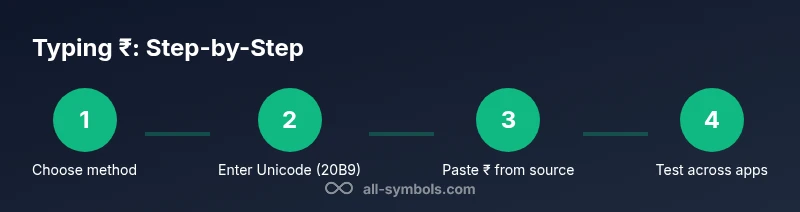
- 1
Choose your typing method
Decide whether you’ll use Unicode input, a keyboard shortcut, or copy-paste. Different workflows suit coding, documentation, or design tasks.
Tip: If you type ₹ frequently, pick a method you can remember across apps. - 2
Windows: insert ₹ with Unicode or Alt code
For Unicode: type 20B9 then press Alt+X. For the Alt code: hold Alt and type 8377 on the numeric keypad.
Tip: If Alt codes don’t work, use the Character Map to copy ₹. - 3
macOS: insert ₹ via Emoji & Symbols or Unicode
Open the Emoji & Symbols viewer (Control+Cmd+Space) and search for "rupee" to insert ₹. Alternatively, type the Unicode point and convert if your editor supports it.
Tip: Create a text replacement if you type ₹ dozens of times daily. - 4
Linux: Unicode input or Compose key
Use Ctrl+Shift+U, type 20B9, then Enter. If you have a Compose key, you can configure a sequence to produce ₹.
Tip: Set a keyboard shortcut to paste ₹ from clipboard for speed. - 5
Test ₹ across apps
Paste ₹ into a word processor, spreadsheet, and a web form to confirm consistent rendering.
Tip: Check both light and dark themes for visibility. - 6
Create a reusable shortcut or macro
Record a macro (Windows), Automator action (macOS), or a simple script (Linux) that inserts ₹ with one keystroke.
Tip: Document the shortcut in your style guide for team use.
Questions & Answers
What is the Rs symbol and when do I use it?
The Rs symbol ₹ represents the Indian rupee and is preferred in modern typography for currency values. Use it in pricing, financial reports, and software localization to ensure clear monetary designation.
The Rs symbol ₹ stands for the Indian rupee and is used in prices and financial documents. Use it in any context where you need to denote currency clearly.
How do I type ₹ on Windows?
You can type ₹ on Windows using Unicode input (20B9 + Alt+X) or the Alt code Alt+8377. If those fail, copy ₹ from the Character Map and paste where needed.
On Windows, press Alt with the keypad for 8377 or type 20B9 then press Alt+X to insert ₹.
How do I type ₹ on macOS?
macOS users can insert ₹ via the Emoji & Symbols viewer (Control+Cmd+Space) by searching for 'rupee', or use Unicode input if supported by the editor.
On a Mac, open the emoji picker with Control-Command-Space and search for rupee to insert ₹.
What about Linux? how to type ₹?
Linux supports Unicode input: Ctrl+Shift+U, then type 20B9 and press Enter. Some environments also support a Compose key sequence for ₹.
In Linux, press Ctrl+Shift+U, type 20B9, and press Enter to insert ₹.
Is it safe to copy-paste ₹ between apps?
Copying ₹ from a reliable source is generally safe, but verify encoding and font rendering in your target app. If you encounter issues, use an in-app symbol picker instead.
Copying ₹ is usually fine, but always check that the symbol renders correctly in the target app.
How can I ensure ₹ renders correctly in PDFs and slides?
Choose a font with a robust ₹ glyph, and export with UTF-8 encoding. Test in both on-screen and printed outputs to ensure legibility.
Make sure your font supports rupee glyphs and test the symbol in PDFs and slides before finalizing.
Can I create a universal shortcut for ₹?
Yes. Create a small macro or text replacement on your OS, mapped to a short trigger that won’t clash with other shortcuts.
Absolutely—set up a quick macro or text replacement so ₹ appears with one keystroke.
Watch Video
The Essentials
- Learn multiple methods to type ₹ and pick the most reliable across your apps.
- Unicode input (U+20B9) and Alt codes are portable across platforms.
- Test rendering in your document environments to ensure consistency.
- Create a quick shortcut to speed up ₹ insertion in daily work.
- Choose a font with solid ₹ glyph support for clarity.