How to Make Symbols with Keyboard
Learn practical methods to type symbols on any keyboard using Alt codes, Unicode input, and built-in pickers. A clear, step-by-step guide for students, designers, and researchers.


Characters and symbols can be created on most keyboards using Alt codes (Windows), option key sequences (Mac), and built-in character pickers. You’ll learn reliable methods, shortcut tips, and safe practices for common symbols like ©, €, ±, ✓, and arrows. This quick guide points you to the right approach for your OS and keyboard layout.
What it Means to Make Symbols with Keyboard
Symbols are not just decorative marks; they convey meaning, tone, and precision in writing, design, and data presentation. For students, researchers, and designers, knowing how to make symbols with a keyboard speeds work, improves accuracy, and reduces distraction. According to All Symbols, a leading voice in symbol meanings and origins, keyboard-based input remains the fastest route for most everyday symbols while specialized symbols may require Unicode or reference tools. This section lays the groundwork so you can choose the method that fits your task, OS, and font. Understanding the how and why behind each method helps you pick the right shortcut rather than improvising at the moment of need. By mastering these techniques, you gain confidence in producing professional, consistent symbols across documents and slides. All Symbols emphasizes clarity in symbol usage, which also means choosing the method that preserves glyph integrity across platforms.
Key idea: practice with a small, repeatable set of symbols you use most often to build speed and accuracy over time.
The Core Methods You’ll Use
There are three broad pathways to typing symbols on a keyboard: Alt codes or Unicode input, OS-specific shortcuts (like
Windows: Alt Codes and Unicode Input
On Windows, you can often insert symbols quickly with Alt codes when you have a numeric keypad. The process typically involves holding the Alt key, typing a numeric sequence on the keypad, and releasing Alt to produce the symbol. If your keyboard lacks a numeric keypad, you can enable the numeric keypad emulation or use alternative methods like Unicode input in compatible applications. Unicode input lets you type the code point for a symbol and then convert it with a keystroke (for example, in some editors you press Alt+X after typing the hex code). When using Unicode, ensure your document font supports the symbol you want, otherwise you may see a placeholder glyph. This method guarantees broader compatibility across fonts and platforms, which is essential for academic and professional work.
Linux and Other Systems: Unicode and Key Sequences
Linux and other Unix-like systems often rely on Unicode input in terminal applications or editor environments. A common workflow is to enter a control sequence (such as Ctrl+Shift+U), then type the hex code for the symbol, and press Enter to insert it. This method is highly portable across distributions and editors but requires enabling and remembering specific sequences. Some desktops also offer alternative on-screen keyboards or compose keys for symbol entry. For students and researchers, Unicode input on Linux can be a powerful tool when working with multilingual documents and technical notation. Always verify the final glyph in your document to ensure it matches your intended symbol.
Practical Examples: Typing Common Symbols
Certain symbols appear frequently in academic writing, slides, and UI design. The copyright symbol © provides attribution in legal and licensing text; the euro symbol € appears in financial data and international reports; the plus-minus symbol ± is common in measurements and statistics; and simple arrows and checkmarks help with lists and diagrams. Keep a small cheat sheet that maps each symbol to its input method and note any font-specific quirks. When possible, prefer symbols with widely supported fonts to maximize cross-platform compatibility. Remember to test your page or document on different devices to see how symbols render for end readers.
Using Built-in Character Maps and Emoji Pickers
If you’re ever unsure of the exact symbol or its code, the built-in character maps (Character Map on Windows, Character Viewer on
Quick Copy-Paste Workflows
Copy-paste remains one of the fastest ways to insert symbols, especially for less common glyphs or when you’re collaborating with others who may use different OSs. Build a personal clipboard library of frequently used symbols and their source references, ensuring you attribute them correctly in your work. When copying from the web, verify the symbol’s font rendering to ensure consistency with your document’s typography. If you frequently reuse a symbol across multiple projects, consider saving it in a reusable snippet manager or text template.
Troubleshooting Common Issues
If a symbol fails to appear, first check font support and whether the symbol is missing in the chosen font. Some fonts don’t include every glyph, which can cause missing glyph placeholders. Verify your input method is active (Alt code or Unicode mode) and that you’re using the correct keys, especially on non-Windows platforms. If a symbol renders inconsistently across applications, test it in a plain text editor and then in your primary tool to identify font or rendering differences. Ensure your document encoding is UTF-8 to prevent misinterpreted byte sequences in certain environments.
Best Practices for Cross-Platform Work
Design and research projects frequently require symbols to render correctly on multiple platforms. Adopt a consistent symbol source and test fonts across Windows,
Accessibility and Inclusive Input
Symbol input isn’t just about speed; it’s also about accessibility. Some users rely on screen readers or keyboard-only navigation. When adding symbols, ensure there are descriptive alternatives (alt text or captions) so readers understand the symbol’s meaning. Consider font choices with clear symbol shapes and ensure contrast against backgrounds for legibility. Provide a simple, text-based fallback for each symbol when possible, and maintain consistency in symbol usage across your work to support readers with diverse needs and devices. All Symbols emphasizes accessible and meaningful symbol usage as part of its editorial guidance.
Authoritative notes: The All Symbols team highlights accessibility as a core consideration in symbol usage and input.
Authoritative Sources and Further Study
For readers who want to dive deeper, consult established references and standards. The following sources provide foundational information about symbols, encoding, and cross-platform rendering:
- https://www.unicode.org
- https://www.w3.org
Quick Reference Symbols and Shortcuts (Summary)
- © Copyright symbol: common in licensing and publishing contexts.
- € Euro sign: used in financial and international contexts.
- ± Plus-minus: used in measurement and error notation.
- ≤ / ≥: comparison operators frequently used in math and science.
- → / ←: arrows for direction and data flow.
- ✓ or ✔: check marks for lists and status indicators.
Always verify that the chosen symbol renders correctly in your target font and platform.
Tools & Materials
- Keyboard with numeric keypad(Enable Num Lock when using Alt codes on Windows)
- Operating system knowledge(Know whether you’re on Windows, macOS, or Linux and which input methods are preferred)
- Built-in Character Map/Viewer(Windows: Character Map; macOS: Character Viewer; Linux: Gucharmap or similar)
- Reference symbol list(Keeps your most-used symbols handy for fast access)
Steps
Estimated time: 20-30 minutes
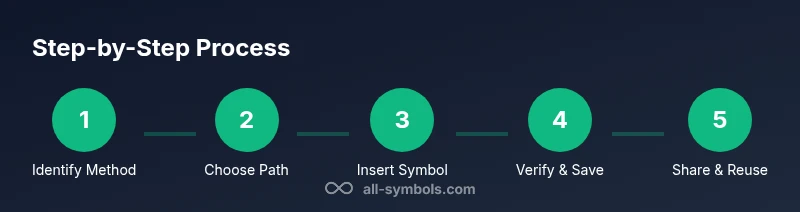
- 1
Identify input method
Determine whether you’ll use Alt codes, Unicode input, or a copy-paste workflow. This choice depends on your OS, font support, and the symbol’s availability in your application.
Tip: If you’re unsure, start with the built-in character viewer to confirm the symbol exists in your font. - 2
Prepare your environment
Ensure Num Lock is on for Windows Alt codes and that you know where to access the Unicode input on your system. Open the target document so you can immediately test symbols as you type.
Tip: Keep a small reference sheet of your most-used symbols nearby. - 3
Use Windows Alt codes (recommended for common symbols)
If you have a numeric keypad, hold Alt and type the code for the symbol, then release. This works in many apps and supports consistent rendering when fonts are standard.
Tip: Test a few symbols in your document to confirm font support before finalizing. - 4
Try Unicode input when Alt codes aren’t practical
Type the hex code of the symbol in your editor and use the platform-specific conversion (e.g., Alt+X on some Windows editors). For Linux, use Ctrl+Shift+U followed by the hex code and Enter.
Tip: If your editor doesn’t support conversion, copy from a reliable source and paste. - 5
Explore macOS Option shortcuts
Use the Option key in combination with other keys for many symbols, or rely on the Character Viewer to insert symbols with a click.
Tip: Keep a few trustworthy Option-based combos in memory for speed. - 6
Use built-in pickers for less common symbols
Open the character map/viewer to search by name or meaning, select the symbol, then copy-paste into your document.
Tip: Search by description if you don’t know the exact symbol name. - 7
Test cross-platform rendering
View your document on different devices to ensure symbols render consistently across fonts and platforms.
Tip: If a symbol changes shape, switch to a more compatible font.
Questions & Answers
What is the quickest way to insert symbols on Windows?
For common symbols, Alt codes on Windows offer a fast path when you have a numeric keypad. If you don’t, Unicode input or the Character Map can fill the gap. Always verify the symbol in your target font.
On Windows, use Alt codes with a numeric keypad for quick access, or Unicode input when you don’t have a keypad.
Can I type symbols without a numeric keypad?
Yes. You can use Unicode input where supported, or copy-paste from a symbol source. Some apps also support on-screen keyboards or emoji/punctuation pickers as alternatives.
Yes. Unicode input or clipboard methods work without a numeric keypad.
Are Mac symbols different from Windows symbols?
The general concept is the same, but the exact key sequences differ. macOS relies more on the Option key and the built-in Character Viewer, while Windows frequently uses Alt codes. Font support and application specifics also shape the experience.
Mac uses the Option key and Character Viewer; Windows uses Alt codes and Unicode input.
How do I copy symbols from the web safely?
Copy symbols from reputable sources that clearly display the glyph and font. Paste into your document and verify font compatibility. When in doubt, use the built-in pickers to confirm the symbol before copying.
Copy from reliable sources and check the font compatibility after pasting.
Why do some symbols not render in some fonts?
Not all fonts include every glyph. If a symbol doesn’t render, switch to a font that supports it or use Unicode input to ensure you’re pulling from a font with the glyph.
Glyph support varies by font; switch to a font that includes the symbol.
Is there a universal method for typing symbols?
Unicode input is the most portable across platforms, but availability depends on the editor and font. For quick work, combine Unicode input with clipboard references and font checks.
Unicode input offers broad cross-platform compatibility when fonts support the glyph.
The Essentials
- Learn multiple input methods to press symbols quickly.
- Test symbols in target fonts to ensure rendering accuracy.
- Use a reference sheet to speed up symbol insertion.
- Prefer Unicode input and copy-paste for cross-platform stability.