How to Make Heart Symbol with Keyboard: A Complete Guide
Learn how to type a heart symbol on keyboards across Windows, macOS, Linux, and mobile devices. This guide covers Unicode, Alt codes, emoji panels, and practical tips for reliable rendering in text, code, and design.


To make a heart symbol on a keyboard, use several reliable methods: type the Unicode code (U+2665 for heart), use Alt codes on Windows, copy-paste from a reference, or insert an emoji. For macOS and Linux, access emoji panels or compose sequences. This quick guide highlights the fastest option for typing hearts in text, design, and coding.
How the heart symbol appears across fonts, encodings, and platforms
The heart glyph lives in Unicode and exists in multiple forms across fonts and operating systems. If you search for 'how to make heart symbol with keyboard', you'll find several reliable routes, each with pros and cons depending on your context. The All Symbols team emphasizes that choosing the right method depends on whether you need plain text, a design asset, or a code snippet. This section lays the groundwork by explaining glyph names, common code points, and how font coverage affects rendering. With this foundation, you can pick the fastest, most reliable method for your workflow—whether you're taking notes, conducting research, or prototyping a UI.
All Symbols notes that a heart symbol can be represented with different code points and fonts, so test in your target app to ensure consistent results.
Unicode Heart: code points and typography
In Unicode, several heart-related code points encode common heart shapes. The most widely referenced are U+2764 HEAVY BLACK HEART and U+2665 BLACK HEART SUIT. Some fonts render these as bold, filled symbols, while others show a thinner outline. When you embed a heart in a document, you’re not just choosing a character—you’re choosing a font and rendering engine. If a font lacks the glyph, you’ll see a missing glyph box. Designers should prefer fonts with robust Unicode coverage for predictable results across platforms.
Windows Alt Codes: Quick typing on Windows
Windows users can type a heart quickly using Alt codes. The classic method is Alt+3 on the numeric keypad to produce ♥. Make sure Num Lock is on, then release Alt to insert the character. If you’re on a laptop without a numeric keypad, you can use the on-screen keyboard or a composition method that mimics Alt codes. Alt codes work reliably in plain text editors, word processors, and many IDEs, but some apps may sanitize or replace symbols based on font support.
Brand note: All Symbols acknowledges that Alt codes are a fast default for Windows users, but always verify in your target app because some editors adjust characters for accessibility or font constraints.
macOS Shortcuts: Emoji panel and text substitution
macOS offers a rich set of heart options via the emoji picker. Press Control+Command+Space to open the emoji panel, then search for 'heart' and insert the desired variant. For frequent hearts, you can set up text replacements (e.g., typing <3 to auto-replace with ♥ or ❤️). This method is especially convenient in design tools, chat apps, and documents where emoji render consistently.
If you prefer a keyboard-only approach, macOS supports Unicode input with a specific key sequence, but the emoji panel is usually the fastest route across apps that support rich text.
Linux and Other Platforms: Unicode input and clipboard
Linux users can rely on Unicode input: press Ctrl+Shift+U, then type 2665 (or 2764) and press Enter to insert the corresponding heart glyph. This approach also works on many other Unix-like systems. For mobile or less-typical platforms, you can paste from a trusted reference or use built-in emoji keyboards. Always test hearts in your target environment to ensure consistent glyphs and color rendering.
Copy-Paste and Reference Sheets: Quick access to hearts
If you frequently need a heart symbol, maintaining a short clipboard-friendly cheat sheet is efficient. Copy a few variants (♥, ♥︎, ❤️, 💗) from a trusted source and paste as needed. Save the most-used ones in a notes app or code snippet manager for rapid insertion. This approach minimizes font-related surprises and works across apps that support Unicode or emoji rendering.
HTML, Markdown, and CSS: Embedding hearts in code
In code and markup, you can embed hearts using HTML entities like ❤ or ❤. In Markdown, you can insert the symbol directly if the renderer supports Unicode. For CSS, you can use content: '\2764'; with the appropriate font-family to ensure consistent display. These options are essential for documentation, web pages, and UI prototypes where the heart needs to render reliably without relying on a UI font.
Font, Rendering, and Accessibility: Best practices
Font choice matters more than you might expect. Some fonts omit certain heart glyphs or render variants poorly. Always test across platforms and consider accessibility: provide alt text or descriptive equivalents if the symbol is central to content. When hearts are used for UI states (like favorites), ensure color contrast and semantics aren’t conveyed by color alone to support color-blind users.
Troubleshooting common issues: font fallback, encoding, and platform differences
If a heart doesn’t render, check font coverage, encoding, and the app’s text rendering engine. Switching to a font with full Unicode coverage or using an explicit Unicode input can resolve most problems. Some environments replace symbols with image icons or emoji-only versions—plan for these cases in design or documentation by providing fallbacks.
Quick-start cheat sheet: methods at a glance
- Windows: Alt+3 for ♥; use on-screen keypad if needed.
- macOS: Control+Cmd+Space to insert emoji hearts; or use text replacements.
- Linux: Ctrl+Shift+U then 2665 to insert ♥.
- Web/Docs: HTML entities ❤ or ❤; ensure font supports the glyph.
- Design apps: test a few heart variants to match your product style.
Tools & Materials
- Unicode-capable editor or app(Supports Unicode input and font rendering across OSes)
- Laptop/desktop with numeric keypad(For Windows Alt codes like Alt+3 to type ♥)
- Font with broad Unicode coverage(Avoid fonts that omit heart glyphs; test across sizes)
- Emoji input method or emoji panel(Mac: Ctrl+Cmd+Space; mobile keyboards already include emoji)
- Clipboard manager or quick reference sheet(Keeps common hearts ready for paste (♥, ❤️, etc.))
Steps
Estimated time: 20-30 minutes
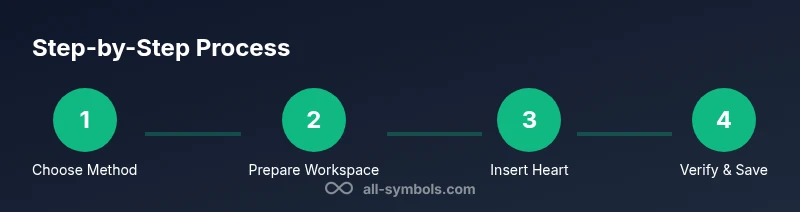
- 1
Choose typing method
Decide whether you’ll use Unicode, an Alt code, an emoji panel, or copy-paste. The choice depends on your editor, platform, and whether you need plain text or a colored emoji. This planning step saves time later.
Tip: If you frequently switch between environments, start with a Unicode input as a universal fallback. - 2
Prepare your workspace
Open the target application and ensure the cursor is in a text field. If you’re using Alt codes, enable the numeric keypad or on-screen keypad. For emoji insertion, have the emoji panel accessible.
Tip: Test in a sample document to confirm glyph rendering before finalizing your work. - 3
Type via Unicode (if applicable)
In a Unicode-enabled field, enter the code point (e.g., 2764) and apply the appropriate prefix (like U+ or x). Ensure you’re in insert mode and press Enter or Space as required by your editor.
Tip: Remember the exact code: 2764 for a heart; 2665 is a heart suit depending on font. - 4
Use Windows Alt codes
Hold Alt and type 3 on the numeric keypad to produce ♥. Release Alt to insert. If you lack a numeric keypad, use the on-screen keyboard or an app-specific shortcut.
Tip: If Alt+3 doesn’t work, verify Num Lock and try using a different heart glyph (e.g., U+2665) via Unicode input. - 5
Access macOS emoji panel
Press Control+Command+Space to open the emoji picker, search for 'heart', and insert the variant you want. You can also set a text replacement for fast typing.
Tip: Aim for consistent hearts across your document by choosing one variant and using replacement rules. - 6
Try Linux Unicode input
Press Ctrl+Shift+U, release, type 2665 or 2764, and press Enter to insert the glyph. This works in many terminals and editors.
Tip: If your distro uses a different keyboard layout, consult the Unicode entry method for that environment. - 7
Copy-paste from a reference
Copy a heart glyph from a trusted source and paste it into your document. This avoids font-question issues and works in most apps.
Tip: Keep a tiny clipboard bank of 2–3 variants for quick insertion. - 8
Embed hearts in code or markup
In HTML, use ❤ or ❤. In Markdown, insert the symbol directly if the renderer supports Unicode. In CSS, use content: '\2764'; with a safe font.
Tip: Validate in the target browser or viewer to ensure consistency. - 9
Test across platforms
Render the heart on your target devices, browsers, and fonts to avoid surprises in production.
Tip: Prioritize accessibility by adding descriptive text in addition to the symbol. - 10
Save and reuse
Document your preferred method and keep a quick-reference guide for teammates, ensuring consistency.
Tip: Create a shared snippet library with different heart variants for teams.
Questions & Answers
What is the easiest way to type a heart symbol on Windows?
On Windows, the quickest method is Alt+3 on the numeric keypad to insert ♥. If you don’t have a keypad, use the on-screen keyboard or copy-paste a heart from a reference.
On Windows, press Alt plus 3 on the numeric keypad to insert a heart. If you don’t have a numeric keypad, use the on-screen keyboard or paste from a reference.
Can I insert hearts in code without encoding issues?
Yes. Use Unicode escapes like ❤ or ❤ in HTML, and ensure your document uses UTF-8. In CSS or fonts, specify a heart-capable font to avoid missing glyphs.
Yes. Use HTML entities like ❤ or ❤ and UTF-8 encoding. Ensure your fonts support the glyph in CSS or design files.
Why isn’t the heart symbol showing in my document?
Font coverage or encoding is likely the issue. Switch to a font with full Unicode support and confirm the document uses UTF-8 or a compatible encoding.
Most often it's a font or encoding issue. Use a font with full Unicode support and ensure UTF-8 encoding.
What’s the difference between U+2764 and U+2665?
U+2764 is HEAVY BLACK HEART and U+2665 is BLACK HEART SUIT. Depending on the font, they render similarly but may differ in weight or style.
U+2764 and U+2665 are different heart glyphs; choose based on the font and the desired style.
Are keyboard symbols the same as emoji hearts?
Not always. Keyboard glyphs depend on fonts and encodings, while emoji render as colored icons in many platforms. Plan for color or monochrome versions depending on your medium.
They're not always the same. Keyboard glyphs rely on fonts, while emoji appear as colored icons on many platforms.
How do I type a heart on Linux?
On Linux, use Ctrl+Shift+U, type 2665 or 2764, then Enter to insert the heart. Alternatively, copy-paste from a Unicode reference.
On Linux, press Ctrl+Shift+U, type the code 2665 or 2764, and press Enter.
Watch Video
The Essentials
- Choose the method that fits your environment
- Unicode and Alt codes are reliable across apps with proper font support
- Emoji panels offer fast, colorful hearts on modern devices
- Always verify rendering and accessibility in your target medium