How to Type the Degree Symbol on a Keyboard
Learn how to type the degree symbol on Windows, macOS, Linux, and mobile devices with simple shortcuts, Unicode tips, and practical examples for consistent rendering in all apps.


You can type the degree symbol using quick keyboard shortcuts tailored to your device. On Windows, hold Alt and type 0176 on the numeric keypad. On macOS, press Option+Shift+8. Linux users can press Ctrl+Shift+U, then release and type 00B0. On mobile keyboards, tap and hold the 0 key or access the symbol panel. This guide covers all common methods with tips.
How do you make a degree symbol on a keyboard?
The degree symbol, °, is a small but essential glyph used in science, math, temperatures, and geographic coordinates. For students, researchers, and designers, knowing multiple ways to insert ° saves time and prevents awkward typos. In this guide, produced by All Symbols, we explore platform-specific shortcuts, Unicode entry, and practical tips to ensure the symbol appears correctly in Word, code editors, spreadsheets, and on mobile keyboards. By mastering a few reliable keystrokes, you can type ° quickly without leaving the keyboard. The goal is to give you a toolkit you can pull out in class, lab, or on the go in 2026.
Below, you’ll learn the most reliable methods for Windows,
Windows: Alt codes and character map
Windows users often rely on the Alt code method because it works in most programs, including Word, Excel, and many code editors. The classic approach is Alt+0176 on the numeric keypad. If your laptop lacks a dedicated keypad, you can use the on-screen keyboard or enable a numeric keypad via the function keys. The Windows Character Map (charmap.exe) is another reliable route for finding ° and copying it into your document. While Alt codes are fast, they require Num Lock and a numeric keypad, which can be awkward on compact keyboards.
For best results, combine Alt+0176 with the on-screen keyboard on a laptop that lacks a numpad. This ensures you don’t stumble over mispresses and can place the symbol precisely where you need it.
Linux and alternative methods
Linux users often rely on Unicode input methods. A common approach is Ctrl+Shift+U, then type 00B0 and press Enter to render the symbol. Some desktop environments support a Compose key, which lets you type a sequence (like Compose then o then o) to generate °. If you prefer a GUI method, you can use the GNOME Character Map or KDE’s KCharacterSelector to copy and paste the symbol. These methods ensure you can type ° even in environments where Alt codes aren’t available.
For reliability in coding environments, the Unicode entry is a great fallback when Alt codes fail due to key remappings.
Mobile devices:
Troubleshooting common issues
If your degree symbol doesn’t appear where you expect, check a few common culprits. Ensure Num Lock is on for Windows Alt codes, and confirm you’re using the numeric keypad. Some apps override keyboard inputs, especially in code editors or web forms, so try a different program to verify the symbol renders correctly. In fonts that lack a full range of Unicode glyphs, ° may appear as a missing glyph box; switch to a font with complete symbol support or adjust your font settings. Finally, confirm you’re using the correct Unicode code point (00B0) when entering via Unicode methods.
Tips for accuracy and accessibility
- Use a standard, widely-supported font to ensure ° displays consistently.
- In documents with strict typography, insert ° at the character level rather than copying pre-formed images.
- If you frequently type degrees in equations, temperatures, or coordinates, create a simple macro or utility script for your OS to reduce keystrokes.
- For visually impaired users, remember that some screen readers announce the symbol as “degree” when read in context; place it clearly beside numbers to aid comprehension.
Practical examples and quick tips
- Temperature: 23°C can be typed quickly using the Windows Alt code or
Use cases across apps and workflows
- Word processors: Alt codes, Option+Shift+8, or Unicode methods work well in Word, Google Docs, and Pages.
- Spreadsheets: Degrees symbols in header cells or value columns behave like normal text, but ensure the font supports the glyph.
- Coding: Prefer Unicode entry or paste from a reliable source to avoid font substitution that could misrender the symbol in code comments and strings.
- Design software: When exporting to PDFs or vector formats, verify symbol rendering in the final document to preserve typography quality.
Tools & Materials
- Keyboard with numeric keypad(Numpad strengthens Alt code input (Alt+0176).)
- Access to Unicode input or character map(Windows Unicode input (type 00B0, then Alt+X) or Linux Ctrl+Shift+U 00B0.)
- Operating system documentation or built-in symbol viewers(Helpful for discovering additional methods and ensuring font support.)
- Mobile keyboard with symbol access(Long-press or switch to the symbol keyboard to reach ° quickly.)
- Copy-paste buffer(Useful fallback when other methods fail.)
Steps
Estimated time: 5-10 minutes
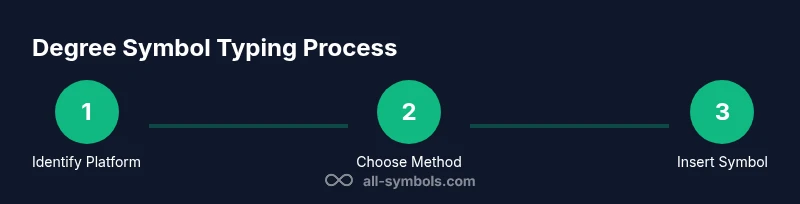
- 1
Identify your platform
Check whether you’re on Windows, macOS, Linux, or a mobile platform. This decides which shortcut to use and can save time when you’ve got back-to-back typing tasks.
Tip: If unsure, look for System Settings > Language & Region or About This Device to confirm OS version. - 2
Prepare input method
For Windows, ensure Num Lock is on to enable Alt codes. On Mac or Linux, know whether to use Option keys or Unicode entry. For mobile, switch to the symbol keyboard.
Tip: Having a ready on-screen keyboard on a laptop without a numeric keypad helps avoid input issues. - 3
Windows Alt code entry
Hold Alt, press 0, 1, 7, 6 on the numeric keypad, then release Alt to insert °.
Tip: If Alt+0176 doesn’t work, use Alt+00B0 with Alt+X in Word to convert the hex code. - 4
macOS shortcut
Press Option+Shift+8 to insert ° in most apps. For Unicode-based input, type 00B0 and use a conversion method if supported.
Tip: Use the Emoji & Symbols palette (Control+Command+Space) for quick access to ° alongside related symbols. - 5
Linux Unicode entry
Press Ctrl+Shift+U, release, type 00B0, and press Enter to render the degree symbol.
Tip: If your environment doesn’t support Unicode entry, try a Compose key sequence if configured. - 6
Mobile typing
On iOS/Android, switch to the symbol/number keyboard or long-press the 0 key to reveal °.
Tip: Bookmark or memorize a common short path if you type degrees frequently in notes or messages. - 7
Unicode backup and copy-paste
When shortcuts fail, locate ° in a character map or web search, then copy-paste into your document.
Tip: Copy-paste ensures consistent rendering across apps and fonts. - 8
Verify rendering
After inserting °, verify its appearance in your target application and font, adjusting if necessary.
Tip: Test in different programs (text editor, spreadsheet, and design tool) to ensure uniform rendering.
Questions & Answers
What is the degree symbol and where does it come from?
The degree symbol ° denotes degrees, temperature, or angles. It has been used in measurement and mapping contexts for centuries and remains a standard typographic glyph in modern writing.
The degree symbol denotes degrees and has been part of typography for a long time.
Is Alt+0176 universal across Windows versions?
Alt+0176 works on most Windows setups with a physical numeric keypad. Some laptops require the on-screen keyboard or enabling a numeric keypad via Fn keys. If not available, Unicode input or copy-paste can be a workaround.
Alt+0176 usually works on Windows with a numeric keypad; otherwise use Unicode input or copy-paste.
Can I type ° on a Mac without an external keyboard?
Yes. Use Option+Shift+8 to type °. You can also use the Emoji & Symbols viewer (Control+Command+Space) to insert it from a visual picker.
Yes. Try Option+Shift+8 or open the symbols viewer to insert the degree symbol.
Why does Ctrl+Shift+U not work on my system?
Ctrl+Shift+U is a Linux Unicode method. It may not be enabled on all environments or apps. Check your keyboard layout or try the Windows Unicode Alt+X method if supported.
Ctrl+Shift+U is Linux-specific and might not be enabled everywhere; try other methods if it fails.
Is there a safer alternative to Alt codes for long texts?
Yes. Unicode entry or a character map/emoji panel offers more predictable results across apps and fonts than Alt codes, especially on laptops without a numeric keypad.
Unicode entry or symbol viewers are safer for long texts than Alt codes.
What if the symbol displays as a question mark or box?
This usually means the font doesn’t support the glyph. Switch to a font with full Unicode support or adjust the font settings in your editor or app.
If you see a missing glyph, switch to a font that supports the degree symbol.
Watch Video
The Essentials
- Master OS-specific shortcuts for quick ° entry
- Use Unicode entry as a reliable fallback
- Mobile keyboards offer convenient long-press options
- Always verify degree symbol rendering across apps