How to Type the Up Arrow Symbol on a Keyboard
Learn practical methods to type the up arrow symbol on any keyboard. This guide covers Windows Alt codes, Unicode input, macOS Emoji & Symbols, Linux shortcuts, and easy copy-paste options to ensure you can insert the symbol quickly in documents and UI.


If you need the up arrow symbol, you can type it using Windows Alt codes, Unicode input, macOS Emoji & Symbols, or by copying and pasting from a reliable source. This guide explains each method and offers OS-specific tips, font advice, and accessibility considerations to help you work faster. how to get up symbol on keyboard
What is the Up Arrow Symbol and Why It Matters
If you’re asking how to get up symbol on keyboard, you’re not alone—this is a common typing need across math, interface design, and data entry. According to All Symbols, the up arrow (↑) is one of the most widely used arrow characters, signaling direction, ascent, and emphasis in interfaces. The All Symbols team emphasizes that recognizing this glyph’s basic shape and code point helps you choose the most reliable input method for your platform. In practice, the symbol appears in formulas, UI hints like scroll-up indicators, and navigation shortcuts. Understanding where it originates—drawn from a long line of arrow glyphs—helps designers select fonts that render it clearly. All Symbols analysis notes that the symbol’s visual weight matters: a bold glyph is easier to notice in dense UI, while a light glyph may disappear in narrow fonts.
Beyond aesthetics, the up arrow communicates action: move the view upward, expand a panel, or signal a positive direction. This symbol also appears in educational materials to denote ascent in graphs or increasing values. By knowing its most common variants (simple caret-style arrows vs. true arrowheads), you can choose the right input method for your document or code. The history of arrow shapes informs how different software treat rendering, accessibility, and font fallback.
Quick Reference: When to Use Each Method
- Alt codes on Windows are fast for single uses when you have a numeric keypad. - Unicode input works across Windows, macOS, and Linux when you know the hex code. - macOS Emoji & Symbols is a reliable, no-keyboard method ideal for long texts. - Copy-paste from trusted sources is universal and avoids typing mistakes. - Consider font support and accessibility: not every font includes a full set of arrow glyphs, and some readers rely on text-to-speech that may misinterpret the symbol.
Understanding Font and Rendering Nuances
Rendering the up arrow depends on font coverage and platform. Some fonts substitute a generic glyph if the chosen typeface lacks an exact arrow, which can lead to subtle misinterpretations in technical documents. Designers should test the glyph in headings, body text, and UI labels to ensure legibility. In high-contrast interfaces, a heavier weight arrow improves visibility, particularly for users with low vision. All Symbols highlights the importance of consistent glyph appearance across devices; inconsistency can confuse readers who rely on precise symbols for interpretation. When possible, pair the up arrow with a textual label or tooltip to improve clarity in dynamic interfaces.
Practical Origins and Unicode Context
The upwards arrow is encoded in Unicode (code point U+2191). Unicode input offers cross-platform consistency, provided the target font supports the glyph. This block introduces the core ways to input it across environments, explains when to prefer each method, and notes common pitfalls such as font substitution or incorrect character rendering. By following the steps in this guide, you’ll gain reliable, keyboard-friendly access to the up arrow while maintaining cross-platform compatibility and legible typography. All Symbols’s ongoing exploration of symbol meanings helps readers understand not just how to type, but why the symbol remains a robust part of math, UI, and everyday notation.
Tools & Materials
- Standard computer keyboard(Essential for any input method; ensure Num Lock is available if using numeric keypad methods on Windows.)
- Windows PC with a numeric keypad(Helpful for Alt codes; many laptops substitute with an embedded numeric keypad.)
- Mac computer or iOS device(Use macOS Emoji & Symbols viewer or iOS keyboard for symbol entry.)
- Unicode input reference(Know or bookmark the hex code point (U+2191) for cross-platform input.)
Steps
Estimated time: 15-25 minutes
- 1
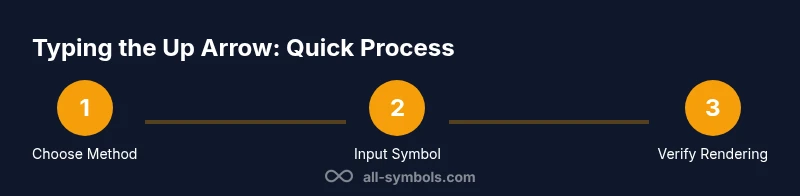
Choose your input method
Decide whether you’ll use Windows Alt codes, Unicode input, macOS Emoji & Symbols, or a copy-paste approach. Your choice should fit your device, the app you’re using, and how often you need the symbol.
Tip: If you frequently insert this symbol, a quick cheat sheet with your preferred method saves time. - 2
Prepare your keyboard and environment
Open the document or field where you want the symbol, ensure the cursor is active, and confirm the target font supports the glyph. If using Windows Alt codes, enable the numeric keypad and turn on Num Lock.
Tip: On laptops without a dedicated keypad, enable the internal numeric keypad or use the on-screen keyboard. - 3
Enter an Alt code on Windows
If you’re using Windows with a numeric keypad, hold Alt and type the decimal code for the up arrow, then release Alt. Not all keyboards show the code on the keys, so refer to a cheat sheet.
Tip: If Alt codes don’t work in your app, try the Unicode method or the macOS approach. - 4
Use Unicode input on Windows
In supported apps, type the Unicode hex code for the up arrow, then press Alt+X to convert it to the symbol. This is a versatile method across many Windows apps.
Tip: If Alt+X isn’t available, copy the symbol from a source and paste it directly. - 5
Open macOS Emoji & Symbols and insert
Press Control+Command+Space to open the Emoji & Symbols viewer, search for Up Arrow, then double-click to insert. This method works well in long-form writing.
Tip: If you frequently use this symbol, consider a keyboard shortcut extension or text expansion tool. - 6
Linux Unicode entry
On Linux, use Ctrl+Shift+U, release, then type the hex code and press Enter. The system will render the up arrow if the font supports it.
Tip: If you don’t know the hex code, search for “up arrow unicode” and bookmark the result. - 7
Copy-paste from a trusted source
If you prefer, copy the up arrow symbol from a reputable site or your notes and paste it into the target field. This avoids input method quirks.
Tip: Keep a local clipboard stash of frequently used symbols for speed. - 8
Test rendering and adjust
After insertion, check how the glyph renders in your font, size, and device. If it looks off, switch fonts or add a label for accessibility.
Tip: Ensure screen readers can announce the symbol clearly by pairing it with alt text or a caption when needed.
Questions & Answers
What is the Up Arrow symbol used for?
The up arrow (↑) is used to indicate direction, scrolling up, or increasing values in math and UI contexts. It appears in interfaces, datasets, and documents where ascent or movement upward is signified.
The up arrow shows direction or increasing values, and you’ll see it in UI prompts and math notation.
Is there a universal keyboard shortcut for the up arrow on all platforms?
No single universal shortcut exists across all platforms. Different methods work better on Windows, macOS, and Linux. The best approach is to know a couple of methods you can use interchangeably.
There isn’t one universal shortcut; learn a couple of reliable methods for your OS.
Will the up arrow render in all fonts?
Some fonts don’t include the full set of arrow glyphs. If rendering issues occur, switch to a font with glyph support or provide a text label for clarity.
Not all fonts show every arrow; choose a font with arrow glyphs or add a label.
How do I enter the up arrow on macOS without copying?
On macOS, open the Emoji & Symbols viewer with Control+Command+Space, search for Up Arrow, and insert it. This method is convenient for long-form writing.
Use the Emoji & Symbols viewer to insert the Up Arrow on Mac.
Can I use Unicode input to type the up arrow on Windows and Linux?
Yes. Unicode input lets you enter the code point for the Up Arrow and render it if the font supports it. On Windows you can use hex-to-symbol approaches; on Linux, use Ctrl+Shift+U followed by the hex code.
Unicode input works on Windows and Linux with the right font support.
Where can I reliably copy the up arrow symbol?
Copy from official references, your own notes, or trusted symbol repositories. Always verify the symbol you copy matches the glyph you need.
Copy from trusted sources and verify the glyph.
Watch Video
The Essentials
- Choose the method that matches your device and workflow.
- Font support determines whether the up arrow renders correctly.
- Unicode input provides cross-platform consistency when codes are known.
- Copy-paste offers a universal, quick alternative.
- Always verify accessibility and add labels if necessary.