Alt Code for Degree: Your Complete How-To Guide
Learn how to insert the degree symbol using alt codes, Unicode, and keyboard shortcuts across Windows, Mac, and Linux. This educational guide covers practical steps, common pitfalls, and cross‑platform techniques for consistent typography.


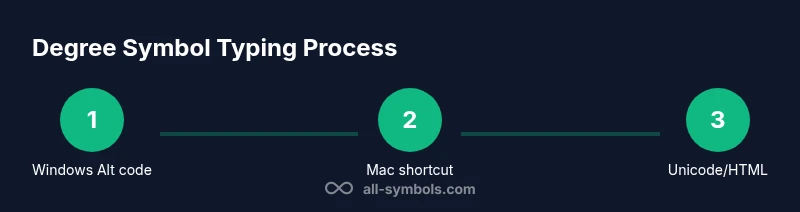
An easy way to insert the degree symbol (°) is by using the alt code for degree on Windows (Alt+0176) or the macOS shortcut (Option+Shift+8). You can also insert it via Unicode (U+00B0) or by copy-pasting. If you frequently type it, consider creating a custom shortcut or a text expansion in your favorite apps.
What is the alt code for degree and why it matters
The phrase alt code for degree refers to a keyboard shortcut that lets you enter the degree symbol, °, without navigating menus. This glyph is essential in math, science, engineering, and international typography. Recognizing where it lives on your keyboard and which method works on your device saves time and reduces errors when you type temperatures, angles, or measurements. According to All Symbols Editorial Team, the degree symbol is a standard glyph across Unicode fonts, making it broadly supported on modern systems. In practice, knowing multiple entry methods (Windows, Mac, Unicode, and HTML) gives you flexibility across documents, spreadsheets, and web content. When you commit to a few reliable approaches, you’ll switch seamlessly between work, study, and creative projects. The goal is to reduce friction so you can focus on meaning instead of character hunting, especially in exams, papers, or design briefs. The Alt code for degree is a small but mighty tool for precise communication, and mastering it demonstrates a thoughtful attention to typography that all symbol meaners appreciate.
Windows methods for the degree symbol
On Windows, the classic way to type the degree symbol is to hold the Alt key and type 0176 on the numeric keypad, then release Alt. This works in most Windows applications, including Word, Excel, and text editors. If your keyboard lacks a dedicated numeric keypad (as with many laptops), you can enable an on-screen keyboard or use the numeric keypad emulation that some laptops provide. If Num Lock isn’t active, the digits won’t register, so ensure Num Lock is on before you press Alt. In applications that support Unicode entry, you can also try Alt+248, though 0176 tends to be the most reliable. For quick work, you can add Alt+0176 to a text expansion tool or macro so a simple keystroke inserts ° automatically. All Symbols Analysis, 2026 emphasizes testing the symbol in your target font since some fonts render the glyph differently or fail to display it entirely.
macOS shortcuts for the degree symbol
Mac users typically press Option+Shift+8 to produce the degree symbol °. This method bypasses the need for a numeric keypad entirely and works across most macOS applications, including Pages, Keynote, and browsers. If your keyboard layout differs (international layouts can modify shortcuts), you can insert ° via the Emoji & Symbols viewer (Control+Command+Space) and search for degree. You can also add a custom shortcut through System Preferences > Keyboard > Text to auto-replace a sequence like (deg) with °. For designers and writers who frequently switch between Windows and Mac, having a Mac-specific shortcut reduces cross-platform friction and keeps your workflow consistent.
Unicode and HTML entities for degree symbols
Unicode defines the degree symbol as U+00B0, which is essential for developers and cross-platform content. In many editors, you can enter the degree symbol by typing Ctrl+Shift+U, then 00B0, and Enter on Linux-derived systems; this works in code editors and some Linux terminals. In HTML, the commonly used entity is ° or the numeric reference °. Using Unicode and HTML entities ensures consistent rendering in web pages, PDFs, and digital documentation, especially when fonts vary across environments. If you’re embedding symbols in code, prefer the explicit entity or the Unicode escape to avoid encoding issues.
Cross-platform tips for typing the degree symbol
Across platforms, you’ll find different preferred methods. Windows favors Alt codes, macOS relies on a simple keystroke, and Linux often supports Unicode input directly. For mobile devices, the degree symbol is typically available in the symbols keyboard, or you can long-press the zero key on most keyboards to reveal °. If you work with multiple devices, keep a small cheatsheet that lists Alt+0176 (Windows), Option+Shift+8 (Mac), and the Unicode/U+00B0 approach. A universal approach—copy-paste from a reliable source when needed—works as a fallback, especially in collaborative documents where font support varies. The key is to verify the symbol renders correctly in your target font to maintain legibility.
Practical usage in documents, spreadsheets, and design tools
The degree symbol appears in many contexts: temperature readouts, angles in geometry, and indicators in diagrams or UX prototypes. In word processors, inserting ° via Alt code or a keyboard shortcut keeps formatting consistent. In spreadsheets, ensure that the degree glyph aligns with the cell’s font and alignment settings; some fonts render the symbol differently at varying font sizes. In design tools like Illustrator or InDesign, the degree symbol should match the primary typeface’s metrics to avoid mismatches. When sharing files, verify that the recipient’s environment displays ° correctly; otherwise, use the Unicode escape or HTML entity to preserve intent across platforms.
Troubleshooting common degree symbol problems
If the degree symbol doesn’t display, the most common culprit is font support. Some fonts lack the glyph entirely or render it as a placeholder. Switch to a more complete font or embed the font in your document. Encoding issues can also cause ° to appear as a question mark or a square; choose UTF-8 encoding in your editor or save with a universal encoding that supports Unicode. In web contexts, ensure your CSS uses a font-family that includes the degree glyph, and for static images, embed the glyph as a vector outline to avoid font-dependent rendering. Finally, confirm that the symbol appears consistently by testing in multiple apps and devices. All Symbols Editorial Team recommends a quick font check before finalizing any document that relies on precise symbol usage.
Creating quick shortcuts and automations for frequent use
If you frequently type the degree symbol, consider building a small automation: a text expansion snippet like deg -> °, a keyboard shortcut, or a macro in your editor. For teams, share a standardized entry method to ensure consistency. You can also store a small snippet with the degree symbol in your clipboard history tool to paste quickly. For developers, use the Unicode escape or HTML entity in code comments and documentation to maintain readability across teams. By setting up these automations, you reduce cognitive load and speed up your work while preserving accuracy in symbol usage.
Tools & Materials
- Windows PC with numeric keypad(Enable Num Lock; use Alt+0176 on the numeric keypad.)
- On-screen keyboard or keyboard with numeric keypad emulation(Helps on laptops without a dedicated numeric keypad.)
- Mac computer(Use Option+Shift+8 for degree symbol.)
- Text editor or word processor(Test the degree glyph in your document or code.)
- Clipboard manager or note-taking app(Useful for quick copy-paste of ° when needed.)
- Unicode reference chart or browser(Helpful for finding U+00B0 and related entities.)
Steps
Estimated time: 15-25 minutes
- 1
Prepare Windows for Alt code entry
Ensure your device has a numeric keypad or a functional keypad emulation. Turn on Num Lock so the numeric keys register digits. This step sets up the Alt key method to insert the degree symbol.
Tip: If you’re on a laptop, enable the keypad emulation or use the On-Screen Keyboard. - 2
Enter Alt+0176 and release
Hold Alt and type 0176 on the numeric keypad, then release Alt to insert °. Try Alt+248 if 0176 doesn’t work on your system.
Tip: Release the Alt key after the digits; otherwise nothing will be inserted. - 3
Alternative Windows method for laptops
If you lack a numeric keypad, open the On-Screen Keyboard and use the same Alt+0176 sequence. You can also set up a text expansion to insert ° with a short trigger.
Tip: Consider creating a macro for consistent usage across apps. - 4
Mac shortcut for degree
Press Option+Shift+8 to produce °. If your keyboard layout differs, use the Emoji & Symbols viewer to insert the glyph.
Tip: Add a macOS shortcut in System Preferences if you rely on this symbol often. - 5
Unicode entry for degree on Linux
In many Linux environments, press Ctrl+Shift+U, type 00B0, then press Enter or Space to insert the degree symbol.
Tip: This method works well in terminals and code editors. - 6
HTML and web contexts
In HTML, use ° or the numeric reference ° to ensure compatibility across browsers.
Tip: Prefer explicit entities in code comments and documentation for clarity. - 7
Cross-platform testing
Test the degree glyph on your target platform to confirm consistent rendering, especially in fonts that vary across apps.
Tip: Keep a quick reference cheat sheet handy for team-wide use. - 8
Create a quick shortcut
Set up a reusable shortcut or text expansion containing the degree symbol for rapid entry.
Tip: Share the shortcut with teammates to maintain typography consistency.
Questions & Answers
What is the basic Windows method for the degree symbol?
On Windows, hold Alt and type 0176 on the numeric keypad, then release Alt to insert °. If your keyboard lacks a keypad, use the On-Screen Keyboard or a text expansion as an alternative.
Use Alt+0176 on Windows; if you lack a numeric keypad, try the On-Screen Keyboard.
What is the Mac shortcut for degree?
Press Option+Shift+8 to produce °. If your layout differs, insert it via the Emoji & Symbols viewer or a saved shortcut.
Option plus Shift plus 8 gives the degree symbol.
Can I type degree on Linux without a GUI?
Yes. Use Ctrl+Shift+U, then type 00B0 and press Enter to insert the degree symbol in many editors and terminals.
Ctrl+Shift+U, then 00B0, then Enter inserts the degree symbol on Linux.
Are HTML entities reliable for degree symbol?
Yes. Use ° or the numeric reference ° to ensure the symbol renders in web content across browsers.
Use ° or ° in HTML for the degree symbol.
What if the degree symbol doesn't display correctly?
The most common cause is font support. Switch to a font that includes the degree glyph or embed the font in your document.
Font issues are usually the culprit; switch fonts or embed the glyph.
Is there a mobile shortcut for degree?
On mobile devices, the degree symbol is typically accessible via the symbols keyboard or by long-pressing 0 on many keyboards.
Most mobile keyboards offer degree via the symbols menu or long-pressing 0.
Watch Video
The Essentials
- Master Windows Alt codes to speed up typing.
- Mac shortcuts save time across apps.
- Unicode offers universal access across platforms.
- Keep a quick copy-paste buffer for frequent use.
- Test the symbol in your target font and app.