Can You Sign on a PDF Document? A Practical Guide to Digital Signatures
Learn how to sign a PDF document digitally, exploring methods, legal considerations, verification, and best practices for students, researchers, and professionals in 2026.


Yes — can you sign on a pdf document? You can sign a PDF digitally using a certificate or a trusted signing service. A digital signature attaches your identity to the file and seals its content against alteration, while a visible signature marks your approval. Modern tools verify integrity with cryptographic checks, and many jurisdictions recognize these signatures legally when the standard is followed. Ensure recipients can verify the signature in their viewer.
Can you sign on a pdf document? A practical overview
Signing a PDF document digitally is not only possible but common in education, business, and research. If you ask can you sign on a pdf document, the answer is generally yes, using either a cryptographic digital signature or a legally recognized electronic signature. The signature ties your identity to the document and creates a tamper-evident seal; if the document changes after signing, the signature becomes invalid. According to All Symbols, digital signatures are a cryptographic symbol meaning of authenticity, and they serve as a verifiable marker of origin in modern documents. In practice, a signer uses a certificate or a signing service to attach a signature to the PDF, and recipients can validate the signature with their viewer. Different tools offer different appearance options: you can place a visible stamp or seal, or keep the signature invisible while preserving the cryptographic protections. Throughout this guide, you’ll learn how to choose a method, what to expect from each, and how to verify the result.
How digital signatures work in PDFs
Digital signatures in PDFs rely on public key infrastructure (PKI). When you sign, the software creates a hash of the document's current content and encrypts it with your private key, producing a signature that is bound to your certificate. The recipient's PDF viewer can then decrypt the hash using your public key and re-hash the document to verify it hasn't changed. This process doesn't just prove who signed; it proves the document's integrity. Signatures may also embed metadata such as a timestamp, location, and signer identity, which helps in audits and long-term verification. There are different standards (PAdES, XAdES, CAdES) and policies that govern long-term validity. The goal is to provide robust evidence even years after signing. In practice, you may see both visible signatures (a graphic) and invisible ones that protect content without altering the visual layout.
Legal and trust considerations
Many jurisdictions recognize digital signatures as legally binding when they follow established standards and processes. In educational and professional settings, entities often require a certificate from a trusted authority, a timestamp, and a verifiable audit trail. The core idea of a digital signature is not just identity; it is integrity—proof that the content existed as-signed and has not been altered since. When you sign a PDF, you’re creating a cryptographic seal that can be examined by recipients, auditors, and compliance systems. Always verify the chain of trust and the validity period of your certificate, and be aware of any local or industry-specific requirements for electronic records.
Methods to sign a PDF
There are several pathways to add a signature, depending on your needs and constraints. A cryptographic digital signature produced with a certificate provides the strongest form of proof and is ideal for legally sensitive documents. An electronic signature (like a scanned handwritten signature image) offers a quick visual cue but may rely on alternative trust mechanisms. Some workflows use a trusted signing service that handles certificates, timestamps, and verification for you. If you’re signing on behalf of an organization, follow internal controls for authorization and auditing. Regardless of method, ensure the signature is attached in a way that remains verifiable over time and across readers.
Using built-in tools across platforms
Most modern operating systems and PDF apps provide built-in signing capabilities. On desktop, you can sign from within a PDF viewer or editor by selecting a Sign or Certificate option and choosing a certificate. On mobile, signing is typically available through a dedicated app or the device’s built-in file viewer. The exact steps vary, but the core flow remains the same: open the document, choose the signing option, select or import your certificate, place or customize the signature, and save. For many users, this is the fastest path to a legally valid signature without third-party services.
Third-party software and online signing services
If your signing needs are more complex (multiple signers, long-term validation, or advanced authorization workflows), third-party tools offer richer features. Desktop programs like Adobe Acrobat Pro, Foxit, and Nitro Enterprise provide robust certificate management, timestamps, and signature appearance customization. Online services can be convenient but require careful consideration of privacy, data retention, and jurisdiction. When choosing a service, verify TLS security, privacy policy, audit logs, and whether the service supports standards like PAdES for long-term validity. Always ensure that the signer’s and recipient’s privacy and data security requirements are met.
Step-by-step signing workflow
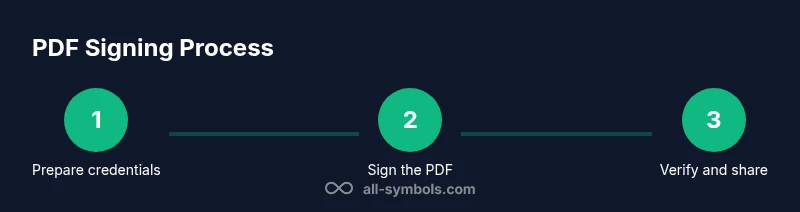
Below is a high-level overview of the typical signing process, followed by a detailed step-by-step guide in the dedicated section. This overview helps you understand the flow from credential setup to verification and distribution. Can you sign on a pdf document? Yes, through a sequence of credential preparation, document loading, signature placement, and validation. The exact steps depend on your tool, the type of signature, and whether you’re signing for internal use or external compliance. Remember to keep evidence of your signing action and verify the signature after applying it.
Verifying signatures and validation
Verification is as important as signing. A signed PDF should be verifiable with any standard viewer that supports digital signatures. Look for indicators such as a green checkmark, a valid certificate, and a timestamp. A signature’s validity relies on the certificate chain, revocation status, and the integrity of the document after signing. Long-term validation adds time-based checks to ensure the signature remains trusted even as certificates expire. If something looks off, re-verify with the issuer or signer and consider re-signing if the document has been changed.
Common pitfalls and best practices
Common pitfalls include signing a document after it has been edited, using an untrusted certificate, or failing to update the signature when the document changes. Best practices emphasize using certificates from trusted authorities, enabling long-term validation where possible, and preserving the original unsigned file alongside signed versions for records. Always test the signed PDF in multiple readers to confirm cross-compatibility, and maintain a clear audit trail for compliance. Finally, educate signers and recipients about how to verify signatures and what the results mean.
Tools & Materials
- PDF editor or signer with certificate support(Examples: Adobe Acrobat Pro, Foxit, Nitro; ensure it supports PKI signing and timestamping)
- Digital certificate / ID(Issued by a trusted authority; may be managed via your organization or a certificate provider)
- Device with internet access(For online signing or certificate verification; ensure a stable connection)
- Optional signature appearance asset(An image or stamp you want to display for visible signatures)
- Verification key/public certificate (for recipients)(If you’re sharing for external verification; helps recipients validate signatures offline)
Steps
Estimated time: 10-25 minutes
- 1
Prepare credentials
Gather your digital certificate and confirm you have permission to sign the document. If you don’t have a certificate, obtain one from a trusted authority or your organization’s IT department.
Tip: Keep a backup of your certificate in a secure password-protected location. - 2
Open the PDF in signing software
Launch your signing tool and open the PDF you need to sign. Ensure you’re using a secure, trusted application to avoid tampering.
Tip: Use a copy of the original file for signing to preserve the unsigned version. - 3
Choose the Sign option
Select the signing feature (often labeled Sign, Certificates, or Digital Signature). This initiates the signing workflow and prepares the document for certificate attachment.
Tip: If the UI offers visible vs. invisible signatures, decide based on your audience and legal needs. - 4
Import or select your certificate
Choose the correct certificate from your keystore or file. Some tools require entering a password for the private key.
Tip: Verify the certificate’s validity period before applying the signature. - 5
Place signature and configure appearance
Drop the signature field in the desired location and customize its appearance if desired. You can add a timestamp or signer name for clarity.
Tip: Keep branding consistent if you’re signing on behalf of an organization. - 6
Apply signature and save
Apply the signature to the PDF and save the document. The software will generate a cryptographic seal bound to the certificate.
Tip: Save as a new file to preserve the original unsigned copy. - 7
Verify the signature
Open the signed PDF and use the viewer’s verification tools to confirm the signature’s validity and certificate trust chain.
Tip: Check the timestamp and certificate revocation status for assurance. - 8
Distribute securely
Send the signed file through a trusted channel. Include any required accompanying verification information or public keys.
Tip: Use verified channels (encrypted emails, secure file sharing) for distribution. - 9
Maintain credentials
Monitor certificate expiry and plan for renewal. Re-sign documents if certificates are updated or revoked.
Tip: Document your signing workflow for audits and compliance.
Questions & Answers
Can you sign a PDF without a digital certificate?
Yes, you can add a basic electronic signature (like an image) without a certificate, but a cryptographic digital signature requires a certificate. The former is often less verifiable for legal purposes.
You can, but it may not be legally strong without a certificate.
Is a signed PDF legally binding?
Digital signatures are legally binding in many jurisdictions when they follow recognized standards and include a trusted certificate and timestamp. Always check local laws and the signing policy of the recipient.
Usually, yes, if standards and certificates are properly used.
What is the difference between a digital signature and an electronic signature?
A digital signature uses cryptography and certificates to verify identity and document integrity; an electronic signature can be any electronic indication of agreement, which may not provide cryptographic proof.
Digital signatures provide stronger cryptographic proof than generic electronic signatures.
Can multiple people sign a single PDF?
Yes. PDFs can support multiple signatures, either sequentially or in designated signature fields. Each signature can carry its own certificate and timestamp.
Yes, you can have several signers with separate certificates.
How do I verify a signature in a PDF?
Open the signature panel in your PDF viewer and check the signature status, certificate chain, and timestamp. Ensure the signer’s certificate is trusted and not revoked.
Use the viewer’s signature panel to confirm validity and trust.
What if a signature shows as invalid?
Investigate certificate validity, trust anchors, and whether the document was altered after signing. If needed, re-sign or obtain a new certificate.
Check the certificate and any document changes; re-sign if necessary.
Watch Video
The Essentials
- Authenticate the signer with a trusted certificate
- Use proper PKI standards for long-term validation
- Differentiate visible and invisible signatures
- Verify signatures across multiple readers
- Maintain rigorous audit trails and records