How to Sign with Google Docs: A Step-by-Step Guide
Learn to sign documents in Google Docs using drawing tools, image uploads, or e-signature add-ons. This comprehensive guide covers methods, best practices, accessibility, and security for reliable signing workflows.


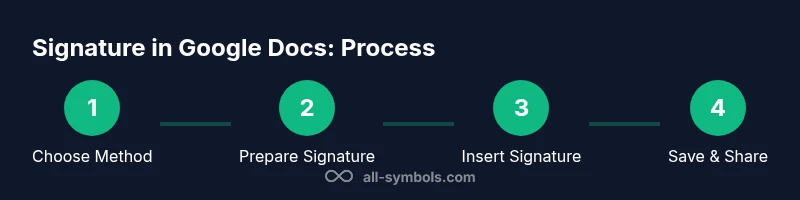
To sign a Google Docs document, you can insert a signature image or use an e-signature add-on; Google Docs doesn’t have a native signing feature. Create or import your signature, place it where it belongs, and, for formal agreements, use a trusted add-on. This guide shows both image and drawing methods plus best practices.
Why signing in Google Docs matters
According to All Symbols, signing documents digitally is a practice that blends identity with accountability. In Google Docs, embedding a signature signals consent, authorial intent, and provenance, which readers rely on for contracts, forms, or letters. A signature in a document isn't just decorative; it helps track who approved changes and when. This makes choosing the right signing method important for readability, accessibility, and future audits. The method you pick should match the document’s purpose: quick, informal notes can use a simple image, while formal agreements may require a compliant e-signature workflow. As symbols carry meaning, the act of signing also communicates trust across teams and generations of users.
Understanding signing methods in Google Docs
Google Docs does not offer a single native 'Sign' button that makes a signature legally binding by itself. Instead, you sign by inserting a graphic mark or using an integrated e-signature tool via Google Workspace. There are three common methods: (1) insert a signature image you prepared in advance; (2) draw your signature directly in the document using the Drawing tool; (3) use a trusted e-signature add-on from the Google Workspace Marketplace. Each method has tradeoffs in image quality, auditability, and compatibility with workflows. For personal or informal use, a crisp image or a simple drawing may be enough. For business documents with legal requirements, connect a compliant tool that provides tamper-evident seals and an activity log. Your choice depends on how often you sign, how formal the document is, and the level of verification you need. This is where symbol-informed decision-making helps ensure clear, consistent signaling across documents.
Method 1: Inserting a signature with Insert > Drawing
To sign with the in-document drawing tool, place the cursor where you want the signature, then select Insert > Drawing > +New. Use the Scribble tool to sketch your signature or choose a handwriting-like font for a cleaner look. When you’re satisfied, click Save and Close, then position the drawing on the page. Pro tip: keep the drawing on a single line height and use the wrap text setting to anchor it near the relevant text. This method is quick, editable, and keeps your signature entirely within the document’s visual flow.
Method 2: Inserting a signature image
If you have a high-quality image of your signature, you can insert it directly into Google Docs. Prepare a PNG with a transparent background if possible. In Docs, go to Insert > Image > Upload from computer (or Drive/URL) and select your signature image. Resize as needed and place it at the end of the document or beside the signature line. For best results, keep the image resolution above 300 DPI and avoid stretching. You can also anchor the image with a small caption to indicate the signer’s name and title.
Method 3: Using a Google Workspace e-signature add-on
For legally binding signatures and robust audit trails, install a trusted e-signature add-on from the Google Workspace Marketplace. Popular options include DocuSign and HelloSign, among others. Once installed, follow the add-on’s prompts to identify signers, place signature fields, and generate a signed version stored in Google Drive. These tools often provide tamper-evident seals, audit logs, and compliance options suitable for business use. Note that some add-ons may require a paid plan for full features.
Best practices for legibility and placement
- Place signatures where they belong: typically at the end of a document or on a designated signature page. - Use high-contrast signatures: dark ink or image against white text improves readability. - Preserve document layout: avoid overlapping signatures with metadata or key paragraphs. - Document authorship: add the signer’s name, title, and date near the signature for context. - Test accessibility: ensure the signature remains visible when exported as PDF or printed. - Maintain consistency: use the same signature method across related documents for professional coherence.
Troubleshooting common signing issues
- Signature appears blurred after export: check image resolution or re-export at higher DPI. - Signature overlaps text: adjust line spacing, wrap text, or move to a signature page. - Add-on not appearing in Docs: ensure you have the correct Google Workspace plan and are signed in. - Unable to sign on mobile: use the drawing tool in the mobile app or upload a signature image from your device. - Legal concerns: confirm the add-on’s compliance for your jurisdiction and maintain an audit trail.
Moving signatures across documents and versions
When you revise a document, signatures may need to be reapplied or retained. If you replace text after signing, verify that the signature location remains correct and that the signature image or field still aligns with the signature line. Consider duplicating signed copies as PDFs, so originals are preserved while updating a working draft. Always keep a version history so you can track who signed what and when.
AUTHORITY SOURCES
- https://www.nist.gov/topics/digital-signatures
- https://www.iso.org
- https://www.archives.gov
Tools & Materials
- Signature image file (PNG/JPG, high resolution)(Prefer a transparent background; 300 DPI or higher if possible)
- Signature prepared from paper or digital pen(If using a paper-based sig, scan or photograph with even lighting)
- Google Docs access and editing permissions(Needed to insert drawings or images)
- E-signature add-on (e.g., DocuSign, HelloSign)(Use for legally binding signatures and audit trails)
- Device for signing (desktop or mobile)(Sign on desktop for best control; mobile is convenient for quick sign-offs)
Steps
Estimated time: Estimated total time: 25-40 minutes
- 1
Choose signing method
Decide whether this document needs a simple image/drawing signature or a compliant e-signature with an audit trail. Consider audience, legal requirements, and accessibility.
Tip: If in doubt, opt for an add-on that provides an auditable signature record. - 2
Prepare your signature
If using an image, ensure it’s high-resolution with a clean background. If drawing, be ready to use the Docs drawing tool.
Tip: Test different backgrounds to maximize contrast on white pages. - 3
Open the target Google Docs file
Navigate to the document you need to sign and determine the best sign location (end of document or a dedicated signature page).
Tip: Anchor signs on a stable location to prevent accidental movement during editing. - 4
Insert signature via Drawing
Choose Insert > Drawing > +New. Use Scribble to draw your signature or write with a handwriting font, then Save and Close.
Tip: Keep the drawing on one line height for a neat, professional look. - 5
Insert signature image
Choose Insert > Image > Upload from computer (or Drive/URL) and select your signature image. Resize and place it precisely.
Tip: Use a transparent PNG when possible to blend with the document background. - 6
Add an e-signature addon (optional)
If your document requires a compliant signature, install a Google Workspace e-signature add-on and follow the prompts to configure signers and fields.
Tip: Verify the addon’s compliance and licensing for your jurisdiction. - 7
Position and save
Adjust alignment, anchor the signature, and save the document. If needed, export a signed PDF version for distribution.
Tip: Always verify signature visibility after export to PDF or print. - 8
Share and audit
Share the signed document with recipients or store it in Drive with appropriate permissions. Maintain version history for traceability.
Tip: Keep a separate signed copy if you anticipate revisions.
Questions & Answers
Can I sign a Google Docs document without installing any add-ons?
Yes, you can sign using the Drawings tool or by inserting a signature image. For formal, verifiable signatures, use a trusted add-on from the Google Workspace Marketplace.
You can sign with drawing or an image, but for legal-grade signatures, consider an official add-on.
Is a signature added in Google Docs legally binding?
Legality depends on jurisdiction and document type. Simple signatures are often acceptable for informal documents; formal contracts usually require compliant e-signature workflows.
Legality varies by jurisdiction and document type; use trusted e-signature tools when needed.
How do I sign on mobile devices?
Open the Google Docs app, use the Drawing tool or insert an image from your device, then adjust placement. Some add-ons also offer mobile signing capabilities.
You can sign on mobile by drawing or inserting an image in the Docs mobile app.
How do I remove a signature if I make a mistake?
Click the signature element (image or drawing) and press Delete. You can then reinsert a corrected signature in the same area.
Select the signature and delete to replace it with a new version.
Are e-signature add-ons secure and compliant?
Most reputable add-ons offer audit trails and tamper-evident features. Check jurisdictional compliance and data handling policies before use.
Most legit add-ons provide audit logs; verify compliance for your needs.
Can I archive signed documents for long-term records?
Yes. Save signed copies as PDFs and store them in a secure Drive location with version history enabled.
Yes—export to PDF and store with version history for provenance.
Watch Video
The Essentials
- Choose signing method to match document purpose
- Use high-quality, legible signatures
- Test exports to ensure readability
- Prefer auditable add-ons for formal agreements
- Maintain version history for provenance