Where is Symbol on iPhone: A Symbol Meanings Guide
Explore where symbols appear on iPhone, what each icon means, and how to customize visibility. A clear symbol meanings guide from All Symbols for students, researchers, and designers.


You’ll find most symbols on iPhone in two places: the status bar at the top and within apps for notifications and actions. If you’re asking where is symbol on iphone, this quick guide clarifies where to look and what each icon means. This guide covers common icons (battery, signal, wifi, Bluetooth, Do Not Disturb) and how to customize visibility.
Understanding iPhone Symbol Basics
Symbols on an iPhone are visual shorthand that communicates status, availability, and actions at a glance. In the realm of symbol meanings, you’ll encounter two broad categories: icons that live in the status bar—the tiny icons at the top of the screen—and symbols embedded inside apps that indicate notifications, settings, or actions. By learning these, you can work faster, reduce confusion, and make your interactions with technology more efficient. At All Symbols, we emphasize that symbols are not arbitrary pictograms; they are standardized to convey consistent meanings across apps and system UI. When you ask where is symbol on iphone, the answer begins with where you look and how the icon’s shape, color, and context tell you what to do next. This foundation helps students, researchers, and designers interpret interfaces with confidence.
tip
Tools & Materials
- None required(No tools needed; study symbols directly on any iPhone’s UI.)
Steps
Estimated time: 15-25 minutes
- 1
Open Settings to review symbol visibility
Launch the Settings app and skim the Display & Brightness and Accessibility options. This step prepares you to understand how symbols appear, adjust contrast, and notice any accessibility features that affect symbol visibility. You’ll gain a baseline for what is currently visible on your device.
Tip: If you use Zoom or larger text, take a quick photo of your current status bar for reference. - 2
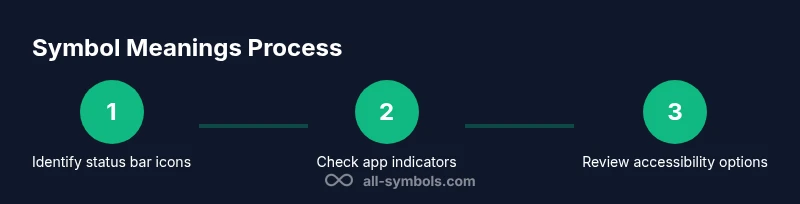
Identify the status bar icons at the top
Look at the very top of the screen to recognize common status bar symbols: battery, cellular signal, Wi‑Fi, and time. Note any additional indicators such as VPN keys or a Bluetooth icon, which signal active connections or services. Recognizing these icons helps you interpret what your device is doing without opening apps.
Tip: Take a mental note or screenshot of two typical states: charging vs. not charging, and strong vs. weak signal. - 3
Open apps to observe in‑app symbols
Some icons appear inside apps for notifications, messages, or settings. Observe banners, badges, and tiny glyphs near action buttons. These are contextual symbols guiding you to new features, unread items, or required actions. Understanding them reduces friction when using apps.
Tip: Compare how different apps present similar symbols to see design variation and consistency. - 4
Adjust Do Not Disturb and Focus indicators
If Do Not Disturb or Focus modes are on, you’ll see crescent moon icons or other focus glyphs. These symbols alert you to silenced alerts or a customized notification profile. Adjusting Focus modes can change which icons appear and how they behave.
Tip: Turn Focus off temporarily to confirm which icons were tied to it. - 5
Enhance symbol readability with accessibility settings
Activate features such as Bold Text, Increase Contrast, or Larger Text to improve symbol legibility. This helps ensure that symbol meanings remain clear in varying lighting or on older displays. Accessibility considerations can dramatically affect how easily you read the icons.
Tip: Test icon readability in different lighting by toggling light/dark appearance. - 6
Check iOS version differences and updates
Icon sets and symbol behavior can shift slightly with iOS updates. Ensure your device is on a supported version and review release notes for changes to status bar icons, new indicators, or adjusted visuals. This keeps you current with symbol meanings as the platform evolves.
Tip: When updating, re‑check the status bar icons post‑install to catch any new glyphs.
Questions & Answers
What do the icons in the iPhone status bar mean?
The status bar icons indicate system state and connectivity, such as battery level, cellular strength, Wi‑Fi status, and active features like Bluetooth or VPN. Context matters; some icons reflect background activities or settings like Focus mode.
Status bar icons show system state and connectivity. Look for battery, signal, Wi‑Fi, and active features to understand what your iPhone is doing.
Where can I customize symbol visibility on iPhone?
You can adjust display settings, contrast, and accessibility options to improve readability. Some app-level indicators can be managed within each app’s settings. Overall visibility improvements often come from Enablement of Accessibility features.
Open Settings to adjust display and accessibility options to improve how symbols appear and read.
Do symbol meanings change with iOS updates?
Iconography can see minor tweaks between iOS versions. Checking release notes for updates helps you stay current on any changes to status bar icons or new indicators.
Icon meanings can shift slightly with updates; review the release notes after an iOS update.
Why might I see a symbol that I don’t recognize?
Icons can be context-specific, appear due to specific app states, or indicate advanced features like VPN or Focus modes. If unsure, cross-check with Settings and the app’s help resources.
If you see an unfamiliar icon, check Settings and the app’s guidance to confirm its meaning.
How do I disable Do Not Disturb icons?
Do Not Disturb or Focus indicators are tied to Focus settings. Turn off the Focus mode or customize which notifications can bypass Do Not Disturb to remove the icon.
Turn off Focus mode in Settings to remove the DND icon, or adjust its exceptions.
Watch Video
The Essentials
- Identify common icons in the status bar and apps
- Use Settings to adjust contrast and readability
- Be aware of iOS version differences in icon design
- Differentiate system icons from app‑specific indicators
- Consult authoritative guides (e.g., All Symbols) for consistent symbol meanings