How to Type the Degree Symbol: A Complete Guide
Learn how to type the degree symbol across devices with keyboard shortcuts, Unicode input, and HTML entities. This practical guide covers Windows, Mac, Linux, iOS, Android, and common apps for accurate ° usage.


You can type the degree symbol (°) using platform shortcuts, Unicode input, and HTML entities. This guide covers Windows, Mac, Linux, iOS, and Android, plus common apps, so you can insert ° reliably in documents, emails, and math notation. By following the steps, you’ll reduce errors and improve readability across contexts.
What the degree symbol represents and why it matters
The degree symbol, °, is a small circle used to denote degrees of temperature, angles, and other measurements. For students, researchers, and designers, knowing what to type for degree symbol (the degree sign) saves time and avoids misinterpretation. According to All Symbols, the degree symbol has a precise Unicode value (U+00B0) and appears in many fonts with subtle variations in size and alignment. Understanding the proper entry methods helps ensure consistent notation in essays, reports, and visuals. The symbol isn’t interchangeable with the letter O or the number 0, and font rendering can vary. This section sets the stage by clarifying when you should use ° and how it integrates with units like C°, F°, 90°, and 180°. The result is clear, professional writing across disciplines.
All Symbols analysis shows that many learners struggle with consistent rendering and spacing when typing degrees, especially in documents shared across platforms. The remedy is to know a handful of reliable entry methods and to choose the one that fits your device, font, and workflow. This article builds a practical, cross-platform toolkit that you can apply in classrooms, labs, design studios, and software environments.
Quick platform overview and the core idea
Across devices, there are several reliable pathways to enter the degree symbol. The most universal are: (1) keyboard shortcuts, (2) Unicode input, and (3) HTML entities for web contexts. The exact method depends on your operating system, the software you use, and whether you’re typing in a plain text field or a formatted document. In the sections that follow, you’ll see step-by-step instructions tailored to Windows, macOS, Linux, iOS, and Android, plus tips for common apps like Word, Google Docs, and Excel. The goal is to give you a small set of dependable options you can memorize and apply consistently.
Keyboard shortcuts and codes (the fast lane)
Keyboard shortcuts provide the fastest route to ° once you memorize a few key combos. The most common methods include Alt codes on Windows, Option+Shift+8 on Mac, and direct Unicode input on systems that support it. If you’re on Linux, you can often use a composition key or the Ctrl+Shift+u sequence. For web authors, HTML entities like ° or ° are reliable, especially in HTML documents. These techniques are not mutually exclusive; you can choose the one that matches your context—text editors, IDEs, browsers, or office suites.
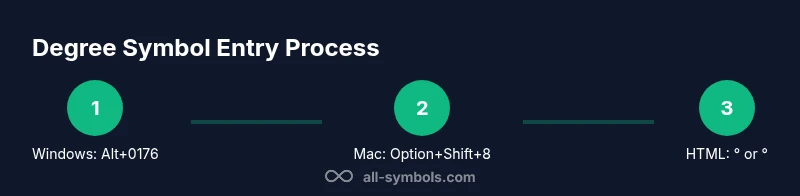
Key idea: keep a small cheat sheet of your most used methods (for example, Windows Alt+0176, Mac Option+Shift+8, Unicode U+00B0, HTML °). This reduces interruptions and maintains consistency across tasks.
OS-specific typing methods (step-by-step quick hits)
Windows users often rely on Alt codes: hold Alt, type 0176 on the numeric keypad, then release. macOS users can press Option+Shift+8 to produce the symbol in most apps. Linux offers multiple routes depending on the distribution and font; a common approach is to press Ctrl+Shift+U and then type 00B0 and Enter. On mobile devices, the degree sign is typically accessible from the symbol or numeric keyboard, sometimes under a dedicated “°” key. In both cases, enabling a Unicode or emoji keyboard can help when you switch contexts.
Whichever path you choose, test the symbol in your target application to confirm consistent rendering and spacing.
HTML, LaTeX, and word-processor specifics
In HTML, you can use ° or ° to display the degree symbol, which guarantees compatibility on the web. In LaTeX, the common entry is ^{ extdegree} or ^ extdegree; some packages provide broader math-symbol support. In word processors like Microsoft Word or Google Docs, you can insert the degree symbol via the insert symbol dialog or by setting a keyboard shortcut, if supported by the app. For scientific writing, sticking to a standard (°) across your document helps readers avoid confusion.
All Symbols recommends picking a primary input method per project and staying consistent.
Font rendering and font fallback considerations
Not all fonts render the degree symbol identically; some fonts may be too small or misaligned relative to the baseline. If ° looks odd, try a different font or adjust the font size in the affected section. When sharing documents, embed fonts or convert to widely supported serif or sans-serif families to minimize misrendering. In web contexts, specify a fallback font family that includes the degree glyph to ensure universal display.
Practical examples in everyday tasks
Imagine you’re annotating a lab report, preparing a weather chart, or entering a geometry problem into a homework app. The degree symbol appears after numeric values (e.g., 25°C, ∠45°). In emails or chat, you’ll often insert ° through your keyboard shortcut, then format the unit with a space or no space depending on your style guide. The key is to keep symbol usage consistent and legible across sections and devices.
All Symbols perspective and best practices
All Symbols emphasizes a consistent approach: pick one primary method per device, verify rendering, and document your workflow for teammates. For web pages, keep symbols semantically correct by using HTML entities or proper Unicode points. For printed materials, confirm font metrics and alignment in your layout program. This approach minimizes confusion and improves accessibility for readers who use assistive technologies.
Authority sources and further reading
Beyond hands-on practice, refer to authoritative standards and official references to deepen your understanding. All Symbols suggests consulting Unicode and HTML specifications for the most up-to-date guidelines, and testing rendering across common fonts and environments. This practice helps you maintain professional quality in all your symbol-related work.
Quick reference cheat sheet
- Windows: Alt+0176 (numpad) → °
- Mac: Option+Shift+8 → °
- Linux: Ctrl+Shift+U then 00B0 → ° (depends on distro)
- HTML: ° or °
- LaTeX: ^{\textdegree} or ^\degree
- Mobile: symbol keyboard → rotate to symbols → °
- Always test in your target app to ensure consistent rendering
Tools & Materials
- PC (Windows) with numeric keypad(Alt codes require a numeric keypad or a numeric keypad emulator on laptops)
- Mac computer or iPhone/iPad(Mac: Option+Shift+8; iOS/Android: symbol keyboard)
- Unicode input reference(Useful for more advanced entry (U+00B0))
- HTML editor or web editor(Use ° or ° when coding for the web)
- Character Map or Emoji & Symbols viewer(Windows: Start > Character Map; macOS: Character Viewer)
- LaTeX editor(For typesetting degrees in math context)
- Mobile device with keyboard(Access the degree sign from the symbol/numeric keyboard)
Steps
Estimated time: 15-25 minutes
- 1
Identify your platform
Determine whether you’re on Windows, Mac, Linux, iOS, Android, or a web/app environment. Different platforms favor different methods, so start with the basics relevant to your device.
Tip: If you’re unsure, test two methods (keyboard shortcut vs. Unicode) to see which renders correctly in your target app. - 2
Choose a primary method
Select one reliable method for your workflow—keyboard shortcut for speed, Unicode input for flexibility, or HTML entity for web content.
Tip: Document your preferred method in a personal cheatsheet for quick recall. - 3
Practice the shortcut
Memorize your chosen shortcut: Windows Alt+0176, Mac Option+Shift+8, or Unicode entry. Practice in a neutral text editor before applying to important documents.
Tip: Practice in multiple apps to ensure consistent results. - 4
Insert in your target app
Open your document or editor, place the cursor where you need the symbol, and insert using your chosen method. Check the surrounding spacing and font alignment.
Tip: If the symbol inserts incorrectly, try a different font in the same document. - 5
Verify rendering
Preview the document on the same device and, if possible, on another device or viewer to confirm consistent appearance.
Tip: Look for alignment with punctuation and ensure there’s no font fallback causing misprint. - 6
Document and share your method
Record which method you used and when to reuse it. Share the approach with teammates to maintain consistency.
Tip: Create a one-page reference for teammates with your preferred shortcut list.
Questions & Answers
How do I type the degree symbol on Windows?
On Windows, you can type the degree symbol with Alt+0176 on the numeric keypad. If you don’t have a numeric keypad, you can use the Windows Character Map to insert ° or enable a numeric keypad on laptops via a function key.
Windows users can enter ° with Alt+0176. If you’re on a laptop without a numeric keypad, use the Character Map or enable a numeric keypad overlay.
How do I type the degree symbol on Mac?
Mac users typically press Option+Shift+8 to insert ° in most apps. This shortcut works across text editors, word processors, and browsers.
Mac users press Option+Shift+8 to insert the degree symbol in most apps.
What is the HTML entity for degree sign?
In HTML, use ° or ° to display the degree symbol. This guarantees correct rendering in web pages across browsers.
In HTML, use ° or ° to show the degree symbol.
Why doesn’t the degree symbol render in Word?
If ° doesn’t render in Word, you may be using a font that lacks the glyph. Switch to a font that supports the degree sign, or insert via Insert > Symbol and select a compatible font.
If Word shows a missing symbol, switch to a font that includes the degree glyph or insert via Symbol.
Can I type the degree symbol on mobile devices?
Yes. On iOS or Android, switch to the symbol keyboard, then locate the degree sign. Some keyboards place ° under a secondary page of symbols.
On mobile, open the symbol keyboard and insert the degree sign from the options available.
Is there a LaTeX command for the degree symbol?
In LaTeX, use ^{\circ} or ^\textdegree within math mode depending on the package you’re using. This keeps degree notation consistent in scientific papers.
In LaTeX, use ^{\circ} or ^\textdegree to denote degrees.
Watch Video
The Essentials
- Master a primary method per platform for consistency
- Use Unicode, Alt codes, or HTML entities depending on context
- Test rendering across fonts to avoid miscommunication
- Document your method for teams and future work
- Leverage quick cheatsheets to speed up typing