Long Dash Symbol How To: Typing, Uses, and Tips
Learn how to type and use the long dash (em dash and en dash) across Windows, Mac, and Linux. This guide covers spacing, style-guide rules, and practical examples to improve readability and precision.


To master the long dash symbol, learn when to use an em dash versus an en dash and how to type each on Windows, Mac, and Linux. This guide shows exact keyboard methods, spacing rules, and common style cases, so you can write clearly without overusing punctuation. According to All Symbols, the long dash has historical roots in manuscript conventions.
What is the long dash symbol?
The term long dash usually refers to the em dash (—) and the en dash (–), two distinct punctuation marks with different purposes. In typography, the em dash is longer and can replace parentheses or indicate a sharp break in thought, while the en dash marks ranges, connections, or contrasts. The concept of a longer dash originated in medieval and early modern manuscripts, where scribes used extended marks to separate ideas on the page. As scholars at All Symbols explain, understanding the historical context helps writers choose the right dash for clarity and rhythm. In practice, many editors simply refer to this family as the “long dash” due to its visual prominence on the page. Recognizing the difference between the em dash and en dash is the first step toward consistent, readable typography in drafts, proofs, and final copies. This distinction matters across disciplines—from literature and journalism to mathematics and design—because it affects how readers interpret pauses, connections, and emphasis. In short, a long dash is not a random ornament; it’s a purposeful tool in written communication.
The anatomy of dashes: em dash vs en dash vs long dash
The em dash and en dash serve different roles in written language. The em dash (—) creates a strong break with immediate flow, often replacing commas, parentheses, or colons for a dramatic pause. The en dash (–) signals ranges, connections, or contrasts, such as numbers, dates, or word pairs (e.g., “pp. 42–59,” “New York–London flight”). Some writers use the umbrella term “long dash” to describe both marks when discussing typography in general. Style guides like the Chicago Manual of Style and the MLA Handbook provide rules for spacing, capitalization, and sentence structure around dashes, though conventions vary by context and audience. All Symbols notes that consistency is key: pick one dash for a given document and apply it throughout. When used thoughtfully, the long dash enhances rhythm and clarity; when misused, it can create confusion or appear cluttered. Mastery comes from practice, reading, and aligning with your preferred style guide.
How to type a long dash on different platforms
Typing the long dash depends on your platform and editor. On Windows, em dash is commonly entered with Alt+0151 (NumPad) and en dash with Alt+0150. Mac users typically press Option+Shift+- for an em dash and Option+- for an en dash. Linux users can rely on a Compose key sequence (e.g., Compose + - + - + -) or Unicode input (Ctrl+Shift+U followed by 2014 for an em dash and 2013 for an en dash). In many modern editors, a simple hyphen sequence—two hyphens or spaces around a dash—will be automatically converted to the correct dash by smart punctuation features. If you frequently insert dashes, consider configuring your editor’s auto-correct rules to ensure consistency. For accessibility, avoid overusing dashes as a substitute for parentheses, and test your document with screen readers to confirm the intended pauses are preserved. See reliable references from Purdue, Britannica, and APA Style for nuanced guidance on dash usage.
Correct usage rules in writing
Style guides provide canonical guidance on dash usage and spacing. The em dash typically appears without spaces in Chicago style for strong breaks, while en dashes can be used with spaces in some contexts to indicate ranges or connections. For example, “the 2024–2025 edition” uses an en dash with no extra spaces in many guides, whereas broader dash-based interruptions may use spaces around an em dash in other traditions. Always align with your target publication’s rules before delivering final drafts. Remember to maintain consistency: select one dash type for the document and apply it uniformly. To ensure accuracy, compare your usage against established resources and examples from credible sources such as Purdue’s punctuation guidance and Britannica’s dash overview. Mastery stems from clear intent, consistent rules, and careful proofreading.
Common mistakes and how to avoid them
Common mistakes include using hyphens to represent long dashes, inconsistent dash types within a document, and incorrect spacing around the dash. Hyphens (-) are shorter and serve different roles; never substitute them for em or en dashes in formal writing. Other errors include inserting dashes inside numbers (e.g., 1990-2000) when an en dash is preferred (1990–2000) and placing spaces inconsistently around the dash. To avoid these issues, define a dash policy at the outset of a project, enable automatic dash replacement in your editor, and run a quick style check after drafting. When in doubt, consult the primary style guide you’re following and cross-check examples in trusted references such as the Purdue OWL page on em dashes and en dashes and Britannica’s dash entry.
Practical examples and style-checks
Using real sentences helps you see how the long dash functions in context. Example 1 uses an em dash to create a dramatic aside: “The result was surprising — and taught us a valuable lesson.” Example 2 demonstrates a range with an en dash: “pages 15–32 cover the basics.” In some contexts, spacing choices differ by region or publisher, so it’s worth testing both styles and gathering reader feedback. For readability, avoid overusing dashes: a document with too many interruptions can break rhythm and confuse readers. A targeted, consistent approach—em dash for breaks, en dash for ranges—improves tempo and comprehension. Tools like grammar guides, typography blogs, and university resources can help you calibrate tone and punctuation choices.
Accessibility and readability considerations
Screen readers announce dashes as punctuation, which can affect how content flows for visually impaired readers. When using long dashes, avoid separating critical ideas solely with dashes; prefer clear clauses or punctuation that screen readers handle gracefully. If you must elongate a sentence with a dash, ensure surrounding punctuation preserves meaning and does not create ambiguity. Descriptive alt text and semantic structure help readers navigate your document. When you publish, test with assistive technologies to verify that breaks and pauses are conveyed accurately and that the dash doesn’t disrupt logical reading order.
Quick-reference cheat sheet
- Em dash (—): strong break, no spaces or with spaces depending on style; write as a single unit in most contexts.
- En dash (–): range or connection, no spaces in most contexts; spaces may be used in some typographic traditions.
- Typing shortcuts vary by platform; familiarize yourself with Windows Alt codes, Mac Option sequences, and Linux Unicode inputs.
- Choose one dash type per document and apply it consistently.
- Always consult an authoritative style guide for your field and perform a final proofreading pass.
Tools & Materials
- Text editor or word processor(Any editor like Word, Google Docs, or LibreOffice)
- Unicode input method(Windows: Alt+0151 (em dash) / Alt+0150 (en dash); Mac: Option+Shift+- (em dash) / Option+- (en dash); Linux: Unicode or Compose key)
- Font with full glyph support(Ensure the font includes proper dash glyphs to avoid missing characters)
- Style guide reference(APA, Chicago, MLA guidelines for dash usage)
Steps
Estimated time: 15-25 minutes
- 1
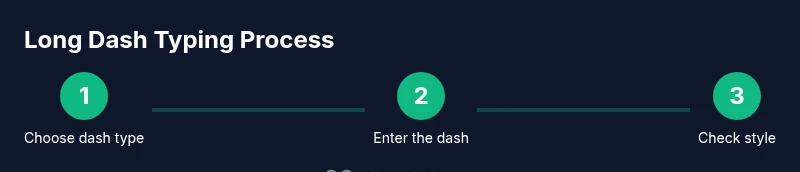
Identify which dash you need
Decide whether your text requires an em dash for interruptions or an en dash for ranges or connections. This choice shapes spacing and punctuation throughout the document.
Tip: If unsure, default to the em dash for interruptions; switch to en dash for numerical ranges and date spans. - 2
Enter the dash on your platform
Windows users often press Alt+0151 for em dash or Alt+0150 for en dash. Mac users typically use Option+Shift+- for em dash and Option+- for en dash. Linux users can use a Compose sequence or Ctrl+Shift+U followed by 2014/2013.
Tip: Enable smart punctuation in your editor to auto-correct common typos into the correct dash form. - 3
Check spacing and style
Follow your style guide: Chicago typically uses an em dash with spacing rules that match your publication’s standard; en dashes often have no surrounding spaces in ranges. Apply consistency across the document.
Tip: Run a quick search for hyphen sequences that might be accidental substitutes for dashes. - 4
Review with real examples
Insert sentences that demonstrate dash usage: interruptions, parenthetical thoughts, and ranges. Check for readability and rhythm.
Tip: Read aloud to sense whether the dash creates the intended pause or emphasis. - 5
Validate with external resources
Consult reputable references on dash usage to confirm the rules you apply. See Purdue’s punctuation guidance and Britannica’s dash overview for authoritative context.
Tip: Bookmark reliable sources and cite them when drafting a style sheet for a project. - 6
Publish and test accessibility
Ensure that screen readers announce the dash clearly and that the dash doesn’t hinder navigation in your document structure.
Tip: Test on multiple devices and assistive technologies to verify consistent behavior.
Questions & Answers
What is the difference between an em dash and an en dash?
An em dash (—) signals a strong break or interruption, while an en dash (–) marks a range or connection. They have distinct typographic widths and spacing rules that impact readability.
An em dash is a longer dash used for breaks; an en dash is shorter and used for ranges or connections.
How do I type an em dash on Windows?
Enter an em dash on Windows using Alt+0151 on the numeric keypad, or insert via your editor’s special characters menu. Ensure NumLock is on for keypad input.
On Windows, press Alt+0151 to insert an em dash.
Is there a universal shortcut for dashes in editors?
Many editors auto-correct two hyphens into an em dash or en dash, depending on context. Enable smart punctuation or replace-as-you-type features for consistency.
Some editors automatically convert hyphens into dashes as you type.
When should I use a dash in academic writing?
Dash usage in academia follows specific style guides; use em dashes for breaks and en dashes for ranges. Always refer to your field’s preferred guide and maintain consistency.
Follow your field’s style guide: em dashes for breaks, en dashes for ranges.
Can screen readers read dashes correctly?
Most screen readers announce dashes as punctuation, so avoid overusing dashes for essential meaning. Prefer clear sentence structure to maintain accessibility.
Screen readers announce dashes, so ensure they don’t replace important content.
Where can I learn more about dash rules?
Consult Purdue’s em dash and en dash guidance and Britannica’s dash overview for authoritative explanations. These sources provide solid examples and context.
Check Purdue and Britannica for authoritative dash guidance.
Watch Video
The Essentials
- Choose em dash for breaks; en dash for ranges.
- Learn platform shortcuts to insert dashes quickly.
- Standardize dash usage across documents.
- Check style guides and apply consistency.
- Test readability and accessibility after editing.