How to Correct Symbol in Excel: A Practical Guide
Learn how to correct a symbol in Excel, covering font, encoding, and regional issues. This educational guide walks you through practical fixes, formulas, and best practices for clean, consistent symbol rendering across workbooks.


By the end, you’ll be able to fix misrendered symbols in Excel, replace incorrect glyphs, and ensure consistent symbol usage across cells and worksheets. This quick guide covers common issues—decimal separators, currency signs, and mathematical or typographic symbols—plus practical steps to verify results and avoid repeating errors. You'll learn quick fixes, when to use find/replace, and how to audit formulas that reference symbols.
Understanding symbol rendering issues in Excel
Symbol rendering problems in Excel can happen when the glyph you expect isn't displayed correctly. This often stems from font substitutions, encoding mismatches, regional settings, or the interplay between Excel and your operating system. In practice, a euro sign typed in one font may appear as a question mark in another; a degree symbol may shift to a generic dot; or a minus sign may render as a hyphen. According to All Symbols, many of these problems trace back to font availability and encoding compatibility across worksheets and workbooks. When you’re sure the source data is correct, the next step is to isolate where the misrendering occurs—whether in input data, the font assigned to your cells, or in the export format. The key idea is consistency: using a single, universal font for numbers and symbols reduces surprises. You should also consider locale-specific rules: currency symbols and units vary by locale, and Excel honors those settings when parsing or displaying data. This block sets the stage for practical fixes you can apply right away.
Common symbol problems you’ll encounter
- Misrendered currency signs when copying data between locales (e.g., € vs $.).
- Degree symbol (°) appearing as a circle or missing entirely.
- Superscripts, subscripts, or mathematical symbols that shift after formatting.
- Special characters turning into question marks after CSV import.
- Glyphs changing when the workbook is opened in a different font.
- Symbols in formulas being treated as text or being truncated by regional settings.
In each case, underlying causes can be font substitution, encoding (UTF-8 vs ANSI), or regional settings. Recognizing the pattern helps you pick the right fix, whether you adjust the font, replace characters with formulas, or standardize your data input methods.
Why fonts and encoding matter in Excel
Excel uses the font's glyph set to render symbols. If the chosen font doesn’t include a particular symbol, Excel substitutes with a close match or a placeholder. Encoding defines how characters are stored; if data originates in a different encoding and is pasted into Excel with a font that doesn’t support those glyphs, you’ll see garbled results. This section explains how to verify font coverage and encoding compatibility for your workbook, and how to avoid issues when sharing files across platforms. By standardizing fonts (Calibri or Arial) and ensuring your data uses consistent Unicode characters, you minimize unexpected changes when the file is opened elsewhere.
Tip: When in doubt, test with a small sample sheet that includes representative symbols and compare results across fonts to identify where the issue stems from.
Verifying your workbook's regional and font settings
- Check your computer’s regional settings: locale determines currency, decimal separators, and symbol defaults. 2) In Excel, verify the workbook and worksheet fonts by selecting a cell with the problematic symbol and choosing a font known to include wide symbol sets (e.g., Arial or Calibri). 3) When exporting to CSV, PDF, or other formats, re-check that symbols survive the process. 4) Build a tiny test sheet: include core symbols (€, °, ✓, μ) and switch fonts to observe changes. This quick audit helps you isolate whether the problem sits in data entry, font selection, or export settings.
Replacing symbols with Find & Replace
Find & Replace (Ctrl+H) is a fast repair tool for symbol errors in Excel. Open Find and Replace, set Find what to the incorrect symbol, and Replace with the corrected glyph. Use Options > Look in: Formulas to catch symbols inside formulas; avoid blanket replacements by enabling Match entire cell contents when appropriate. After replacements, scan affected regions to confirm there are no collateral changes. For persistent misrendering, pair Find & Replace with a mapping table to apply replacements consistently across the workbook.
Using formulas to standardize symbols
Excel provides powerful text functions to normalize symbols across cells. The SUBSTITUTE function replaces specific characters within a string; REPLACE can swap characters by position; and a small array of IF and TEXT functions can enforce consistency. Example: =SUBSTITUTE(A1,
,
) replaces inconsistent comma spacing that can affect symbol readability. Another practical pattern is chaining SUBSTITUTE calls to map several problematic glyphs to their correct forms, e.g., =SUBSTITUTE(SUBSTITUTE(A1, "€", "€"), "ß", "ß"). For symbols that appear due to encoding, consider building a mapping table and using VLOOKUP or XLOOKUP to apply replacements across a range.
Handling multi-sheet consistency
Symbol corrections must extend beyond a single sheet. Use a mapping table on a dedicated worksheet and apply the same formulas across all relevant sheets via 3 ways: (a) copy formulas with relative references, (b) use Power Query to apply a transformation step, or (c) create a named range for the mapping and pull it into formulas across sheets. After applying across sheets, run a quick audit comparing a sample row on each sheet to ensure uniform symbol usage and formatting.
Practical worked example: correcting currency and degree symbols
Suppose a dataset contains the misrendered "€" for euros and "˚" for degrees. Step 1: identify all affected cells using Find in Workbook. Step 2: apply a substitution formula in a helper column: =SUBSTITUTE(A2, "€", "€"). Step 3: drag the formula down and replace originals with the results (Copy > Paste Values). Step 4: similarly fix degrees: =SUBSTITUTE(B2, "˚", "°"). Step 5: lock down a small mapping table for any remaining symbols and apply across all worksheets. Step 6: save with Unicode-friendly encoding and test export to ensure symbols survive when shared.
Best practices and quick audits
Maintain a single, legible font across the workbook to minimize symbol issues. Use Unicode-compliant data inputs, and document any encoding expectations for collaborators. Regularly run a symbol audit sheet that lists common glyphs and their intended forms, and perform a periodic export test (CSV/PDF) to verify symbol integrity. Keeping a small reference sheet for symbol mappings can prevent recurring errors and save time in future workbooks.
Tools & Materials
- Excel software (Windows or macOS)(Office 365 or Office 2019+; ensure it is up-to-date)
- Consistent font (e.g., Arial or Calibri)(Symbol rendering depends on font coverage)
- Symbol mapping list (optional)(A reference table of correct symbols and replacements)
- Find & Replace utility (built-in)(Accessible via Ctrl+H; use with care to avoid unintended replacements)
- Formula approach (SUBSTITUTE/REPLACE)(Prepare sample mappings and test on a copy of data)
Steps
Estimated time: 45-60 minutes
- 1
Identify affected symbols
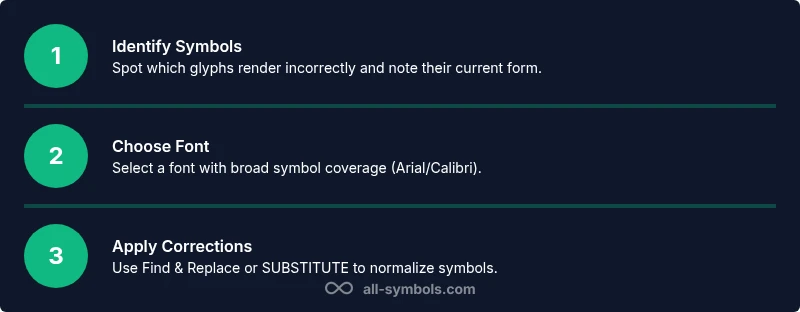
Scan a representative sample of cells to confirm which symbols render incorrectly. Note whether issues are font-related, encoding-related, or locale-driven. Document the exact glyphs that must be replaced.
Tip: Use a dedicated sheet to log all problematic symbols for consistency. - 2
Check font coverage
Select the problematic cell and change the font to Arial or Calibri to see if the glyph remains correct. If it changes, set the workbook to a font with broader symbol support.
Tip: Avoid mixing fonts within the same data column if possible. - 3
Verify regional settings
Inspect your system locale for currency and symbol defaults. Ensure the Excel options align with your data’s locale to avoid automatic symbol shifts.
Tip: Document the locale setting used in the workbook for teammates. - 4
Use Find & Replace for quick fixes
Open Find and Replace (Ctrl+H), set Find what to the incorrect symbol, and Replace with the correct one. Limit scope to the current range first.
Tip: Use Options to search within formulas when your symbols appear in formulas. - 5
Apply formulas for standardization
Create a helper column using SUBSTITUTE to map all known problematic symbols to correct forms, then replace originals with values from the helper column.
Tip: Test with a small subset before applying to the whole workbook. - 6
Extend to multiple sheets
Replicate the same fixes across all relevant sheets. Use a mapping table or defined names to reduce manual steps.
Tip: Consider using Power Query for large datasets or cross-sheet replacements. - 7
Validate results
Review a sample of rows across sheets to confirm accuracy. Export to CSV or PDF and re-open to verify glyph persistence.
Tip: Keep backups before large-scale replacements. - 8
Document the process
Create a short guide capturing: the symbols fixed, the methods used, and the fonts chosen. Store with the workbook.
Tip: A brief changelog helps future editing and collaboration. - 9
Establish ongoing checks
Set up a recurring audit: after data imports, re-run symbol checks and confirm consistency before sharing.
Tip: Automate where possible with simple macros or Power Query rules.
Questions & Answers
What causes symbol errors in Excel?
Symbol errors usually come from font substitutions, encoding mismatches, or locale settings. When Excel can't render a glyph with the active font or misinterprets imported data, symbols can appear garbled or replaced. Fixes focus on standardizing fonts, ensuring Unicode compatibility, and aligning regional settings.
Symbol errors in Excel are often due to font or encoding problems. The fix is to standardize the font, ensure Unicode characters, and align locale settings.
Which Excel functions help replace symbols?
SUBSTITUTE and REPLACE are the primary functions for replacing symbols in text. You can create mapping formulas to replace multiple problematic glyphs, and combine them with IF or FILTER to apply changes across ranges. For fixed lists, VLOOKUP or XLOOKUP can map old symbols to new ones from a reference table.
Use SUBSTITUTE and REPLACE for symbol replacements, possibly combined with VLOOKUP or XLOOKUP for mapping across ranges.
Why does font choice matter for symbols?
Fonts determine whether a given symbol has a visible glyph. If a font lacks a symbol, Excel may substitute or omit it, leading to inconsistent data presentation. Choosing a font with broad symbol support reduces this risk.
Font choice matters because not all fonts include every symbol; picking a font with wide coverage helps ensure consistency.
Can I fix symbols across multiple worksheets at once?
Yes. Use a mapping table with consistent formulas or apply a Power Query script to normalize symbols across all relevant sheets. Duplicating mapping logic into named ranges keeps fixes uniform.
You can fix symbols across sheets by using a shared mapping table and either formulas or Power Query to apply changes across all sheets.
Is there a quick way to verify symbol integrity after sharing?
Export to common formats (CSV, PDF) and reopen to confirm symbols persist. A small test export helps catch encoding or font issues before distribution.
Do a quick export test to check that symbols stay intact after sharing.
Should I document symbol mappings?
Documenting mappings and font choices saves time for collaborators and reduces the chance of repeating the same fix in future workbooks.
Keep a short guide of mappings and fonts to help teammates.
Watch Video
The Essentials
- Identify whether symbol issues stem from font, encoding, or locale.
- Standardize fonts and Unicode usage to prevent future problems.
- Use Find & Replace and SUBSTITUTE for targeted corrections.
- Apply fixes across sheets with mapping tables or Power Query when appropriate.
- Validate results with exports to ensure persistence of symbols.