How to Insert Symbols in Google Sheets: A Practical Guide
Learn how to insert and manage symbols in Google Sheets, using UI tools, formulas, and best practices to enhance clarity for students, researchers, and designers.


Yes. You can insert symbols into Google Sheets in several reliable ways: copy and paste from another source, use the Insert special characters tool, or insert by formula like UNICHAR for Unicode symbols. You can also leverage keyboard shortcuts and fonts to display icons and indicators in your data. This quick answer covers basic methods and points you toward more advanced options.
Symbol basics in Sheets and why they matter
Symbols in Google Sheets play a crucial role in data storytelling. They help convey status, comparisons, and categories without cluttering text. Whether you’re marking tasks with check marks, signaling completion with arrows, or displaying currency and degree symbols, the right glyphs can improve scanning, reduce ambiguity, and support quick decision-making. In this section we’ll outline what counts as a symbol in Sheets, why it matters for readability, and how symbol usage aligns with different genres of data—from academic research to product design. We’ll also touch on universal Unicode support and how font choice impacts rendering across devices. Since the question can you insert symbols in google sheets is central to this guide, we’ll anchor the discussion in practical, repeatable methods so you can apply them in class notes, dashboards, and reports.
To get the most value, think of symbols as a visual language you layer over data. They do not replace numbers or text, but they can highlight trends, indicate thresholds, and draw attention to important values. All Symbols’ guidance emphasizes consistency: decide on a small library of symbols early, document their meanings, and reuse them with clear documentation. This approach makes your sheets easier to read for peers and collaborators who may view the file on different devices or in different fonts.
In the context of Google Sheets, symbols can be inserted in cells, headers, and even within formulas. The key is to ensure your method matches the data’s intent and is robust when exporting to other formats or sharing with teammates. By combining the right UI tools, keyboard methods, and simple formulas, you’ll have a reliable toolkit for symbol-rich sheets.
Finally, remember that accessibility matters. Some symbol glyphs may render differently across fonts or screen readers. Where possible, provide a text alternative or legend for critical indicators. In this guide, we’ll cover UI options, formulas, and practical workflows so you can achieve consistent, accessible symbol usage across your Google Sheets workbooks.
Insert symbols with the UI: Insert special characters
Copy-paste tricks for symbol-rich cells
Keyboard shortcuts to type common symbols
Using Unicode with UNICHAR and CHAR functions
Practical symbol libraries for common data tasks
Display and formatting considerations
Dynamic symbols with data-driven indicators
Automating symbol insertion with Google Apps Script
Troubleshooting symbol rendering in cells
Real-world examples from education and design
Best practices for symbol usage in Sheets
Tools & Materials
- Google Sheets access(Ensure you can edit and create files in Google Drive.)
- Internet-enabled device(Desktop or mobile with a supported browser.)
- Unicode reference source(Web page or document for Unicode code points or character names.)
- Keyboard with numeric keypad (optional)(Helpful for Windows Alt codes to enter symbols.)
- Source of symbols (copy-paste)(From web pages, documents, or emoji panels.)
Steps
Estimated time: 20-40 minutes
- 1
Open your Google Sheets document
Open the spreadsheet where you want to insert symbols and select the target cell or range. If you plan to insert multiple symbols, consider selecting a full column or row for consistency. This step sets the stage for the insertion method you’ll use next.
Tip: Bookmark a nearby cell for quick access to the symbol library later. - 2
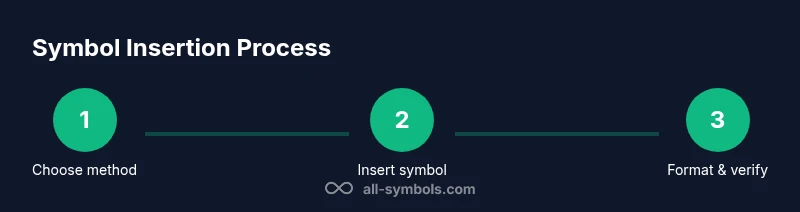
Choose your insertion method
Decide whether you’ll use the UI (Insert > Special characters), copy-paste, or a formula like UNICHAR. Each method has strengths: UI is fast for one-off symbols, copy-paste preserves exact glyphs, and formulas can adapt to data.
Tip: For recurring symbols, create a small library sheet and reference it from your main sheet. - 3
Insert a symbol via the UI
Go to Insert > Special characters, then browse categories or search for a symbol. Click the symbol and press Insert to place it in the selected cell. This is ideal for non-ASCII glyphs and when you want consistent rendering.
Tip: If you don’t see your symbol, try a nearby category like Misc Symbols or Math Symbols. - 4
Copy-paste common symbols
Copy a symbol from a trusted source and paste it into the cell. This method is quick for familiar glyphs such as check marks, arrows, or currency signs. Pasted symbols may inherit the font from the cell, so verify rendering.
Tip: Always verify that the symbol displays correctly after paste, especially after sharing the sheet. - 5
Use keyboard shortcuts for quick entries
On Windows, many symbols can be entered with Alt codes; on Mac, use option-based keyboards. Keep a small reference sheet handy for the most-used glyphs.
Tip: Test a few symbols on both Windows and Mac to ensure cross-platform compatibility. - 6
Leverage UNICHAR and CHAR in formulas
UNICHAR(number) returns the Unicode symbol for a code point, while CHAR(n) returns ASCII characters. These functions let you generate dynamic symbols based on data conditions.
Tip: Start with a simple example: =UNICHAR(9733) for a star, then substitute with your own code points. - 7
Create a symbol library with data-driven indicators
In a separate sheet, store symbols mapped to data thresholds (e.g., up for good, down for bad). Use VLOOKUP or XLOOKUP to pull symbols into your main data view, keeping charts and dashboards clean.
Tip: Document the mapping so teammates understand the logic behind each symbol. - 8
Format symbols for readability
Adjust font size, color, and alignment to ensure symbols are visible and consistent. Use wrap text where needed and consider using a dedicated column width to keep rows aligned visually.
Tip: Avoid small symbols in narrow cells; they can become illegible on mobile devices. - 9
Automate insertion with Apps Script
If you frequently insert symbols in response to data changes, consider a small Apps Script that updates a range with UNICHAR values or copied glyphs. This saves time and reduces manual steps.
Tip: Test scripts on a copy of your sheet before deploying to production workbooks. - 10
Check cross-platform rendering
Test how your sheet looks when opened on different devices, browsers, and operating systems. Some fonts render symbols differently or fail to render emoji in older apps.
Tip: Stick to a symbol set that’s widely supported across platforms. - 11
Validate data and downstream usage
If your sheet is exported or imported into other tools, confirm that symbols survive the transfer. Some destinations may replace or remove certain glyphs.
Tip: Provide a text legend or alternative text for critical symbols. - 12
Document best practices
Add a short guideline in a README or a hidden sheet that explains symbol meanings, insertion methods, and font requirements. This keeps teams aligned.
Tip: Update the doc as you add new symbols to your workflow.
Questions & Answers
Can I insert multiple symbols in a single cell?
Yes, you can insert more than one symbol in a single cell by either pasting them together or concatenating symbols in a formula. Be mindful of cell width and wrapping to keep the data readable.
Yes, you can put several symbols in one cell by pasting or joining them with a formula.
Do symbols affect data analysis or export formats?
Symbols are visual only and do not change the numeric data in a cell. However, export formats may handle symbols differently; validate exports to ensure glyphs aren’t stripped or replaced in downstream tools.
Symbols don’t change numbers, but you should check how exports handle glyphs.
Are there limitations on which symbols I can use in Sheets?
Font availability and platform rendering can limit symbol choices. Stick to widely supported Unicode symbols and test on all target devices.
Font and platform support can limit symbols; test across devices.
Can I use symbols in conditional formatting?
You can display symbols based on conditions by using formulas or UNICHAR inside the formatting rules, but you may need helper columns to compute the code points.
Yes, you can show symbols with conditional formatting using UNICHAR in helper formulas.
Is there a quick way to insert common symbols like check marks or degrees?
Yes. Use the Insert Special Characters tool or copy-paste from a reliable source. You can also save these as part of a small library for repeated use.
You can quickly insert common symbols via UI or copy-paste, then reuse them.
How do I insert emoji as symbols in Sheets?
Emoji can be inserted via the Special Characters tool or by copy-pasting from an emoji picker. Note that some fonts may render emoji differently across devices.
Emoji are insertable via the Special Characters tool or copy-paste, but rendering varies by font.
Watch Video
The Essentials
- Choose a symbol insertion method that fits the task
- Test symbols across fonts and devices for reliability
- Create a reusable symbol library to stay consistent
- Leverage formulas (UNICHAR/CHAR) for data-driven symbols