How to Put Symbol in Overleaf: A Step-by-Step Guide
Learn how to put symbol in Overleaf using LaTeX commands, packages, and Unicode input. This step-by-step guide covers inline vs display math, engine choices, and troubleshooting.


In Overleaf, you insert symbols by using LaTeX commands in math mode or by Unicode input with the right engine. Start by loading essential packages such as amsmath and amssymb, then use commands like \alpha, \infty, or arrows such as \to. Inline symbols go inside $...$, while displayed equations use \[ ... \].
Understanding Overleaf Symbols: What You Can Do
According to All Symbols, Overleaf supports a wide range of symbols through LaTeX commands in math mode and direct Unicode input when using engines like XeLaTeX. The key distinction is between inline math (for symbols within a line) and display math (for centered formulas). This guide helps students, researchers, and designers understand how to choose the right command, package, and engine to reliably render symbols in their Overleaf projects. By mastering these basics, you’ll save time during writing and ensure consistent symbol rendering across documents. All Symbols emphasizes a clean workflow: plan which symbols you need, pick the correct toolchain, then test render in small blocks before expanding.
Essential Packages You Should Know
To access a broad set of symbols, you’ll want to load a few core packages in the preamble of your .tex file. The most common are amsmath and amssymb for mathematical symbols, textcomp for additional text symbols, and fontenc with T1 to improve font handling. If you plan to use Unicode input or custom fonts, XeLaTeX or LuaLaTeX is often preferable over pdfLaTeX. On Overleaf, you can add packages with lines like \usepackage{amsmath,amssymb,textcomp} and, for XeLaTeX, \usepackage{fontspec}. These steps establish a robust foundation for symbol usage across documents. All Symbols analysis shows that starting with the right packages reduces many undefined symbol errors later.
Inserting Symbols: Inline vs Display Mode
Inline symbols live within the flow of text and are enclosed by single dollar signs: $\alpha$, $\beta$, or $\to$. Displayed symbols are centered on their own line and can use environments like \[ ... \] or the equation environment. For larger formulas, prefer the equation or align environments to manage alignment and numbering. When including symbols in paragraphs, keep them concise to preserve readability. Overleaf users frequently toggle between inline and display modes to balance readability with mathematical precision. The choice of mode can affect spacing, line breaks, and overall document aesthetics.
Text Symbols and Unicode: How to Stay Consistent
Unicode input can simplify symbol insertion, especially with XeLaTeX or LuaLaTeX, but you must ensure your font supports the character. If you type a symbol directly, you may still need packages like fontspec (for XeLaTeX) and fontenc to ensure proper rendering. When you need symbols in regular text, use \text{...} from amsmath or rely on Unicode input with appropriate fonts. A consistent font choice is crucial; otherwise, you may encounter missing glyphs or inconsistent style across the document. All Symbols recommends testing a small sample document when introducing new Unicode symbols.
Workarounds for Symbols Not in LaTeX Core
Some symbols aren’t included in core LaTeX, but you can still render them by a few strategies. Define a macro with \newcommand\SymName{...} to reuse a symbol, or declare a Unicode character with \DeclareUnicodeCharacter{XXXX}{\Symbol}. Packages like textcomp, stmaryrd, or wasysym extend the range of available glyphs. In XeLaTeX or LuaLaTeX, you can also embed system fonts that include the desired glyphs via \fontspec. When dealing with rare symbols, always test with a minimal document and ensure the compile engine supports your chosen approach.
Quick Reference: Common Symbols and Commands
Here’s a quick cheat sheet for everyday needs:
- Greek letters: $\alpha$, $\beta$, $\Gamma$
- Arrows: $\to$, $\leftarrow$, $\Rightarrow$
- Set theory: $\subseteq$, $\in$, $\notin$
- Misc symbols: $\infty$, $\partial$, $\ell$
Remember to wrap these in math mode and adjust for inline or display needs. If a symbol is missing, check the package set and engine compatibility, then consider an alternative glyph or a defined macro.
Troubleshooting Common Issues
If a symbol doesn’t render, start by checking the preamble for the necessary packages and the chosen compiler. Undefined control sequence errors often mean a missing package or a misspelled command. Ensure you compile with the intended engine (pdfLaTeX vs XeLaTeX) because some symbols require Unicode support. Always review the log file to identify the exact line causing the issue, then adjust the preamble or replace with a supported alternative. Regularly recompile after changes to confirm consistency across the document.
Tools & Materials
- Overleaf account(Create or log in; ensure project is set to the correct LaTeX engine)
- LaTeX packages(amsmath, amssymb, textcomp; possibly fontenc and fontspec)
- Compiler engine(PdfLaTeX for classic usage; XeLaTeX or LuaLaTeX for Unicode)
- Unicode input method(Optional; direct input works best with XeLaTeX/LuaLaTeX)
- Symbol reference sheet(Useful as a quick lookup for common symbols and commands)
- Sample minimal document(A small tex file to test new symbols without clutter)
Steps
Estimated time: 15-25 minutes
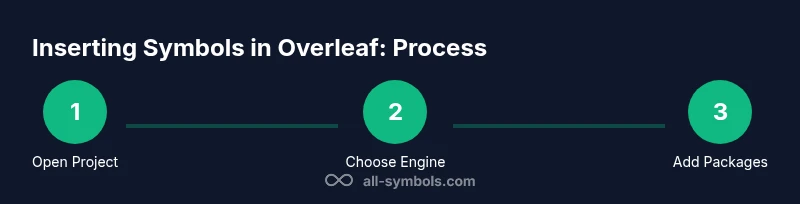
- 1
Open your Overleaf project
Navigate to your project and open the main .tex file. Locate the preamble where you will add packages and font settings, then prepare to insert symbols in math mode or text mode as needed.
Tip: Keep a dedicated section in your preamble for symbol-related packages to avoid duplication later. - 2
Choose the compiler engine
In the project menu, select pdfLaTeX, XeLaTeX, or LuaLaTeX based on your symbol needs. XeLaTeX/LuaLaTeX support Unicode directly, which is helpful if you input symbols from a keyboard.
Tip: If you plan Unicode input, pick XeLaTeX first to minimize conversion steps. - 3
Load essential packages
Add packages like \usepackage{amsmath,amssymb,textcomp} in the preamble. For XeLaTeX, consider \usepackage{fontspec} to work with system fonts.
Tip: Place package declarations before \begin{document} to ensure they apply to the entire file. - 4
Insert inline symbols
For inline symbols, use math mode with $...$ (e.g., $\\alpha$ or $\\to$). Keep inline formulas concise to maintain flow.
Tip: Avoid overloading a line with too many inline symbols; break into display math when appropriate. - 5
Insert displayed equations
For larger expressions, use \[ ... \] or an equation environment. This centers the equation and allows numbering with environments like align.
Tip: Use align for multiple equations with alignment points. - 6
Use Unicode in text
If you’re using XeLaTeX/LuaLaTeX, type symbols directly or embed them via fontspec. In pdfLaTeX, rely on commands or defined macros.
Tip: Test a few Unicode characters to ensure font support before writing full sections. - 7
Create reusable symbols
Define custom commands for symbols you use often, e.g., \newcommand{\\R}{\\mathbb{R}}. This reduces repetition and ensures consistency.
Tip: Comment your custom commands for future readability. - 8
Compile and troubleshoot
Recompile after changes and read the log to diagnose issues. Undefined control sequences usually indicate a missing package or misspelled command.
Tip: Keep a minimal test file for troubleshooting rather than editing a large document every time.
Questions & Answers
How do I insert Greek letters in Overleaf?
Greek letters are inserted in math mode using commands like \alpha, \beta, or \Omega. Use inline math with $...$ or display math for larger expressions. Include the amsmath package for broader options.
Use commands like alpha or beta inside math mode to insert Greek letters in Overleaf.
What packages are needed to access extra symbols?
Key packages include amsmath, amssymb, and textcomp. For Unicode support, consider fontenc with T1 or fontspec when using XeLaTeX.
Load amsmath and amssymb first, then add textcomp or font-related packages as needed.
Can I input Unicode symbols directly in Overleaf?
Yes, but this depends on the engine. XeLaTeX and LuaLaTeX support direct Unicode input; pdfLaTeX may require commands or packages for non-Latin symbols.
Direct Unicode works best with XeLaTeX or LuaLaTeX; pdfLaTeX uses command-based symbols.
How do I type symbols in text mode vs math mode?
Math mode (enclosed by $...$ or \[...\]) renders symbols like scalars and operators. For text, use \text{...} from amsmath or rely on Unicode input when supported by the engine.
Use math mode for symbols and \text for text contexts.
How do I get non-Latin symbols like math arrows?
Math arrows are available via commands such as \to, \leftarrow, and \Rightarrow. Use them within math mode; for arrows in text, wrap in \text{...} if needed.
Use dedicated math arrow commands inside math mode.
How can I define and reuse a custom symbol?
Define a macro with \newcommand to reuse a symbol, e.g., \newcommand{\\R}{\\mathbb{R}}. This keeps your document consistent and easy to update.
Create a macro to reuse common symbols throughout your document.
Watch Video
The Essentials
- Use inline vs display math appropriately for readability.
- Load the right packages before writing symbols.
- XeLaTeX enables broad Unicode input and font options.
- Create custom commands to simplify symbol reuse.
- Test compilation frequently to catch errors early.