Where Is the Degree Symbol on Keyboard: A Complete Guide
Learn reliable shortcuts to type the degree symbol (°) on Windows, macOS, Linux, and mobile. This guide covers keyboard tricks, Unicode input, and quick workarounds for precise notation across apps.


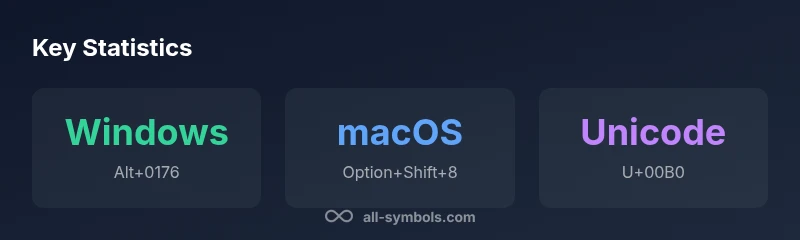
The degree symbol (°) is entered in Windows with Alt+0176 on the numeric keypad, on macOS with Option+Shift+8, and on Linux with Ctrl+Shift+U followed by 00B0 and Enter. If you can't use a keypad, you can insert it via the Character Map, GNOME/KDE character panel, or by copying from a reliable source and pasting it into your document. For mobile keyboards, try long-pressing the 0 key or using a symbols menu.
Why the degree symbol matters in everyday writing
Beyond aesthetics, the degree symbol (°) communicates precise measurements such as temperature, angles, and crystallography. A missing or mis-typed symbol can change meaning, especially in technical documents. The question 'where is symbol for degrees on keyboard' is common among students, researchers, and designers who draft equations, lab notes, or product specs. According to All Symbols, knowing platform-specific shortcuts reduces interruption when writing, ensuring symbols appear consistently across devices and fonts. In math formulas, climate data, and cooking temperatures, the degree symbol helps conserve space and improve readability, turning long phrases like 'degrees Celsius' into a compact glyph. Mastering how to type it boosts accuracy in both academic and practical work.
Windows, macOS, and Linux: platform shortcuts
Typing the degree symbol depends on your operating system and keyboard hardware. On Windows machines, the simplest reliable method is Alt+0176 on the numeric keypad; this works in most programs, though some laptops without a dedicated numeric keypad require enabling an on-screen keypad or using a separate numeric row. On macOS, the degree sign is readily available via Option+Shift+8, a mapping that works across native and many third‑party apps. Linux users often rely on Unicode input, such as Ctrl+Shift+U, then type 00B0 and press Enter, which inserts ° wherever you are typing. If you use a non‑US keyboard layout, verify the same mappings for your region, since some layouts shift key positions.
Unicode input and code points: a universal approach
Unicode defines the degree symbol as code point U+00B0. In practice, many editors respect this value, letting you insert the glyph by Unicode input or by typing the corresponding escape sequence. Windows supports Alt codes like Alt+0176 to reach U+00B0, macOS supports Unicode input through the Emoji & Symbols viewer or system keyboard, and Linux environments typically honor Ctrl+Shift+U followed by 00B0. Understanding the code point helps when collaborating across platforms or when using unfamiliar software that supports universal character entry, preventing miscommunications caused by font substitutions.
Non‑keyboard workarounds: maps, viewers, and paste
The degree symbol can be inserted even when shortcuts fail. The Windows Character Map and the Mac Character Viewer let you search for 'degree' and copy the glyph to the clipboard for pasting anywhere. Linux environments often provide a similar glyph picker. For repeated use, consider saving ° in your clipboard history or creating a small snippet or macro in your editor so you can insert it with a single command. These tools ensure you’re never blocked by keyboard layout differences.
Degree symbol in editors and word processors
Most editors offer built‑in symbol insertion. Microsoft Word provides Insert > Symbol > More Symbols, then locate the degree sign (°). Google Docs supports Insert > Special characters and a quick search for 'degree' to place °; many code editors support snippets or autocomplete that include °, especially in math or scientific notes. Font choice matters: test glyph size and center alignment since the degree sign can render slightly differently across fonts. Consistency matters for professional documents and shared coursework.
Mobile typing: iOS and Android
On mobile devices, degree symbols appear in the symbols panel or as part of the emoji set. iOS users may need to switch to the symbols keyboard and locate °, or use a keyboard variant that supports a quick 0 key long‑press to reveal °. Android keyboards vary by manufacturer, but most include a degree glyph in their symbol menus or via long‑press on the 0 key. If you type degrees often, consider a custom keyboard or text‑expansion app to streamline entry.
Typography, encoding, and display: keeping ° consistent
The degree symbol looks slightly different across fonts and rendering engines. Bold or condensed fonts can make ° appear tighter, while italics may shift its baseline. For cross‑platform documents, choose a font family with a robust degree glyph and embed fonts when possible to preserve appearance. When font rendering changes, verify that the symbol remains visually balanced with nearby punctuation and numerals. Consistency is key in scientific and educational material.
Practical use cases: science, math, and everyday life
Thermodynamics, chemistry, and geometry rely on the ° symbol to denote degrees of temperature, angles, and geographic coordinates. In coursework and labeling, ° prevents ambiguity and saves space in figures and captions. For example, 25°C is clearer than '25 degrees Celsius' in compact contexts. In signage and interfaces, ° helps keep text concise without sacrificing meaning. Across disciplines, the degree sign serves as a universal shorthand that travels across languages and software.
Accessibility and inclusivity in symbol input
Assistive technologies benefit from predictable rendering of °. Ensure glyphs render correctly with accessible fonts and provide alternatives for glyph failure, such as ASCII text ('deg') or a descriptive label. Keyboard shortcuts should remain operable via keyboard and voice input. By designing with inclusivity in mind, educators and designers help everyone understand and use symbol meanings reliably.
Tips for designers and educators
Designers should test degrees in headings, labels, and captions across font weights and sizes to ensure legibility. Educators can introduce multiple input methods for students with different devices, offering a quick reference table for Windows, macOS, Linux, and mobile. Provide a short cheat sheet listing how to type ° on each platform to reduce friction in labs and classrooms. Prefer ° over 'degrees' when space is tight and clarity matters.
Quick reference by platform
Windows users typically press Alt+0176 on the numeric keypad; Mac users press Option+Shift+8; Linux users type Ctrl+Shift+U, then 00B0, and Enter; On mobile, the degree symbol is found in the symbol panel or by long‑pressing the 0 key on many keyboards. If you frequently work offline without a keypad, keep a note with the Unicode code point U+00B0 as a fallback; for cross‑device documents, copy-paste remains a universal solution.
Keyboard input methods for degree symbol by platform
| Platform | Shortcut / Input | Notes |
|---|---|---|
| Windows | Alt+0176 | Requires numeric keypad on some laptops |
| macOS | Option+Shift+8 | Standard across most apps |
| Linux | Ctrl+Shift+U → 00B0 → Enter | Unicode input |
| Mobile | Symbol panel / long-press 0 | OS-dependent |
Questions & Answers
What is the easiest way to type the degree symbol on Windows?
On Windows, the quickest method is Alt+0176 on the numeric keypad. If your laptop lacks a dedicated keypad, enable an on‑screen keypad or use an alternative input method for Unicode entry.
Use Alt+0176 on Windows; if you don’t have a numeric keypad, try an on-screen keypad or copy-paste.
How do I type degrees on macOS?
Mac users insert ° with Option+Shift+8. This mapping works in most native apps and many editors, regardless of language layout.
Press Option+Shift+8 to type the degree symbol on Mac.
Is there a way to type degrees without a numeric keypad?
Yes. Use Unicode input: Ctrl+Shift+U, then type 00B0 and Enter on Linux; on Windows you can use Unicode input in some apps, or copy-paste the symbol. Mobile keyboards typically provide a symbol panel.
Yes—use Unicode input or a symbol panel when you don’t have a numeric keypad.
Can I insert degrees in mobile apps?
In most mobile keyboards, the degree symbol is in the symbol panel or can be reached via long-press on the 0 key. Device models vary, so check your keyboard settings.
Check the symbol panel or try long-pressing 0 on your mobile keyboard.
Why does the degree symbol look different in fonts?
Fonts render ° differently due to design choices. For consistency, test in your target font family and embed fonts when sharing documents.
Different fonts render the degree sign in small but noticeable ways; test for consistency.
What is the Unicode code point for degrees?
The code point is U+00B0. Many editors support input via Unicode or a direct key combo on supported platforms.
Unicode code point for degrees is U+00B0.
“The degree symbol is a small but essential typographic element that appears differently across fonts; knowing reliable input methods across platforms streamlines scientific writing.”
The Essentials
- Remember primary shortcuts across platforms
- Use Unicode as a universal fallback
- Mobile typing relies on symbol menus
- Copy-paste remains a reliable option
- Font choice affects degree glyph rendering