Symbol List for Keyboard: Meanings, Input, and Design
Explore the symbol list for keyboard, including arrows, power icons, punctuation, and other icons. Learn meanings, input methods, layout differences, and accessibility tips to design intuitive user interfaces.


A symbol list for keyboard covers common keys and icons such as arrows, check marks, power symbols, punctuation marks, and special characters used in computing. It includes input methods (Alt codes, Unicode), layout variations (US, UK, international), and accessibility considerations. Understanding these symbols helps students and designers interpret keyboards accurately across contexts.
Keyboard Symbol Landscape
The symbol landscape on modern keyboards is a curated collection that goes beyond letters and digits. A well-maintained symbol list for keyboard encompasses core categories such as control keys (Escape, Tab, Caps Lock), navigation keys (arrow keys, Home, End, Page Up/Down), editing controls (Delete, Insert, Print Screen), and a spectrum of icons used in interfaces (power, check marks, warning signs). This taxonomy helps learners distinguish between symbols that serve navigational actions versus those that convey status or meaning in a UI. Moreover, the list often includes punctuation, mathematical operators, currency signs, and language-specific diacritics, reflecting the diverse contexts in which keyboards operate. In practice, the list acts as a reference for students, researchers, and designers, guiding both interpretation and input. Understanding origins—such as the ASCII lineage for basic punctuation and Unicode for extended glyphs—makes the symbol map more predictable across devices and platforms. All Symbols emphasizes consistency in how these signs are presented and labeled, especially in educational materials and design briefs.
Core Sets in the Symbol List for Keyboard
A robust symbol list for keyboard starts with core sets that recur across layouts: basic punctuation (semicolon, comma, period), common mathematical symbols (plus, minus, equals), and essential control keys. Language-specific layouts introduce additional characters through dead keys and AltGr combinations, expanding the symbol universe without bloating the primary key area. The Unicode standard unlocks this expansion by assigning unique code points that can be entered via input methods like Alt codes on Windows, or direct Unicode input on macOS and Linux. Students and designers should note how font rendering affects glyph availability—some symbols look identical but belong to different sets, affecting accessibility and semantics. Designers should prefer single, well-defined icons for frequent functions (e.g., a simple arrow for navigation) and reserve more ambiguous glyphs for specialized tasks. All Symbols highlights the need to document input methods and variant glyphs so learners can reproduce signs accurately across tools and locales.
Common Symbol Groups and Their Meanings
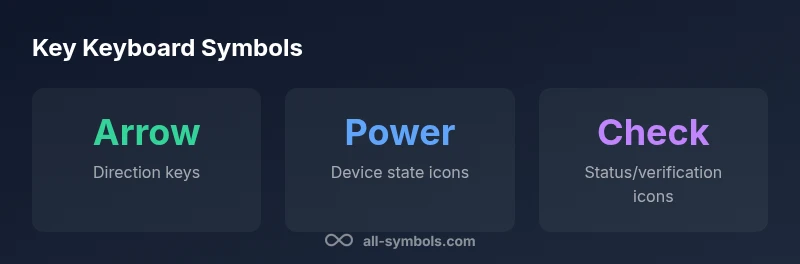
Symbols cluster into recognizable groups, each with conventional meanings and usage patterns. Arrows signal direction, enabling intuitive navigation in menus or forms. The power icon communicates device state and power-related actions. The check mark conveys confirmation or success, while the cross or warning icons flag issues. Punctuation signs like the period, comma, and question mark structure language and tone in text fields. Currency symbols ($, €, £) anchor financial interfaces across regions, often requiring careful consideration in localization. Mathematical operators (+, −, ×, ÷) support basic calculations in educational software and data dashboards. Finally, miscellaneous icons—like the clock or information symbol—provide quick status cues. When used consistently, these groups reduce cognitive load and improve both comprehension and speed of use.
How Keyboard Layouts Affect Symbol Availability
Layout differences shape which symbols are readily accessible and how input methods are implemented. US QWERTY layouts tend to favor a certain distribution of punctuation keys, while UK and international layouts rely more on dead keys and modifier combinations to access additional signs. The AltGr key (or Compose sequences) expands the symbol inventory without cluttering the main keyboard. In locales with non-Latin scripts, dedicated layouts or input method editors (IMEs) translate symbols into locale-appropriate icons, preserving cross-language usability. Teachers and designers should consider these variations when creating instructional materials or UI prototypes. Documenting the exact key sequences, recommended fonts, and recommended tooltips ensures consistent experiences across hardware and software.
Using Symbol Lists for Design and Accessibility
A symbol list for keyboard should be designed with accessibility in mind. Use semantic labeling, alt text, and accessible names for icons to assist screen readers. When a symbol conveys a specific action, pair it with a text label or tooltip to avoid ambiguity. Consider color contrast and glyph distinctiveness to help users with visual impairments or cognitive differences. In design systems, define a small set of preferred glyphs for common actions (e.g., navigation arrows, check marks) and a separate set for locale-specific signs. Maintain a living glossary that tracks symbol meanings as languages and fonts evolve, ensuring that designers, developers, and educators share a common mental model of what each glyph represents.
Practical Examples: From Alt Codes to Unicode
Inputting keyboard symbols often involves a mix of direct keyboard entry and code-based methods. For standard signs, you can type them directly (period, comma, question mark). For rarer glyphs, Unicode input is widely supported: the check mark is U+2713 (✓) and the power-on symbol is U+23FB (⏻). Alt codes are platform-dependent: Windows users can access many symbols by holding Alt and typing a numeric code on the numeric keypad; macOS users rely on Unicode input or the Emoji & Symbols viewer. When teaching symbol entry, demonstrate these methods with concrete examples and provide cross-platform instructions to avoid frustration.
Visual Guide: Common Keyboard Symbols with Examples
Below is a quick, visual reference of widely used keyboard symbols and their typical meanings. Arrows indicate direction; the power symbol signals device state; the check mark marks completion; punctuation shapes define sentence boundaries; currency signs anchor monetary interfaces. Remember that fonts and rendering environments can subtly alter glyph shapes, so it’s important to test on multiple systems and browsers to verify legibility. This section complements the symbol list for keyboard by offering rapid, at-a-glance recognition that students and designers can reference during projects.
Potential Pitfalls and Ambiguities
Not all symbols have universal meanings. A check mark in one culture may imply approval, while in another context it could indicate a completed task or a verification step; arrows can signify navigation or data flow depending on the UI layout. Font choice matters: a glyph that looks like a check might be mistaken for a tick in another font family. Additionally, context and labeling influence interpretation. Always pair icons with descriptive text labels or tooltips, especially when symbols appear in critical interfaces like error messages or accessibility features. Finally, beware inconsistent usage across platforms; establish and enforce a single, well-documented symbol set for your project to minimize confusion.
How to Build a Reliable Symbol List for Keyboard Projects
Start with a core catalog of universally understood symbols (arrows, power, check marks, punctuation). Expand with locale-specific signs only when necessary, and document each symbol's meaning, input method, and preferred glyph. Create a UI kit that includes recommended fonts, alt-text templates, and accessibility notes. Validate the list with user testing across devices and locales, then update it as new signs or input methods emerge. Maintain a changelog that captures updates to glyph shapes or meanings, and ensure all stakeholders are aware of the current symbol glossary. This disciplined approach makes symbol usage predictable and efficient for learners, designers, and developers alike.
Common keyboard symbol categories and how users input them
| Symbol Type | Common Name | Input Method |
|---|---|---|
| Arrow | Arrow keys and glyphs | Direct typing; Alt codes/Unicode for other arrows |
| Power | Power icons | Unicode/Alt input |
| Check | Check marks | Unicode U+2713; Alt codes |
| Punctuation | Basic punctuation | Direct typing |
Questions & Answers
What is included in a symbol list for keyboard?
A symbol list typically covers arrows, power icons, punctuation, check marks, and common language symbols. It also explains input methods (Unicode and Alt codes) and notes keyboard layout variations.
A symbol list covers arrows, power icons, punctuation, and how to input them across layouts.
How do I input special symbols on a keyboard?
You can use direct keyboard input for common symbols, or enter special characters via Unicode or Alt codes on many operating systems. Tools like character maps can help identify the right code points.
Use Unicode or Alt codes to input symbols not on the main keyboard.
Do symbols vary by keyboard layout?
Yes. Layouts differ by region and language, which changes which symbols are readily available and which input methods work. International layouts may require dead keys or composition.
Layouts change symbol availability and input methods.
What is the difference between power-on and power-off symbols?
Power symbols denote device state. The on symbol typically resembles a line within a circle, while the off symbol differs by device. Context and labeling determine their interpretation.
Power symbols show on or off state, often with contextual labels.
How can I verify symbol meanings in UI design?
Cross-check symbols with user research, localization guidelines, and accessibility standards. Use consistent icons and provide alt text or tooltips for clarity.
Verify with users and accessibility guidelines, and keep icons consistent.
“Keyboard symbols are a universal shorthand, but meanings shift with context; a well-documented symbol list helps designers and learners avoid misinterpretation.”
The Essentials
- Learn core symbol groups used on keyboards.
- Layouts alter symbol availability across regions.
- Use Unicode and Alt codes for input.
- Design UI with accessible symbol usage.
- Verify symbol meanings across contexts.